
Installing mods in Baldur’s Gate 3 is straightforward once the prerequisites are in place: a current copy of the game, the .NET 8 Desktop Runtime, and BG3 Mod Manager v1.0.12.9. This guide walks through the entire flow that most users follow in 2026, from preparing the Mods folder under %LOCALAPPDATA% to dropping .pak files into the manager, exporting the load order, and launching Baldur’s Gate 3 with mods active. The process described here works on Patch 7 and Patch 8 game builds and accommodates both Larian’s official in-game mod manager and third-party mods sourced from Nexus Mods or mod.io.
Prerequisites Before Installing BG3 Mods
Skipping prerequisites is the single most common cause of mod installation failure. BG3 Mod Manager is distributed as a portable ZIP through the official LaughingLeader/BG3ModManager repository on GitHub, and it depends on Microsoft’s .NET 8 Desktop Runtime to start. Players who launch the application without that runtime will see the window flash and disappear, which has been reported in repository issues such as #313 and #355. Before any mods are installed, the following items should be confirmed.
- Game version: A working copy of Baldur’s Gate 3 (Steam, GOG, or Microsoft Store / GamePass) on Patch 7 or Patch 8. The game must have been launched at least once so that the user profile and Mods folder are created automatically.
- Mod manager build: BG3 Mod Manager v1.0.12.9, available from the project’s download page. Earlier builds (v1.0.11 and below) targeted .NET 7 and will fail on systems that have only .NET 8 installed.
- Runtime: Microsoft .NET 8 Desktop Runtime (x64). This is the most frequent silent-launch culprit and worth installing first.
- Operating system: Windows 10 or Windows 11 (64-bit). Linux and Steam Deck users can run the manager through Wine or Lutris with extra configuration.
- Optional but recommended: Norbyte’s Script Extender (BG3SE) for any mod whose description mentions “requires SE”. The manager bundles a one-click installer under the Tools menu.
Avoid Program Files When Extracting the Manager
Run BG3 Mod Manager from a writable folder such as Documents or the desktop. Extracting it inside C:\Program Files triggers Windows UAC virtualization, which prevents the application from saving load orders and causes the kind of permission errors documented in GitHub issue #234.
Where Mods Live: The Mods Folder Under %LOCALAPPDATA%
Baldur’s Gate 3 reads mods from a per-user folder, not from the game install directory. The canonical path is:
%LOCALAPPDATA%\Larian Studios\Baldur's Gate 3\Mods
Pasting that exact string into the Windows Explorer address bar opens the folder regardless of which user is logged in. Alongside the Mods folder sits a PlayerProfiles\Public directory containing modsettings.lsx, the XML file that records which mods are active and in what order. BG3 Mod Manager edits both locations on the user’s behalf: dropped .pak archives are copied into Mods, and the active load order is serialized into modsettings.lsx when Save Load Order to File or Export Order to Game is used. Manual edits to modsettings.lsx are documented as a frequent source of corruption in repository issues #22 and #404, which is why the mod manager is the recommended interface for any change.
Why the Game Must Be Launched Once First
If Baldur’s Gate 3 has never been started, the Larian Studios folder under %LOCALAPPDATA% does not exist yet. BG3 Mod Manager will then warn that the Game Data Path or Profile Path could not be detected. Launching the game once to the main menu is enough; it creates both folders and the default modsettings.lsx template that the manager needs to read on first startup.
Where to Source BG3 Mods Safely
Two reputable sources cover the vast majority of Baldur’s Gate 3 mods in 2026. Each behaves differently with BG3 Mod Manager, and choosing the right source for a given mod prevents most “won’t load” complaints.
- Nexus Mods hosts the largest catalog of community mods. Files there are typically distributed as
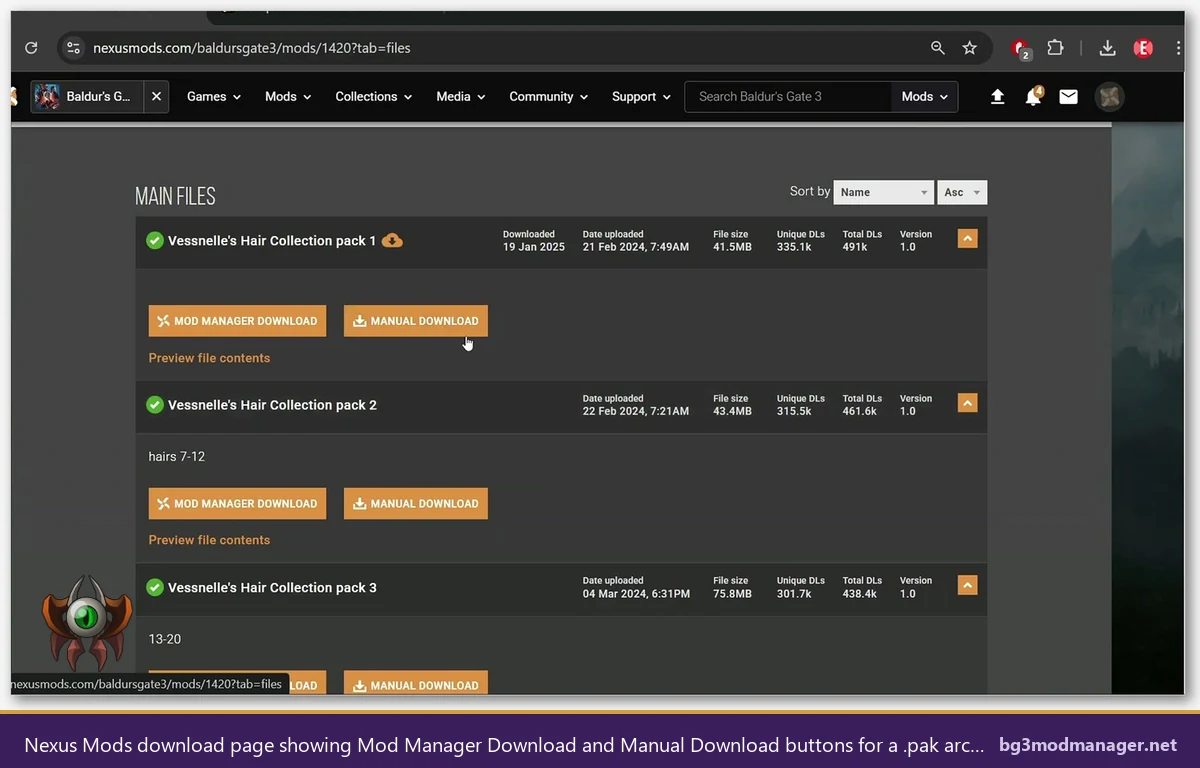
.zipor.7zarchives that wrap one or more.pakfiles. The “Manual Download” button is the path BG3 Mod Manager users want; the “Mod Manager Download” button on Nexus integrates with Vortex, not with BG3MM. - mod.io is the storefront Larian’s in-game mod manager pulls from natively. Mods listed there appear inside Baldur’s Gate 3’s main menu, but they can also be exported to a local
.pakfor management through BG3 Mod Manager. Larian’s wiki at wiki.bg3.community documents the export procedure for mods that originate on mod.io.
Files outside these two sources should be treated with caution. Repackaged archives uploaded to file lockers have been linked to malware reports in the past, and the open-source nature of BG3 Mod Manager (MIT license) does not extend to the mods themselves. Users can verify any mod’s authenticity by checking that it appears on the original author’s Nexus or mod.io profile rather than a re-host.
Step-by-Step: How to Install BG3 Mods With BG3 Mod Manager
The procedure below assumes that BG3ModManager_Latest.zip has been extracted to a writable folder and that BG3ModManager.exe launches without crashing. From that point, installing a mod is a five-step process.
- Download the mod archive. From Nexus Mods, choose Manual Download to receive the
.zipor.7zfile. The archive normally contains one or more.pakfiles plus an optional readme. - Open BG3 Mod Manager. The interface displays two panes: Active on the left and Inactive on the right. Newly imported mods land in Inactive by default.
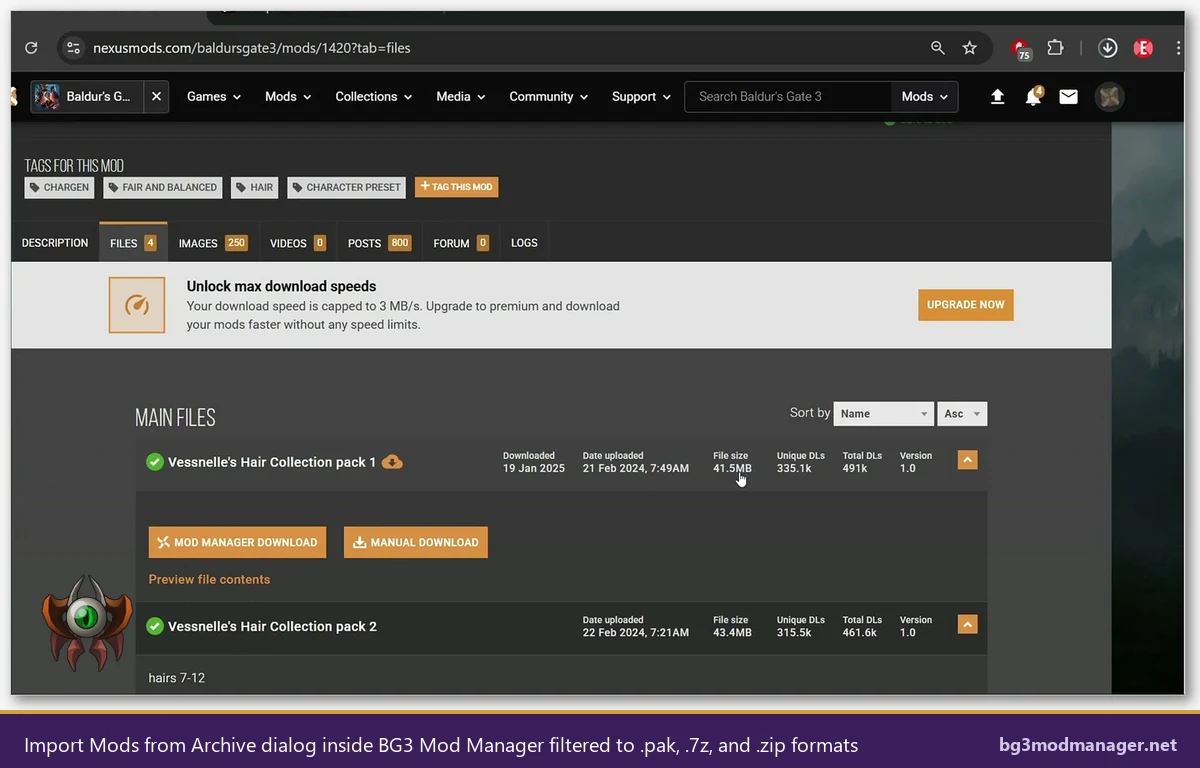
- Import the archive. Use File > Import Mod… and point the dialog at the downloaded
.zipor.7z. BG3 Mod Manager unpacks the archive, validates themeta.lsxmanifest inside each.pak, and copies the file into the Mods folder under%LOCALAPPDATA%. Drag-and-drop onto the manager window achieves the same result. - Move the mod from Inactive to Active. Double-clicking a mod or dragging it across enables the mod. Mods near the top of the Active list are loaded first; dependencies should sit above the mods that require them.
- Export the load order to the game. Use File > Save Load Order to File followed by File > Export Order to Game, or simply press the keyboard shortcut. This rewrites
modsettings.lsxwith the new active list. Launch Baldur’s Gate 3, ignore the “mods may make your game unstable” warning, and the active mods are now in effect.
If a mod fails to appear in either pane after import, the most common explanation is a missing meta.lsx inside the .pak. Mods built by older toolchains sometimes ship without a valid manifest; repository issue #213 documents the rejected-import pathway and the verbose log entry the manager writes in that case. Re-downloading from the original Nexus page or contacting the mod author is usually the cleanest fix.
Script Extender: When and How to Add BG3SE
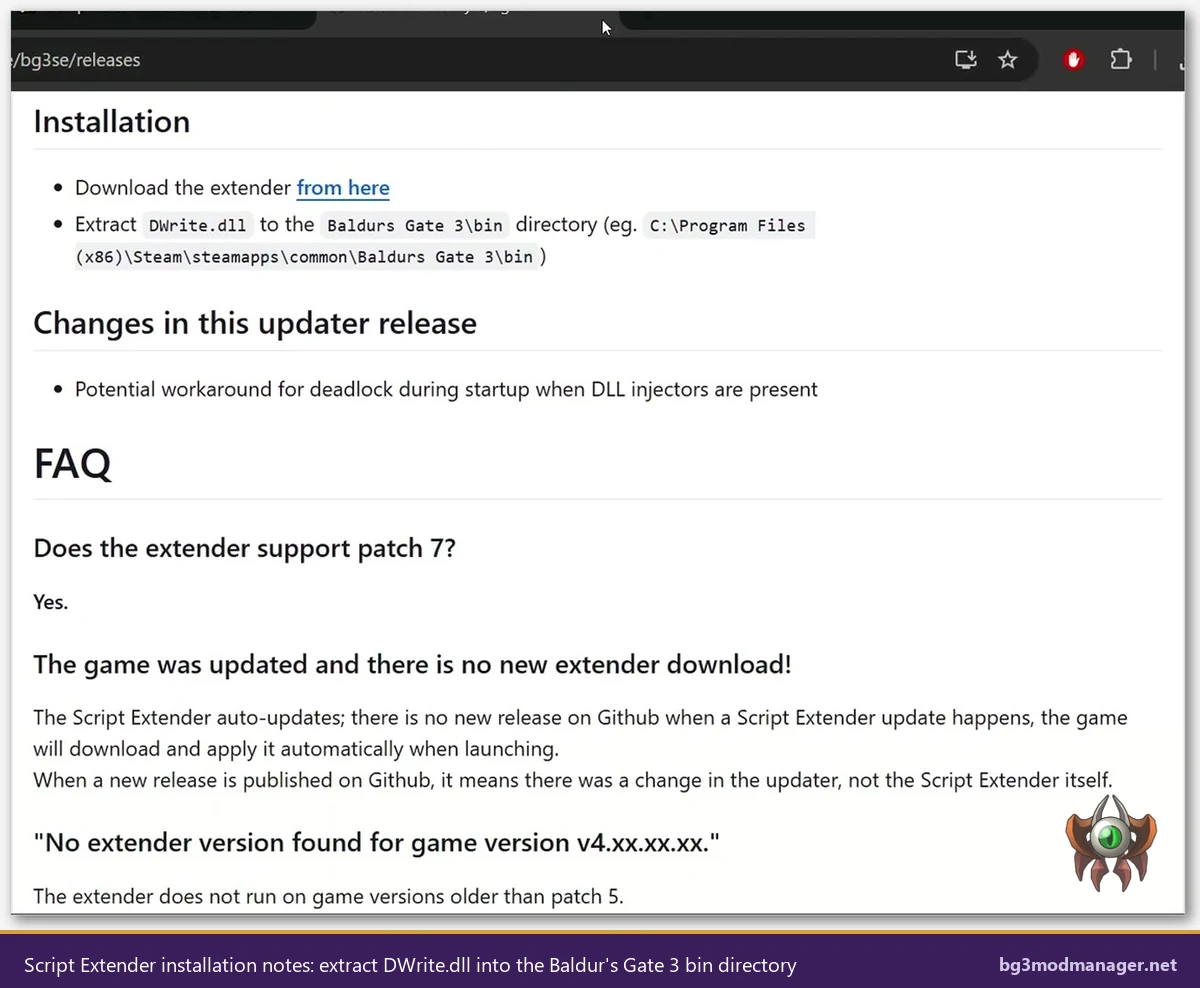
Many of the more elaborate mods (custom classes, full UI overhauls, expanded spell systems) depend on Norbyte’s BG3 Script Extender. Script Extender is a separate DWrite.dll hook that loads alongside Baldur’s Gate 3 and exposes a Lua API the mods can call against. BG3 Mod Manager bundles a one-click installer that handles the placement automatically.
- Open BG3 Mod Manager and choose Tools > Download & Extract Script Extender. The manager fetches the current build from Norbyte’s GitHub release page and extracts
DWrite.dllinto the game’sbindirectory. - Verify the install by launching the game once. Script Extender prints a console window during startup and writes a log file to
%LOCALAPPDATA%\Larian Studios\Baldur's Gate 3\Script Extender. - If the console window does not appear, the most common cause on Patch 7 and Patch 8 builds is a stale
DWrite.dll. Re-running the Tools menu option pulls the current version. Repository issues #330 and #418 cover the auto-update behavior in detail.
Script Extender is not required for cosmetic or balance mods that ship as plain .pak files. Reading each mod’s Nexus description before importing avoids the situation where a missing dependency silently disables the mod after launch.
Coexisting With Larian’s In-Game Mod Manager (Patch 7 and Patch 8)
Patch 7 introduced an official in-game mod manager that subscribes to mod.io mods and persists them in modsettings.lsx just like third-party tools do. BG3 Mod Manager v1.0.12.x reads that same file, so the two systems can coexist as long as a few rules are followed.
- Always close Baldur’s Gate 3 before exporting a load order from BG3 Mod Manager. The in-game mod manager rewrites
modsettings.lsxon quit, and concurrent writes lead to the load-order rollback documented in repository issues #238 and #353. - Mods that exist on both Nexus Mods and mod.io should be installed through one source only. Duplicate
.pakfiles trigger the “two mods declare the same UUID” warning and disable both copies. - Use BG3 Mod Manager’s Refresh button (F5) after exiting Baldur’s Gate 3 to reread
modsettings.lsxand pick up any changes Larian’s manager made in-game.
Mixed-Source Load Orders Are Officially Supported
GitHub issue #73 captures the typical mixed-source workflow: Nexus mods stay in the BG3 Mod Manager Active pane, mod.io mods come in through Larian’s in-game manager, and modsettings.lsx ends up containing both lists in the order they were enabled. There is no need to migrate one to the other.
Troubleshooting Common Install Failures
The vast majority of non-working mod reports trace to one of four root causes. Working through them in order resolves nearly every install issue without resorting to a clean reinstall.
- Manager closes silently. The .NET 8 Desktop Runtime is missing or stale. Install the x64 build from dotnet.microsoft.com and reboot.
- Game launches without mods. The load order was not exported. Use File > Export Order to Game after every change, then verify that
modsettings.lsxcontains the new entries. - Imported mod missing from Inactive pane. The
.paklacks a validmeta.lsxmanifest. Re-download from the source, or check the mod page for an updated build. - Game crashes at the launcher. A Script Extender mismatch with the current game patch. Run Tools > Download & Extract Script Extender again to pull the version that matches Patch 7 or Patch 8.
When to File a GitHub Issue
If the four checks above fail, the BG3 Mod Manager log file (saved next to the executable as BG3ModManager.log) usually points to the root cause. Posting the relevant excerpt to the project’s GitHub Issues tracker, with the Patch number and the specific mod URL, is the fastest way to get developer attention. Existing tickets such as #22, #213, and #404 contain working examples of well-formed reports.