
BG3 Mod Manager hides most of its power inside a single dialog: File > Preferences, sometimes labeled Settings depending on the build. Operators who never open this window only see roughly half of what the application can do, and many of the most commonly reported issues on the project’s GitHub tracker trace back to a single misconfigured field that the user never knew existed. The Game Data Path determines whether mods load at all. Auto-Export decides whether the load order survives the next game launch. Lock Modsettings prevents Larian’s launcher from wiping the export. Keyboard shortcuts compress repetitive workflows from minutes to seconds. This 2026 reference walks through every preference, every tab, and every keybind currently exposed by BG3 Mod Manager v1.0.12.x, with the canonical setting names taken from the maintainer’s Settings.cs source on GitHub. Users who finish this article will know exactly which switch controls which behavior, which defaults to keep, and which to flip for power-user workflows.
How to Open BG3 Mod Manager Settings
The Settings dialog is reachable from the application’s top menu bar. With BG3 Mod Manager open, users should click File and then Preferences. Older builds prior to v1.0.10 used a separate Settings menu, but the v1.0.12 release consolidates everything into the Preferences dialog. The keyboard shortcut Ctrl + , opens the same window directly without touching the menu bar, which matches the convention used by Visual Studio and most professional desktop applications.
The Preferences window is modal and tabbed. The default tab on first launch is General, which exposes the application-wide preferences that affect every profile. Other tabs visible in v1.0.12.9 include Mods, Updates, Keybindings, and (when verbose logging is enabled) Logging. All values entered into the dialog are written to %APPDATA%\BG3ModManager\Settings\settings.json when the OK button is clicked. The dialog does not auto-save: clicking the close button without OK discards the changes.
General Tab: Application-Wide Preferences
The General tab covers preferences that change how the application behaves for every profile. The fields here map directly to properties on the ModManagerSettings class in the maintainer’s source repository, which makes the canonical names easy to confirm. Users who run into setting-related bugs are sometimes asked by the project maintainer to share these values verbatim, so understanding the mapping helps when filing issues like #213 or #355.
- Game Data Path (
GameDataPath): the absolute path to the Baldur’s Gate 3Datafolder. This is the single most important setting in the application. - Game Executable Path (
GameExecutable): the absolute path tobg3.exeorbg3_dx11.exe. Used by the in-app Launch button. - Workshop Path (
WorkshopPath): points to the Steam Workshop content folder when the user has subscribed to BG3 Workshop mods. - Documents Folder Override (
DocumentsFolderPathOverride): overrides the auto-detected Documents path for users on non-default OneDrive setups. - Default Profile (
SelectedProfileUUID): the profile that loads by default each time the application opens. - Auto Add Missing Dependencies (
AutoAddDependenciesWhenEnabling): automatically pulls dependent mods into the active load order when a mod is enabled. - Save Window Location (
SaveWindowLocation): restores the window position and size on next launch. - Theme (
SelectedTheme): Light or Dark application theme.
Game Data Path: The Most Important Setting
The Game Data Path is the field that determines whether BG3 Mod Manager works at all. The application uses this path to locate the game’s Mods folder, the modsettings.lsx file, and the engine resources required to validate .pak archives. When the field is empty or wrong, every mod the user enables shows a yellow warning triangle and the export button silently does nothing. GitHub issue #22 remains the most-referenced thread on this exact failure mode.
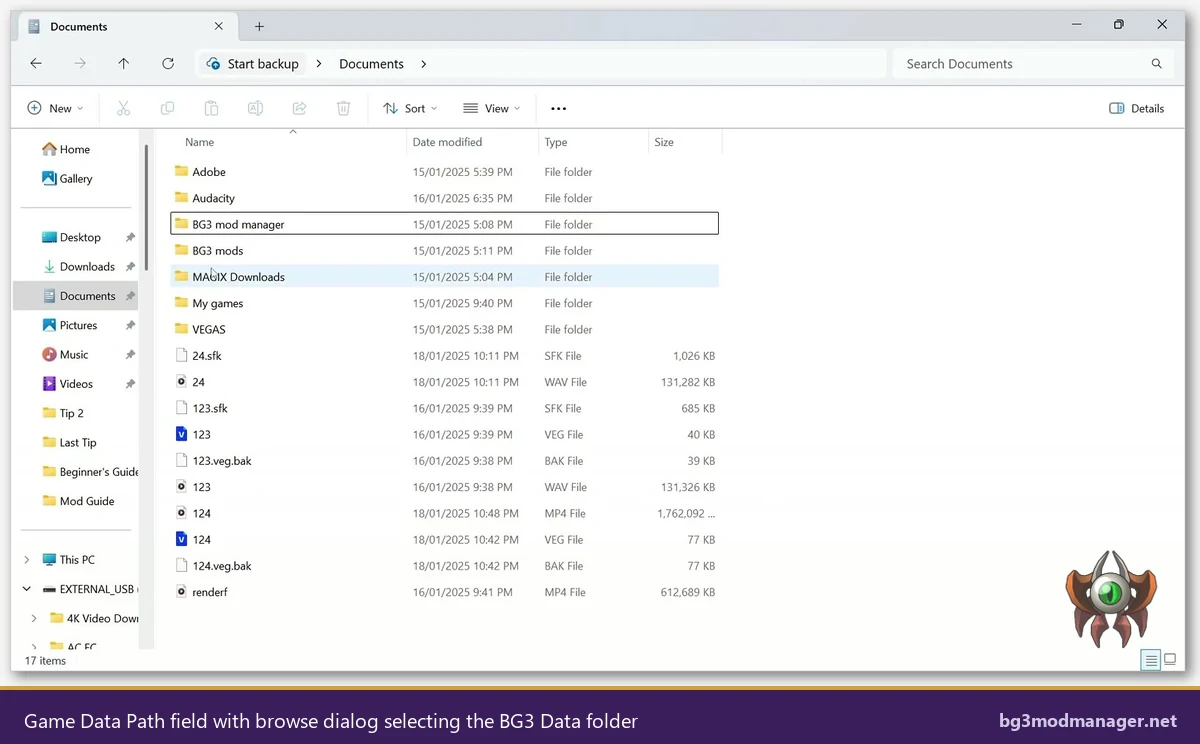
The correct path varies by storefront. On a default Steam install the value is C:\Program Files (x86)\Steam\steamapps\common\Baldurs Gate 3\Data. GOG Galaxy installs use C:\GOG Games\Baldur's Gate 3\Data. Microsoft Store and GamePass installs are more complex because of the WindowsApps folder permissions; users on that storefront should consult the dedicated guidance in the community wiki. Auto-detection is attempted on first launch by reading Steam’s manifest files, but users who installed BG3 to a non-default library or used a portable Steam install will need to set the path manually.
Game Data Path Must Point to the Data Folder
The Game Data Path must point to the Data folder, not the parent Baldurs Gate 3 folder. Pointing one level too high is the single most common configuration mistake and causes silent mod-detection failures.
Workshop Path and Mod Sources
The Workshop Path setting controls where BG3 Mod Manager looks for Steam Workshop subscriptions. Steam stores subscribed Workshop content under steamapps\workshop\content\1086940, where 1086940 is Baldur’s Gate 3’s Steam app ID. When this field is configured, mods subscribed via Steam Workshop appear in the application’s mod list alongside manually installed .pak files. Users who do not use Steam Workshop can leave this field empty without any side effect.
Beginning with v1.0.11, the application also exposes optional fields for the GOG Galaxy game install path and the Larian-managed mod folder under %LOCALAPPDATA%\Larian Studios\Baldur's Gate 3\Mods. Most users do not need to touch these because auto-detection covers the standard install paths, but the override fields exist for users running multiple installs side-by-side or working from custom drive letters.
- Steam Workshop folder: typically auto-detected from the active Steam library. Required only if the user has subscribed Workshop mods.
- Documents folder override: relevant for users whose Documents folder has been redirected to OneDrive at a non-standard path.
- Mods folder override: rarely set. Used by power users who store mods on a separate drive for SSD wear management.
Default Profile and Per-Profile Settings
BG3 Mod Manager supports multiple profiles, each with its own load order, custom tags, and active mod set. The Default Profile dropdown in the General tab determines which profile loads when the application starts. Most users only ever see the Public profile because that profile maps to Larian’s default game profile, but Larian’s engine supports additional profile UUIDs and the manager exposes them in the dropdown when they exist.
Several settings are stored per-profile rather than application-wide. These are saved to %APPDATA%\BG3ModManager\Profiles\<profile-name>\modsettings.json alongside the load-order data. Per-profile settings include the active load order name, the last-exported timestamp, and any custom tags applied to mods inside that profile.
- Public profile: the default Larian profile that maps to
%LOCALAPPDATA%\Larian Studios\Baldur's Gate 3\PlayerProfiles\Public. - Custom profiles: rarely used. Larian’s engine reads only the active profile, so most mod-test workflows are easier to manage as separate saved load orders within Public.
- Saved load orders: distinct from profiles. Saved load orders are JSON files in the profile folder that the user can switch between with one click.
Auto-Export and Backup Behavior
The Auto-Export and backup-related preferences are arguably the most underused settings in BG3 Mod Manager. By default, the application requires the user to press F5 or click Export Order to Game every time a load order changes. Auto-Export removes that step by writing the active order to modsettings.lsx automatically each time a mod is enabled, disabled, or reordered. The trade-off is that experimenting with the order in the manager always reflects in-game on the next launch, which some users find disruptive.
The related backup preferences control how the application handles the previous modsettings.lsx when a new export occurs, which is critical insurance for any user who actively reorders mods between game sessions. The default behavior creates a timestamped backup file in the same folder, which lets users roll back if a problematic export breaks the game’s main menu. The number of retained backups is configurable; the default is five.
- Auto-Export to Game (
AutoExportOnSave): enables automatic write ofmodsettings.lsxon every load-order change. Default off. - Backup modsettings.lsx (
BackupModSettings): writes a timestampedmodsettings.lsx.bak.YYYYMMDD-HHMMSSbefore every export. Default on. - Backup retention (
BackupRetentionCount): number of historical backups kept per profile. Default 5. - Save load order on close (
SaveLoadOrderOnExit): commits the active load order to the saved-orders folder when the window is closed.
Lock Modsettings and Save Load Order Options
Lock Modsettings is the single most useful preference for users on Patch 7 and later. Larian’s launcher rewrites modsettings.lsx whenever the game closes or whenever the in-game mod manager runs, which silently removes load orders that BG3 Mod Manager just exported. The Lock Modsettings option (LockModSettings) sets the file’s read-only attribute after every export, preventing the launcher from overwriting it. GitHub issue #355 tracks the long-running discussion about this behavior and confirms that toggling Lock Modsettings is the supported workaround.
Users who run both BG3 Mod Manager and Larian’s in-game manager should leave Lock Modsettings enabled. Users who only use BG3 Mod Manager and never touch the in-game manager can leave it off, but turning it on adds no downside other than a one-time read-only attribute that the application itself manages automatically.
- Lock Modsettings (
LockModSettings): sets read-only onmodsettings.lsxafter each export. Recommended on. - Confirm before save (
ConfirmBeforeOverwriteOrder): prompts before overwriting an existing saved load order with the same name. - Auto-save load order names (
AutoSaveLoadOrderName): generates a timestamped name for each new saved order if no name is entered.
Refresh Interval and Performance
BG3 Mod Manager polls the Mods folder periodically to detect new .pak files added by external tools, mod-installer scripts, or Steam Workshop subscriptions. The Refresh Interval setting (ModRefreshIntervalSeconds) controls how often this polling occurs. The default is 60 seconds, which balances responsiveness against background CPU usage. Users with very large mod collections (more than 200 mods) sometimes raise this value to 180 seconds to reduce background work, while users actively installing dozens of mods in a session often lower it to 15 or 30 seconds for instant pickup.
A separate Refresh Now button (and F5 shortcut) forces an immediate scan, which makes the interval less critical for interactive use. The interval matters mostly when users have left the application open in the background while installing mods through other tools.
- Mod Refresh Interval (
ModRefreshIntervalSeconds): seconds between background scans of the Mods folder. Default 60. - Disable background refresh (
DisableBackgroundRefresh): turns off automatic polling entirely. Manual refresh via F5 still works. - Skip launcher (
SkipLauncher): bypasses Larian’s launcher when the in-app Launch button is used. Reduces startup time.
Theme, Logging, and Diagnostic Settings
The Theme dropdown switches between Light and Dark application styling, with the choice persisting across application restarts via the SelectedTheme setting. The Dark theme is the default in v1.0.12 and reduces eye strain in evening sessions. Several users in issue threads have requested additional themes, but the maintainer has confirmed that custom theming would require a substantial rewrite of the WPF skinning system.
Verbose logging (VerboseLogging) enables detailed diagnostic output written to %APPDATA%\BG3ModManager\Logs\bg3mm-YYYYMMDD.log. Each launch creates a new log file. With verbose logging on, the application records every file scan, every export attempt, every settings change, and every detected error. The logs are essential when filing GitHub issues because they contain the exact stack trace and the configured paths the user has set.
- Theme (
SelectedTheme): Light or Dark. Default Dark. - Verbose Logging (
VerboseLogging): enables detailed log output. Default off. - Log Retention Days (
LogRetentionDays): days before old logs are auto-deleted. Default 30. - Send anonymous usage data (
SendUsageData): disabled by default. The maintainer does not run a telemetry server, so this setting is currently a no-op kept for future use.
Keyboard Shortcuts and Power-User Workflow
The Keybindings tab in Preferences exposes every keyboard shortcut the application supports. Most are pre-bound to convention-matching combinations, but every binding is editable. Users who manage large mod collections will find that learning even five shortcuts compresses common tasks from menu-clicks to single keystrokes.
- F5: Refresh mod list and re-scan the Mods folder.
- Ctrl + S: Save active load order.
- Ctrl + Shift + S: Save active load order as a new file.
- Ctrl + E: Export load order to
modsettings.lsx. - Ctrl+Shift+O: Import load order from a JSON file or
modsettings.lsx. - Ctrl + L: Launch BG3 from the configured Game Executable Path.
- Ctrl + ,: Open the Preferences dialog.
- Delete: Disable the selected mod (does not remove the
.pakfile). - Ctrl + F: Focus the search box and filter the active mod list.
Complete Settings Reference Table
The following table consolidates every preference exposed by BG3 Mod Manager v1.0.12.9 into a single reference. Setting names match the property names in Settings.cs on the maintainer’s GitHub repository, which makes them easy to confirm against the latest source. Defaults reflect a fresh first-run install.
| Setting | Default | What It Does | When To Change |
|---|---|---|---|
| Game Data Path | auto-detected | Path to the BG3 Data folder; required for mod detection | Whenever the game install moves, or after switching storefronts |
| Game Executable Path | auto-detected | Path to bg3.exe used by the in-app Launch button | When using the DirectX 11 executable instead of Vulkan |
| Workshop Path | auto-detected | Steam Workshop content folder for BG3 subscriptions | When subscribing to Workshop mods on a non-default Steam library |
| Documents Override | empty | Overrides the auto-detected Documents folder | OneDrive redirected to a non-standard path |
| Default Profile | Public | Profile loaded on application start | When using a custom profile UUID |
| Auto-Export | off | Writes modsettings.lsx automatically on every load-order change | For convenience once the load order is stable |
| Lock Modsettings | off | Sets read-only on modsettings.lsx after each export | Always on for users who also use the in-game mod manager |
| Backup Modsettings | on | Writes a timestamped backup before every export | Leave on. Disable only on storage-constrained devices |
| Backup Retention | 5 | Number of backups kept per profile | Increase to 20+ when testing many load orders |
| Save Load Order on Exit | off | Commits the active order on window close | For workflows that rarely use Ctrl+S |
| Auto-Add Dependencies | on | Pulls dependent mods into the active order automatically | Leave on. Off only for advanced override testing |
| Mod Refresh Interval | 60s | Seconds between background Mods-folder scans | Lower to 15s during active mod installs, raise to 180s for very large collections |
| Disable Background Refresh | off | Stops periodic polling entirely | For underpowered machines where polling causes stutter |
| Skip Launcher | off | Bypasses Larian’s launcher on in-app launch | To save 3-5 seconds per game start |
| Theme | Dark | Light or Dark application styling | Personal preference |
| Save Window Location | on | Restores window position and size on next launch | Disable on multi-monitor setups with frequently changing layouts |
| Verbose Logging | off | Detailed diagnostic output to %APPDATA%\BG3ModManager\Logs | Always on before filing a GitHub issue |
| Log Retention Days | 30 | Days before old logs auto-delete | Lower for storage-constrained devices |
| Send Usage Data | off | No-op currently; reserved for future telemetry | Leave off |
| Confirm Before Overwrite | on | Prompts before overwriting saved load orders | Disable for power users with naming discipline |
| Auto-Save Load Order Name | on | Generates timestamped names for unnamed saves | Leave on |
| Check For Updates on Start | on | Checks GitHub releases for newer manager versions | Disable on metered or air-gapped networks |
Recommended Settings Profile for New Users
New users running BG3 Mod Manager for the first time should keep most defaults but enable two specific settings to avoid the most common pain points. The recommended profile prioritizes safety and clarity over speed: backups stay on, Lock Modsettings is on, and Auto-Export is off so that the user remains in control of when changes hit the game.
- Game Data Path: confirmed correct via the browse dialog (tip: paste the path into Windows Explorer to verify it opens the Data folder).
- Lock Modsettings: ON. Prevents Larian’s launcher from wiping the export.
- Backup Modsettings: ON (default). Provides rollback if an export breaks the game’s main menu.
- Auto-Export: OFF (default). The manual F5 + Ctrl+E workflow is more predictable for new users.
- Verbose Logging: OFF (default). Turn on only when filing a GitHub issue.
- Theme: Dark (default). Optional preference.
- Mod Refresh Interval: 60s (default). Adequate for collections under 100 mods.
Recommended Settings Profile for Power Users
Power users who manage 200+ mods, switch between several saved load orders per session, and routinely test conflicts will benefit from a more aggressive configuration. Auto-Export accelerates iteration. Skip Launcher saves several seconds per launch. Verbose Logging stays on so that any anomaly can be traced retroactively without re-running a failure scenario.
- Auto-Export: ON. Removes the manual export step from the iteration loop.
- Lock Modsettings: ON. Mandatory whenever the in-game manager is also in use.
- Skip Launcher: ON. Saves 3-5 seconds per in-app launch.
- Backup Retention: 25. Provides a deeper rollback window during conflict-testing sessions.
- Mod Refresh Interval: 15s. Picks up newly installed mods almost immediately during active mod-installation sessions.
- Verbose Logging: ON. Logs every action so that anomalies can be traced post-hoc.
- Save Window Location: ON, with a wide-window layout that shows the active and inactive mod columns side-by-side.
- Custom Keybindings: rebind Ctrl+E to a single function key (F8) for one-handed export workflows during conflict-testing.
Users curious about the latest stable release can grab the current build from the BG3 Mod Manager download page, then return to the main guide for the full first-time setup walkthrough.
The settings recommendations above represent a baseline tested against BG3 v4.1.1.6629882 with the August 2025 hotfix. Larian’s engine occasionally introduces new behaviors at the launcher level (most recently the auto-rebuild of modsettings.lsx on game close), and the BG3 Mod Manager team responds with corresponding settings updates within one or two release cycles. Users who notice unexpected behavior after a Larian patch should check the GitHub release notes for the next manager update before assuming a configuration is broken. Issues like #355 and threads on the community wiki typically capture these interactions within hours of a patch dropping.
Two settings warrant a final note for users running BG3 Mod Manager alongside the Script Extender (BG3SE). First, the Game Executable Path should point to the same exe that BG3SE was installed against. If BG3SE was installed for the DirectX 11 build (bg3_dx11.exe), the manager’s launch button must target the same exe to honor the loaded extension. Second, when Skip Launcher is enabled, the manager bypasses Larian’s launcher and starts the configured exe directly, which is the only reliable way to ensure BG3SE loads. Users who keep Skip Launcher off and rely on the launcher’s Play button may find that BG3SE is silently skipped on some launches, an issue that has been logged repeatedly across BG3 Mod Manager and Norbyte/bg3se threads.