
Disabling a single mod in Baldur’s Gate 3 is fundamentally different from uninstalling it. BG3 Mod Manager separates the two operations cleanly: a removed mod leaves the manager entirely (along with its .pak reference inside modsettings.lsx), while a disabled mod stays imported, stays indexed, and simply moves out of the Active load order into the Inactive pane. That distinction matters for save preservation, A/B compatibility testing, and freezing a known-good order before a Larian patch lands. The maintainer team at github.com/LaughingLeader/BG3ModManager has shipped the dual-pane Active/Inactive UI since the earliest releases, and the model has remained stable through Patch 7 and the Patch 8 hotfix wave.
This guide walks through the mechanics of the disable workflow inside BG3 Mod Manager v1.0.12.9: what the Inactive pane actually represents on disk, how to drag a single mod out of the active order without disturbing anything else, what happens to a mid-run save that referenced the now-disabled content, and how to re-enable the mod later without losing its original position. Every step assumes a working install of the manager (covered separately at bg3modmanager.net/download) and a configured Baldur’s Gate 3 path under Settings → Preferences.
Disable Versus Uninstall
Disable is reversible. Uninstall is destructive. The Inactive pane preserves the imported PAK and any associated metadata, which means restoring a disabled mod is a single drag operation. A mod removed via Trash or the right-click delete option is gone from the manager and must be re-imported.
Why Disable Matters in BG3 Mod Manager (the Active/Inactive Pane Model)
BG3 Mod Manager presents two list panes side by side: the Active pane on the left holds every mod that will be written into modsettings.lsx at export time, and the Inactive pane on the right holds every mod the manager has imported but excluded from the next export. The split is intentional. Larian’s game engine reads the load order exclusively from modsettings.lsx, which means anything outside the Active pane has no in-game presence even though its .pak file still sits in the user’s Mods folder. Operators can keep a library of dozens of mods imported and toggle a working subset without re-importing or deleting anything.
The use cases for this workflow are practical, not theoretical. Compatibility testing is the most common: when two mods conflict, moving one to Inactive and re-launching the game isolates the offender in a single pass. Freezing a known-good order before a Larian patch is a close second; experienced modders frequently disable every cosmetic mod before installing a content patch, verify the core gameplay loop still works, and reactivate the cosmetics one at a time. Save preservation is the third, since a save file that references a disabled mod will load (with limitations covered later) where the same save against an uninstalled mod may corrupt. GitHub issue #234 documents the canonical request that drove the modern Inactive pane behavior.
- Active pane: mods that will be written to
modsettings.lsxon save and loaded by the game. - Inactive pane: mods imported into BG3 Mod Manager but excluded from the next export. The PAK remains in the user’s Mods folder; the engine simply does not see it.
- Trash / Remove: a separate action that deletes the imported reference (and optionally the underlying PAK). Not the same as disabling.
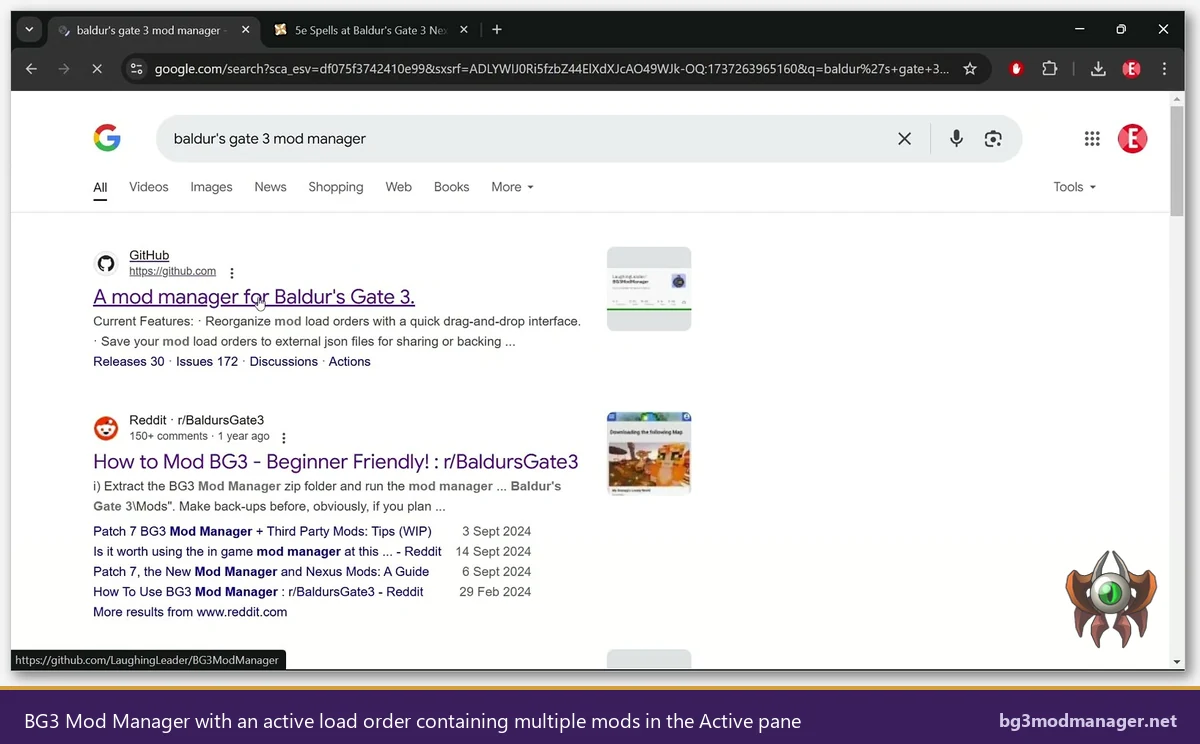
Step-by-Step: Drag a Mod from Active to Inactive
Disabling a single mod is a drag-and-drop operation that completes in under five seconds. The manager validates the move in real time, updates the in-memory load order representation, and waits for an explicit save before touching modsettings.lsx. That two-stage commit (drag, then save) is deliberate; it gives operators a chance to back out before the change reaches disk. The procedure below assumes the manager is already open with an active load order loaded.
- Locate the target mod in the Active pane. Use the search bar above the pane to filter by name if the list is long. The search is case-insensitive and matches partial strings against the mod’s display name and folder identifier.
- Click and hold the row. Left-click on the mod’s row, anywhere outside the checkbox column, and hold the mouse button. The cursor changes to a drag indicator and the row outline highlights.
- Drag horizontally to the Inactive pane. Move the cursor across the divider into the Inactive pane on the right. A green plus icon appears once the drop target accepts the move. Release the mouse button.
- Verify the move. The mod row now lives in the Inactive pane. The Active pane reflows automatically, closing the gap left by the disabled entry, and the load-order index numbers shift up by one for every entry below the original position.
- Save the load order. Click File → Save Load Order, press Ctrl+S, or click the disk icon in the toolbar. This step writes the new
modsettings.lsxto%LOCALAPPDATA%\Larian Studios\Baldur's Gate 3\PlayerProfiles\Public. Until this save fires, the change exists only in the manager’s working memory. - Launch the game. Use the manager’s Launch Game button or start Baldur’s Gate 3 from Steam / GOG. The disabled mod will not load, and the game will report a missing-mod warning at the main menu if a save references it.
Multi-select works the same way. Hold Ctrl to pick non-contiguous rows or Shift to pick a range, then drag the selection across to Inactive in one motion. The manager treats batched moves atomically; either every selected mod transitions to Inactive or the operation aborts. Right-click context menus offer an equivalent Move to Inactive action for keyboard-first operators who prefer to avoid the drag gesture.
How BG3 Mod Manager Tracks Disabled Mods (modsettings.lsx and the Inactive Pane State)
Two storage locations work in tandem when a mod is disabled. The first is modsettings.lsx, the file Larian’s engine reads at game launch to populate the load-order list. After a Save Load Order action, this file contains exactly the mods present in the Active pane and nothing else. The disabled mod’s ModuleShortDesc entry is removed cleanly. There is no “disabled” flag inside modsettings.lsx; from the engine’s perspective, the mod simply does not exist in the order.
The second is the manager’s own state file, kept under %APPDATA%\LaughingLeader\BG3ModManager. This file records the imported PAK, its UUID, the version metadata, and a flag indicating whether the entry currently sits in the Active or Inactive pane. The manager rebuilds the dual-pane UI from this file on every launch, which is why a disabled mod stays disabled across restarts even though modsettings.lsx alone has no concept of the Inactive pane. The behavior was formalized in issue #355 as part of the Patch 7 compatibility pass, when load-order persistence rules were tightened.
The PAK itself remains untouched. BG3 Mod Manager never moves, renames, or deletes a .pak file when a mod is disabled. The file stays in %LOCALAPPDATA%\Larian Studios\Baldur's Gate 3\Mods exactly as it was after the original import. This is the property that makes re-enabling instant: the engine already has the bytes on disk, so adding the entry back to modsettings.lsx is sufficient. Users who keep a separate cold-storage Mods folder for archival purposes can verify this with a directory listing before and after a disable; file timestamps and sizes are identical.
- modsettings.lsx: rewritten on Save Load Order. Contains only Active-pane entries.
- BG3ModManager state file: tracks Active vs Inactive flags. Persists across restarts.
- The PAK file: never modified by a disable action. Stays in the Mods folder, retains its original timestamp.
Save File Implications: What Happens to a Mid-Run Save
A Baldur’s Gate 3 save file references the mods that were active when the save was written. Disabling one of those mods after a save exists creates a mismatch: the save expects content the engine no longer loads. The game’s response depends on what the disabled mod added. Cosmetic mods (hair, body presets, dye colors) typically degrade gracefully; the affected character renders with a fallback appearance and the save loads. Class mods, spell mods, and anything that introduced new uuid references in the save data trigger a “missing dependency” warning at the main menu.
The warning dialog presents three options: continue loading anyway, return to the main menu, or open the save with the missing content stripped. The “continue” path is the one most operators choose for cosmetic disables. The “stripped” path is destructive in the sense that any character data tied to the disabled mod is removed permanently from that save; reactivating the mod later does not restore the lost references. Best practice is to keep a labeled save before any disable that targets non-cosmetic content, so the original state can be recovered if the strip path is taken accidentally. Issue #404 tracks the manager’s effort to surface this warning earlier in the workflow.
Full-conversion mods (Mod Fixer, Compatibility Framework, similar foundations) deserve special handling. Disabling a foundation mod that other mods depend on can cascade: the dependent mods will load but call into missing APIs, producing crashes or silent feature failures. The manager flags dependency relationships in the right-click context menu under View Dependencies, and operators should consult that list before disabling any mod whose name appears in another mod’s required-dependencies field.
How to Re-Enable a Disabled Mod (and Restore the Original Position)
Re-enabling is the disable operation in reverse. Drag the mod from the Inactive pane back into the Active pane, drop it at the desired position in the load order, and save. The manager handles the position carefully: dropping near the top inserts the mod near the top, dropping near the bottom appends it. Operators who want to restore the exact original position should remember (or note) the index number before disabling, since the manager does not retain a “last known position” hint by default.
- Open BG3 Mod Manager. The Inactive pane displays the disabled mod with its full metadata intact.
- Drag the row from Inactive to Active. Drop it at the position the load order requires. Compatibility-sensitive mods (overhauls, frameworks) should land near the top; cosmetics and tweaks usually sit lower.
- Adjust position if needed. Within the Active pane, drag the row up or down to fine-tune. The manager renumbers the load order live as the row moves.
- Save the load order. Press Ctrl+S or use File → Save Load Order. The new
modsettings.lsxincludes the re-enabled entry. - Verify in-game. Launch Baldur’s Gate 3 and load the affected save. Any “missing dependency” warning that appeared while the mod was disabled should now be absent, and any save data that referenced the mod should resolve correctly.
For repeated enable/disable cycles (typical during compatibility testing), the manager’s profile system is more efficient than manual dragging. Profiles snapshot the entire Active/Inactive layout under a named label; switching profiles atomically reorganizes both panes without touching individual rows. Operators running A/B comparisons across many mods should create one profile per configuration and switch between them rather than dragging single rows back and forth.
Common Pitfalls (Orphan Dependencies, Override Mods That Bypass Inactive)
Two failure modes account for most of the support traffic around the disable workflow. The first is orphan dependencies. Disabling a foundation mod (Mod Fixer is the canonical example before Patch 7 made it obsolete) leaves any dependent mods active and broken. Symptoms range from silent feature loss to hard crashes during character creation. Users should always check the dependency tree via the right-click View Dependencies menu before disabling any mod that another mod requires. The manager surfaces dependency violations as a yellow warning triangle on affected rows after the next refresh.
The second is override mods that operate outside the modsettings.lsx mechanism. A small subset of mods install themselves directly into the game’s data folders (most commonly under Mods\GustavDev\Mods as override .pak files) and are loaded by the engine regardless of what the manager’s load order says. Disabling such a mod inside BG3 Mod Manager has no effect because the manager never controlled the file in the first place. The fix is to physically remove the override .pak from the Mods folder. Patch 7 changed how the engine indexes override files, and issue #355 documents the manager’s adjusted detection logic.
A third smaller issue worth noting: Script Extender plugins (DLL files dropped into bin\NativeMods) are not managed through the Active/Inactive pane at all. They sit on a parallel track. Disabling a Script Extender plugin requires deleting or renaming the DLL on disk, exactly as the Norbyte documentation describes. The pane workflow only governs .pak files registered in modsettings.lsx.
Refresh After Every Disable
Refresh after every disable. Press F5 or use Tools → Refresh Mod List to ensure the manager re-reads the file system. Without a refresh, override mods that bypass modsettings.lsx may still appear active in the UI even after their PAK has been removed.
Video Walkthrough
The video above demonstrates the dual-pane workflow with a populated mod list, including the drag gesture, the Save Load Order step, and the in-game verification at the main menu. Pause at the Inactive-pane shot to see how the disabled mod retains its full metadata while greyed out relative to active entries.
Frequently Asked Questions
Operators new to the manager should pair this guide with the install reference at bg3modmanager.net/download and the homepage hub at bg3modmanager.net. The disable workflow is one of the highest-leverage skills in modded BG3 because it converts every mod-related question from a destructive experiment into a reversible test. Keep the Inactive pane as a first-line debugging tool and the underlying modsettings.lsx stays clean across patches, profiles, and playthroughs.