
Mod Manager for Baldur’s Gate 3
The BG3 Mod Manager is an essential tool for players of Baldur’s Gate 3 looking to customize their gaming experience through mods. Developed and maintained by an open-source community, it facilitates the integration, management, and use of mods in Baldur’s Gate 3, enhancing gameplay with new features, appearances, classes, or spells.
Download the BG3 Mod Manager and start exploring mod or create your own mod. All details and guides are given below. So do checkout and do join community for any kind of support!
- Mod Manager for Baldur's Gate 3
- What is BG3 Mod Manager?
- Key Feature
- Latest Version & System Requirements
- How to Mod Baldur's Gate 3 using BG3 Mod Manager?
- Setting Up Script Extender Through BG3 Mod Manager
- BG3 Mod Manager vs Larian's In-Game Mod Manager
- Common Issues & Quick Fixes
- Platform Compatibility
- FAQs
What is BG3 Mod Manager?
The BG3 Mod Manager, developed by LaughingLeader, is a critical tool for Baldur’s Gate 3 players who wish to enhance their game with mods. It simplifies the process of integrating, managing, and using custom modifications, providing a seamless experience for gamers looking to customize their gameplay. This utility is freely available under the MIT license and designed to work with minimal setup. Current releases (v1.0.12.x and later) require Microsoft .NET 8 Desktop Runtime to function properly, while older builds shipped on .NET Framework 4.7.2 and .NET 7.
After installing the necessary prerequisites and downloading the mod manager, users can easily import mods into the game. The manager divides mods into “Active” and “Inactive” sections, allowing players to manage their mods efficiently. Mods are downloaded and unzipped into the game’s mods folder, after which the mod manager can be used to activate them, significantly streamlining the process.
The BG3 Mod Manager is incredibly helpful for both experienced modders and newcomers to the modding scene. It offers a straightforward interface for managing mods, reducing the complexity traditionally associated with mod installation and management. This utility helps ensure that mods do not conflict with each other and that they are correctly loaded into the game, enhancing the overall gaming experience without the hassle of manual installations.
Gamers enjoy a richer, more customized gameplay experience through the use of the BG3 Mod Manager. Whether it’s adding new classes, changing character appearances, or incorporating more spells, the mod manager opens up a world of possibilities. It allows gamers to tailor their experience in Baldur’s Gate 3 to their preferences, making each playthrough unique. Moreover, the community around modding is vibrant and active, constantly adding new mods for players to explore.
Key Feature
The BG3 Mod Manager offers several key features that cater specifically to Baldur’s Gate 3 modding, making it stand out when compared to other mod managers like Vortex or general-purpose managers discussed in the mod manager comparison on GitHub. Here’s a breakdown of its key features and advantages:
- Game-Specific Design: Unlike Vortex, which is designed to support modding for a wide range of games, BG3 Mod Manager is specifically tailored for Baldur’s Gate 3. This focus ensures compatibility and optimizes the modding process for BG3, potentially offering a smoother user experience for this specific game.
- Easy Mod Installation: BG3 Mod Manager simplifies the process of mod installation, allowing for drag-and-drop functionality to manage mods. This contrasts with the more general approach taken by Vortex, where users may need to adjust to a broader, less game-specific system for mod management.
- Portability: The BG3 Mod Manager is portable, meaning it doesn’t require installation to a specific folder and can be run from any location on your computer. This offers flexibility and ease of use that might not be as straightforward in more integrated systems like Vortex, which are designed to manage mods for multiple games from a central application.
- Automatic Path Detection: It automatically detects the pathways to the game data and executable files upon running, which can simplify the setup process for users. If automatic detection fails, manual setup is straightforward within its settings. This feature is especially useful for users who are not familiar with file paths and directories.
- Profile Management: While both BG3 Mod Manager and Vortex allow for the creation of profiles (allowing users to maintain different sets of mods for different playthroughs or setups), the dedicated nature of BG3 Mod Manager might offer a more streamlined approach for managing these profiles specifically for Baldur’s Gate 3.
- Virtualization and Mod Overwrites: The comparison on GitHub highlights the pros and cons of different virtualization schemes used by mod managers. While BG3 Mod Manager does not use a virtual file system like Vortex (which uses hardlinks, symlinks, or USVFS for virtualization), its dedicated approach means direct handling of mod files without the complexities of virtualization, reducing potential for conflicts and simplifying the troubleshooting process.
- Community Support: Being specifically designed for Baldur’s Gate 3, the BG3 Mod Manager likely benefits from more focused community support and development, tailored to the needs and updates of BG3 modding. This can lead to quicker updates and solutions for game-specific issues than might be available with a broader tool like Vortex.
- Reorganize mod load orders with a quick drag-and-drop interface. Allows reordering multiple mods at once. View details about each mod, including the description and dependencies.
- Save your mod load orders to external json files for sharing or backing things up.
- Export your active mod order to various text formats (i.e. a spreadsheet). These formats will include extra data, such as the mod’s steam workshop url, if any.
- Filter mods by name and properties (author, mode, etc.).
- Export load order mods to zip files (including editor mods), for easier sharing of a playthrough’s mods between friends.
- Import load orders from save files.
- Shortcut buttons to all the various game-related folders (mods folder, workshop folder, game directory, etc).
- Dark and light theme support.
In summary, while Vortex offers a powerful, one-size-fits-all solution for modding across numerous games with features like collection support and extensive virtualization options, BG3 Mod Manager provides a streamlined, game-specific approach that simplifies and optimizes modding for Baldur’s Gate 3 players. The choice between the two may come down to personal preference, whether you value the flexibility of managing mods for many games in one place or the simplicity and tailored experience of a dedicated mod manager.
Latest Version & System Requirements
The BG3 Mod Manager is actively maintained on GitHub by LaughingLeader, with regular releases that track Baldur’s Gate 3 patch cycles. The current stable build at the time of writing is v1.0.12.9, released in May 2025 and verified to work with Baldur’s Gate 3 Patch 7 and Patch 8. Releases are distributed as a single portable ZIP archive (typically 12 to 15 MB) and are published exclusively through the project’s official GitHub releases page. The project has accumulated more than 1,700 stars and 230 forks on GitHub, reflecting steady community engagement.
Before launching the BG3 Mod Manager for the first time, users should confirm that their Windows installation meets the following requirements:
- Operating system: Windows 10 or Windows 11 (64-bit). Linux and Steam Deck users can run the manager through Wine or Lutris with additional configuration.
- Runtime: Microsoft .NET 8 Desktop Runtime (x64) for v1.0.12.x and newer. Older builds (v1.0.11 and earlier) require .NET 7 or .NET Framework 4.7.2 instead.
- Visual C++ Redistributable: Latest Microsoft Visual C++ runtime, which is bundled with most recent Windows builds.
- Game install: A working copy of Baldur’s Gate 3 from any storefront (Steam, GOG, or Microsoft Store / GamePass). The game must have been launched at least once so the user profile and mods folder are created.
- License: BG3 Mod Manager is released under the MIT open-source license. Source code, build scripts, and release notes are publicly available on the official GitHub repository.
Silent Launch Failures Are Almost Always a .NET Runtime Issue
If the BG3 Mod Manager opens briefly and then closes without an error message, the most common cause is a missing or outdated .NET 8 Desktop Runtime. Installing the runtime from the official Microsoft .NET site and rebooting will resolve this in the majority of cases.
How to Mod Baldur’s Gate 3 using BG3 Mod Manager?
Remember to Back Up Game Files Before Modding
1. Ensure you update the game to the latest version. To do that, right-click on Baldur’s Gate 3 and go to properties.
2. Click on “Updates” to check the game version matches the latest release.
3. Right-click on Baldur’s Gate 3, select Manage, and choose the “Browse Local Files” option.
4. Select everything and copy it to a separate location.
5. Make a separate save file that does not use the mods. Do this before you install the mods for Baldur’s Gate 3.
Install Mods Using BG3 Mod Manager
- Run the game once if you haven’t already, so a profile and the mods folders get created.
- Make sure you have .NET 8 Desktop Runtime installed (current versions). Older builds of the mod manager may instead require .NET Framework 4.7.2 and .NET 7.0.13.
- Head to the dedicated BG3 Mod Manager website. On top you will find download button. Just hit and get file.
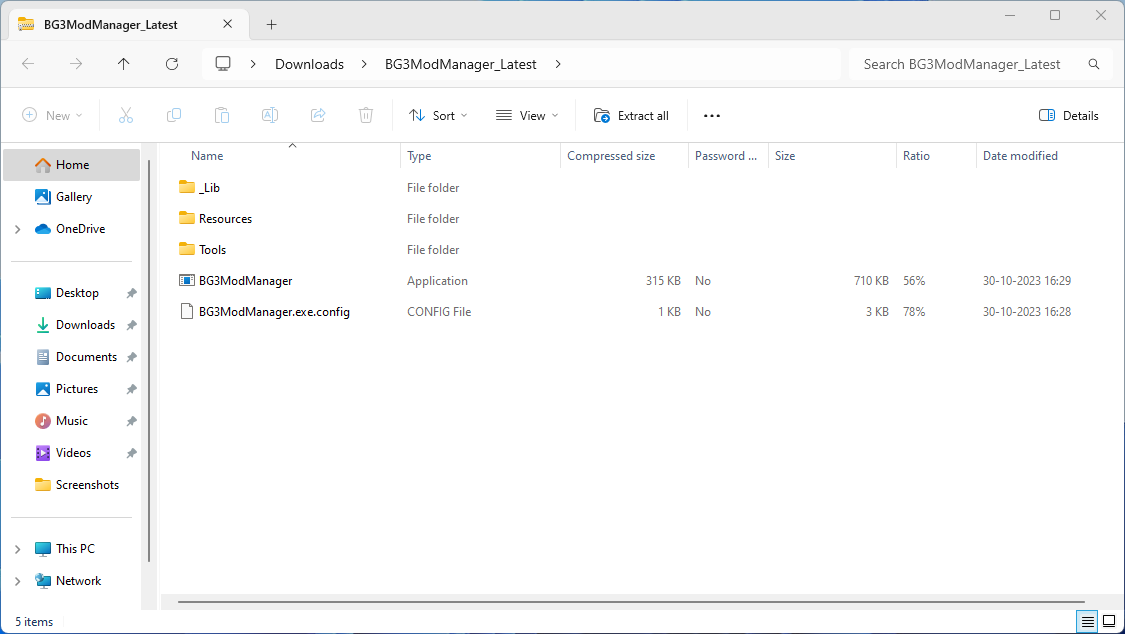
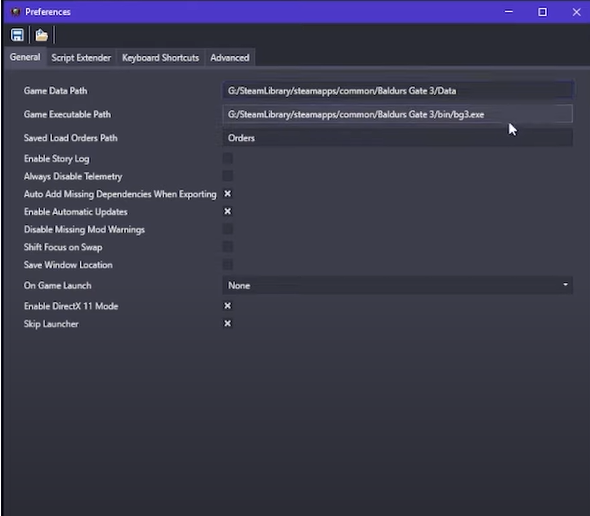
- Extract the zip file and run the mod manager. By default, the BG3 mod manager will detect your game data and mod folder path. Otherwise, open the preference by pressing Ctrl + P and direct the mod manager to find the folder.
- Make sure the BG3 mods manager detects the gamefiles and folders
Make sure to download and install modfixer or your mods will not work! –Download [the mod fixer is no longer needed!]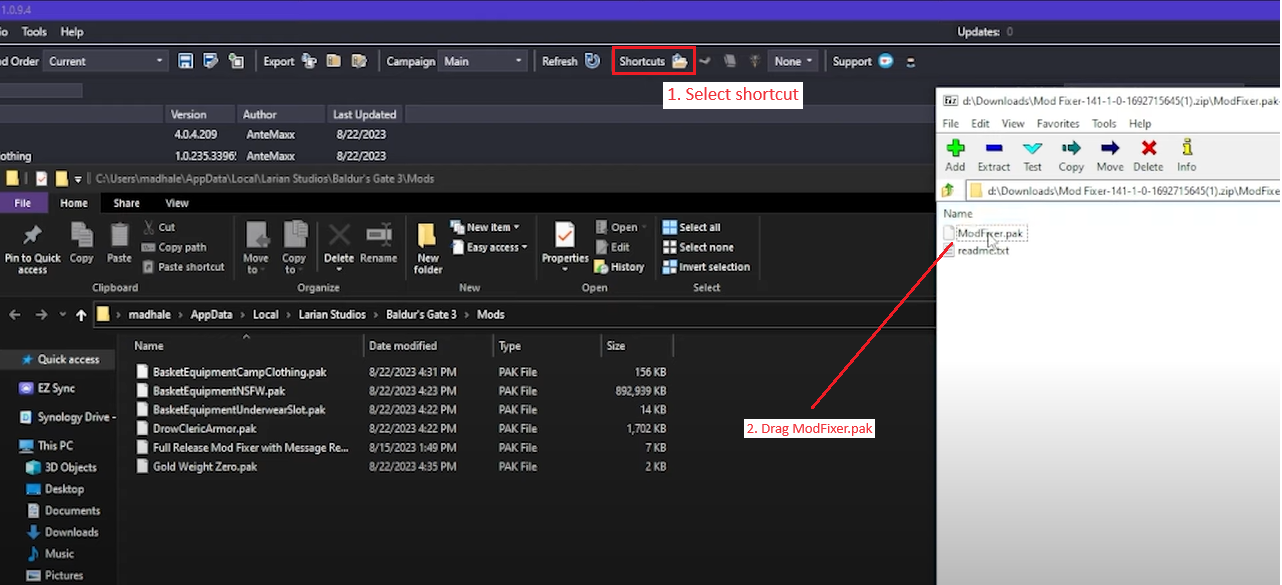
- Once done, you need to manually download a mod file from Nexus Mod Manager.
- Extract the mod files, and copy the .pkg file in the folder, located at the following pathway: C:\Users<username>\AppData\Local\Larian Studios\Baldur’s Gate 3\Mods
- Head over to the BG3 mod manager, and click “Refresh” to bring up the mod.
- The mod by default will be on the inactive side. Simply drag and drop it on the left pane to activate it. The number beside the mod files ensures the load order of the mod. The higher the load order, the higher it’s priority. Author of the mod should usually indicate an ideal load order for their mod. If they don’t, typically gameplay changes and overhauls would be loaded first while less extensive mods like hairstyles would load towards the back.
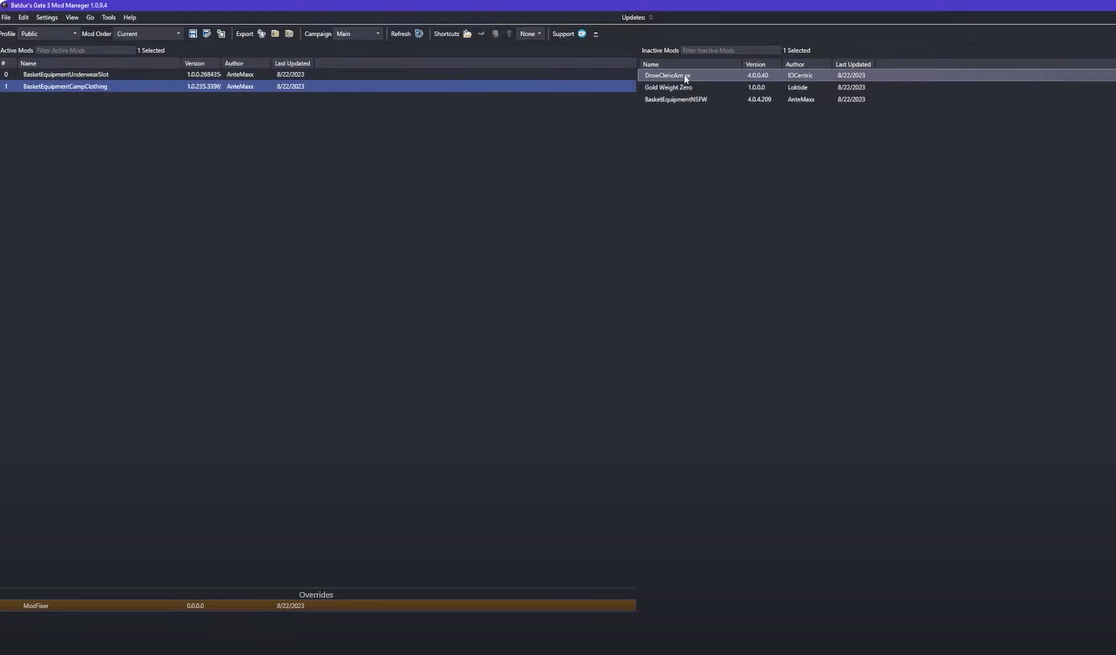
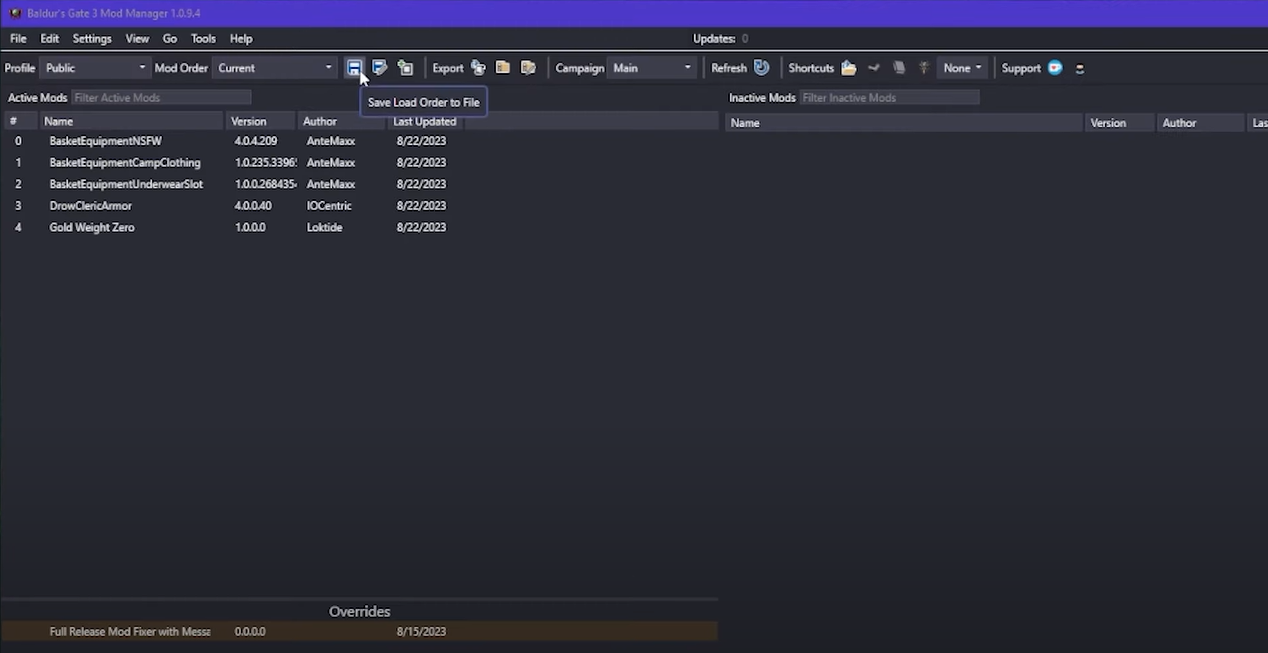
- Save the load order by pressing Ctrl + S and then launch the game from the mod manager itself by pressing Ctrl + Shift + G. or from menu you can do also as shown in image.
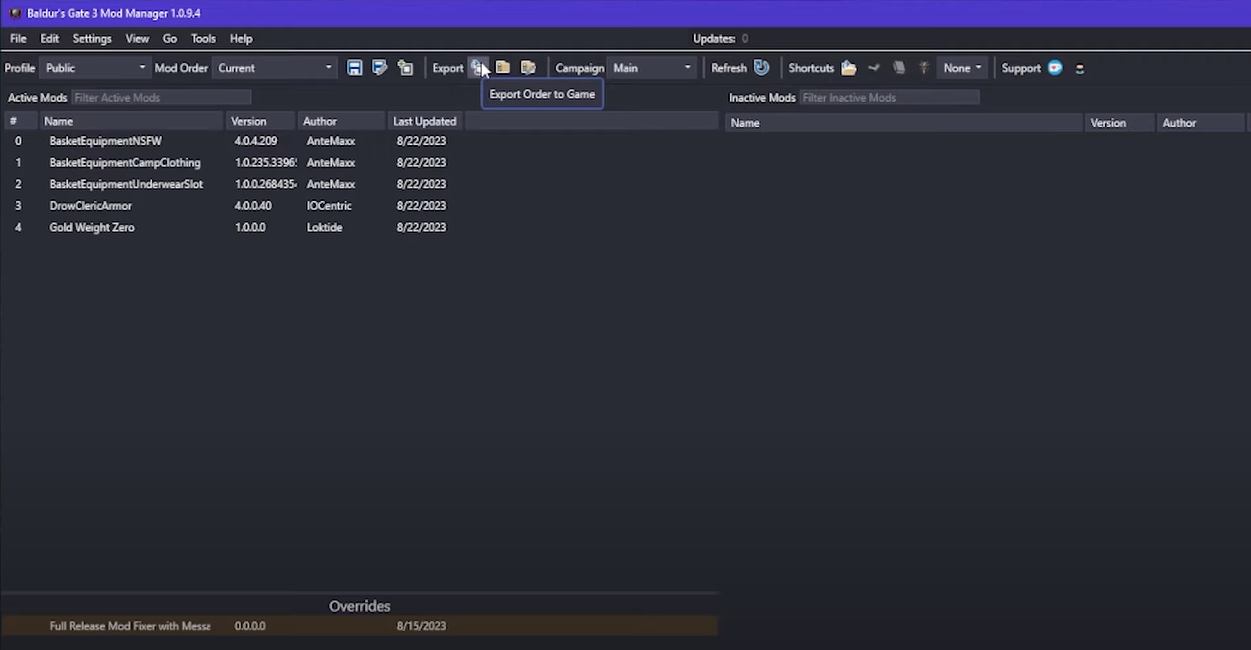
- Now click on “Export Order to Game”. If you don’t it will not work as order.
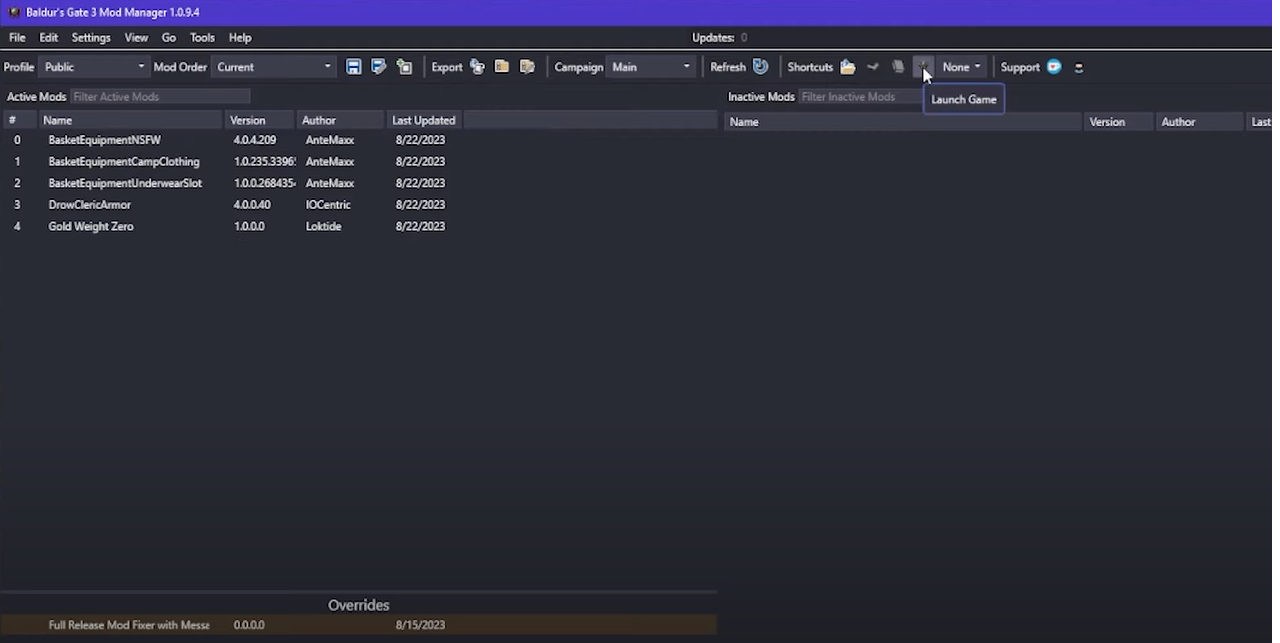
- Now from the BG3 Mod manager Click on “Launch game” as show in image.
There you have it! It sounds intimidating but once you get the hang of it, you will be dowloading a massive number of amazing mods and having even more fun time playing the lovely Baldur’s Gate 3!
Many mods that add new subclasses or character creator options may require ImprovedUI. Make sure to install both files on the mod page or you may not see your new character creator options.
Some mods may require other mods besides the ones above to function correctly. Make sure to check the mod-page on Nexus to see if there are any other requirements for the mod you want to install.
If you have any issues with the game after installing mods you will need to delete the mods, uninstall the mod manager, and the game. Then, replace the game files with your backup files. That should save you time reinstalling a clean copy of Baldur’s Gate 3. Then follow the above steps again.
Setting Up Script Extender Through BG3 Mod Manager
A growing number of advanced Baldur’s Gate 3 mods, including spell packs, class additions, and dependency frameworks, rely on the Baldur’s Gate 3 Script Extender (BG3SE) developed by Norbyte. The Script Extender is a runtime hook that exposes additional internal functionality of the game to mod code, enabling features that ordinary .pak mods cannot provide on their own.
The BG3 Mod Manager includes a built-in shortcut for installing the Script Extender, removing the need to manually copy DLL files into the game’s bin folder. The recommended workflow is as follows:
- Open the BG3 Mod Manager and select Tools > Download & Extract Script Extender from the top menu.
- The mod manager will fetch the latest signed release directly from Norbyte’s GitHub repository and place the required
DWrite.dllandlibprotobuf-lite.dllfiles into the game’sbindirectory. - Launch Baldur’s Gate 3 normally. When the Script Extender is correctly installed, its version number appears in the bottom-left corner of the main menu screen.
- The Script Extender updates itself automatically when the game starts. Users do not need to monitor GitHub for new releases unless they want to roll back to a specific build for testing.
For users who prefer manual installation or whose system blocks executable downloads, the same DLLs are available on the Script Extender’s Nexus Mods page and on Norbyte’s official GitHub releases page. Manual installation simply requires copying the two DLL files into Baldur's Gate 3\bin and restarting the game.
BG3 Mod Manager vs Larian’s In-Game Mod Manager
Patch 7 introduced an official, in-game mod manager built directly into Baldur’s Gate 3 by Larian Studios. The in-game manager is integrated with the mod.io platform and supports console as well as PC users. While both tools serve overlapping purposes, each has clear strengths, and many experienced players use them side by side.
| Capability | BG3 Mod Manager | Larian In-Game Manager |
|---|---|---|
| Available platforms | Windows desktop (PC) | PC, PlayStation 5, Xbox Series X/S |
| Mod source | Manual download from Nexus Mods or any source | mod.io catalog only |
| Drag-and-drop reordering | Yes, with multi-select | Yes, list-based reorder |
| Dependency resolution | Reads meta.lsx and warns on missing dependencies | Auto-installs declared dependencies from mod.io |
| Script Extender installer | Yes, via Tools menu | No |
| Load order export & sharing | JSON, text, ZIP archive | Not currently supported |
| Override-type mods | Read-only support; flagged after Patch 7 | Not supported (Override removed in Patch 7) |
| Account requirements | None | Free Larian account linked to mod.io |
| Best suited for | Power users, large mod lists, Nexus-sourced content | Console players, light modders, mod.io content |
Both tools write to the same modsettings.lsx file. When the BG3 Mod Manager is opened after Larian’s in-game manager has been used, it reads the existing mod.io entries and folds them into a unified load order that can be exported back to the game. This compatibility means players are not forced to choose one tool exclusively.
Common Issues & Quick Fixes
While the BG3 Mod Manager is generally stable, certain issues recur often enough to merit a quick reference. The following short troubleshooting guide covers the most frequent reports from GitHub issues, the modding community wiki, and player forums.
The Mod Manager Will Not Open
The most frequent cause is a missing .NET 8 Desktop Runtime. Installing the latest runtime from Microsoft and rebooting resolves the silent-launch failure for most users. Other contributing factors include extracting the mod manager into a protected folder such as Program Files, antivirus software quarantining a dependency, or a corrupted user profile in %APPDATA%\BG3ModManager. Removing that folder and relaunching forces the manager to regenerate its profile cleanly.
Mods Are Not Detected After Adding Files
If .pak files are visible in %LOCALAPPDATA%\Larian Studios\Baldur's Gate 3\Mods but the manager shows an empty list, the Game Data Path setting is most likely incorrect. Open Settings > Preferences and confirm the path points to the Data folder inside the Baldur’s Gate 3 install (not the install root). Click Save, then click the Refresh button on the main toolbar. Selecting “Main” from the campaign dropdown is also required for mods to export correctly.
Load Order Resets After Launching the Game
This usually indicates a problem with modsettings.lsx. The two leading causes are subfolders inside the Mods directory (Baldur’s Gate 3 wipes the file when it detects nested folders) and a corrupted meta.lsx inside one of the installed mods. Removing all subfolders and disabling mods in halves to identify a faulty entry typically resolves the issue.
Stuck on “Loading Profiles” After a Patch
Patch 7 changed the format of modsettings.lsx and older versions of the BG3 Mod Manager hang at the Loading profiles screen. Updating to the latest 1.0.12.x release resolves this in most cases. If the manager still hangs, deleting the existing modsettings.lsx file and relaunching the game forces Baldur’s Gate 3 to regenerate it in the new format.
“Mod Was Not Imported, Does It Contain a .pak?”
This message appears when the mod manager cannot locate a usable .pak file inside an imported archive. Many mod authors nest the .pak inside one or more folders or wrap it in an outer ZIP. Extracting the archive manually and dragging only the .pak file into the manager bypasses the issue.
Platform Compatibility
Although the BG3 Mod Manager is built for Windows, it remains usable on every major platform that runs Baldur’s Gate 3 on PC. Setup details vary depending on the storefront and operating system in use.
- Steam (Windows): The BG3 Mod Manager auto-detects the install path under
Steam\steamapps\common\Baldurs Gate 3. No additional configuration is required for the majority of Steam installations. - GOG (Windows): Auto-detection generally locates the Galaxy install location automatically. Users running BG3 outside the default GOG install folder must point the Game Data Path to
Baldur's Gate 3\Datamanually. - Microsoft Store / GamePass (Windows): GamePass installs live under
WindowsApps, which has restricted permissions and is not detected automatically. The Game Data Path must be set manually, typically to a location similar toC:\XboxGames\Baldur's Gate 3\Content\Data. - Steam Deck: BG3 Mod Manager runs on Steam Deck under Lutris in Desktop Mode. The setup requires installing .NET Framework 4.7.2 and the .NET 8 Desktop Runtime inside a Wine prefix, then pointing Lutris at
BG3ModManager.exe. Game Data Path entries use theZ:\prefix to map Linux paths to Wine. - Linux desktop (Mint, Ubuntu, etc.): The same Wine plus winetricks workflow used on Steam Deck applies to mainstream Linux distributions. The community wiki maintains an up-to-date Linux Tips reference for users who hit edge cases.
Console players (PlayStation and Xbox) cannot use the BG3 Mod Manager directly. The native in-game mod manager introduced in Patch 7 is the only supported option on consoles, and console mod selection is limited to titles approved through Larian’s mod.io curation pipeline.