
BG3 Mod Manager (BG3MM) is a portable Windows application: it ships as a ZIP archive, runs from whichever folder it is extracted into, and writes nothing to the Windows registry during normal operation. That portable architecture, documented in the LaughingLeader README and confirmed across the project’s release history on github.com/LaughingLeader/BG3ModManager, means there is no Add or Remove Programs entry, no MSI uninstaller, and no Control Panel record to click through. To uninstall BG3 Mod Manager cleanly, the manager’s three storage locations need to be removed by hand: the install folder, the user data folder under %APPDATA%, and any leftover artifacts the manager touched in adjacent paths.
This guide walks through the full clean-uninstall procedure for BG3 Mod Manager v1.0.12.x on Windows 10 and Windows 11 (64-bit). It covers when to reach for an uninstall (corruption that survives a config reset, a fresh-start migration, or a switch to a different load-order tool), the three separate locations that need to be cleared, what should explicitly be preserved (the Larian-side Mods folder full of .pak files), and an optional .NET 8 Desktop Runtime removal for users who installed that runtime solely for BG3MM. Every step is reversible if a backup of the install folder and modsettings.lsx is taken first.
Back Up Saved Load Orders Before Uninstalling
Back up modsettings.lsx and the saved load-order JSON files before uninstalling. The mod settings file lives at %LOCALAPPDATA%\Larian Studios\Baldur's Gate 3\PlayerProfiles\Public\modsettings.lsx. Saved orders live in the install folder under Data\SavedLoadOrders and inside %APPDATA%\BG3ModManager. Copying both directories to a separate folder preserves every load order in case BG3MM is later reinstalled or replaced.
Where BG3 Mod Manager Stores Files (Three Separate Locations)
A clean uninstall depends on understanding that BG3 Mod Manager touches three independent directory trees. Confusing them is the most common reason a “deleted” install reappears in spirit when the user reinstalls and finds old settings still applied. The three locations are: the install folder (wherever the user extracted BG3ModManager_Latest.zip), the roaming user-data folder at %APPDATA%\BG3ModManager, and the Larian-side mods directory at %LOCALAPPDATA%\Larian Studios\Baldur's Gate 3\Mods. Only the first two belong to BG3MM. The third belongs to Baldur’s Gate 3 itself and houses the actual .pak mod files that the game loads.
- Install folder: the directory chosen when the ZIP was extracted. Typical paths include
C:\Tools\BG3ModManager,C:\Users\<name>\Downloads\BG3ModManager_Latest, or a custom path on a secondary drive. ContainsBG3ModManager.exe, the_Lib,Resources, andToolssubfolders, and aDatasubfolder where saved load orders live. - User data folder:
%APPDATA%\BG3ModManager, which expands toC:\Users\<name>\AppData\Roaming\BG3ModManager. Holds preferences (window position, last-used profile), cached metadata, and a duplicate copy of certain configuration files that the manager writes during runtime. - Larian Mods folder:
%LOCALAPPDATA%\Larian Studios\Baldur's Gate 3\Mods. This is the directory the game itself reads. BG3MM does not own this path; it only enumerates and copies into it. Removing this folder uninstalls every mod the player has ever added to the game, including ones managed entirely outside BG3MM.
The portable nature of BG3MM is what makes the cleanup straightforward once these three paths are clear. As issue #22 on the LaughingLeader tracker established, the application deliberately avoids writing to HKEY_CURRENT_USER or HKEY_LOCAL_MACHINE so that operators can run multiple builds side-by-side and so that uninstall is a folder-delete rather than a registry surgery. That design choice also means an antivirus engine that quarantines BG3ModManager.exe can be cleared by simply deleting the install folder and starting over, with zero residue.
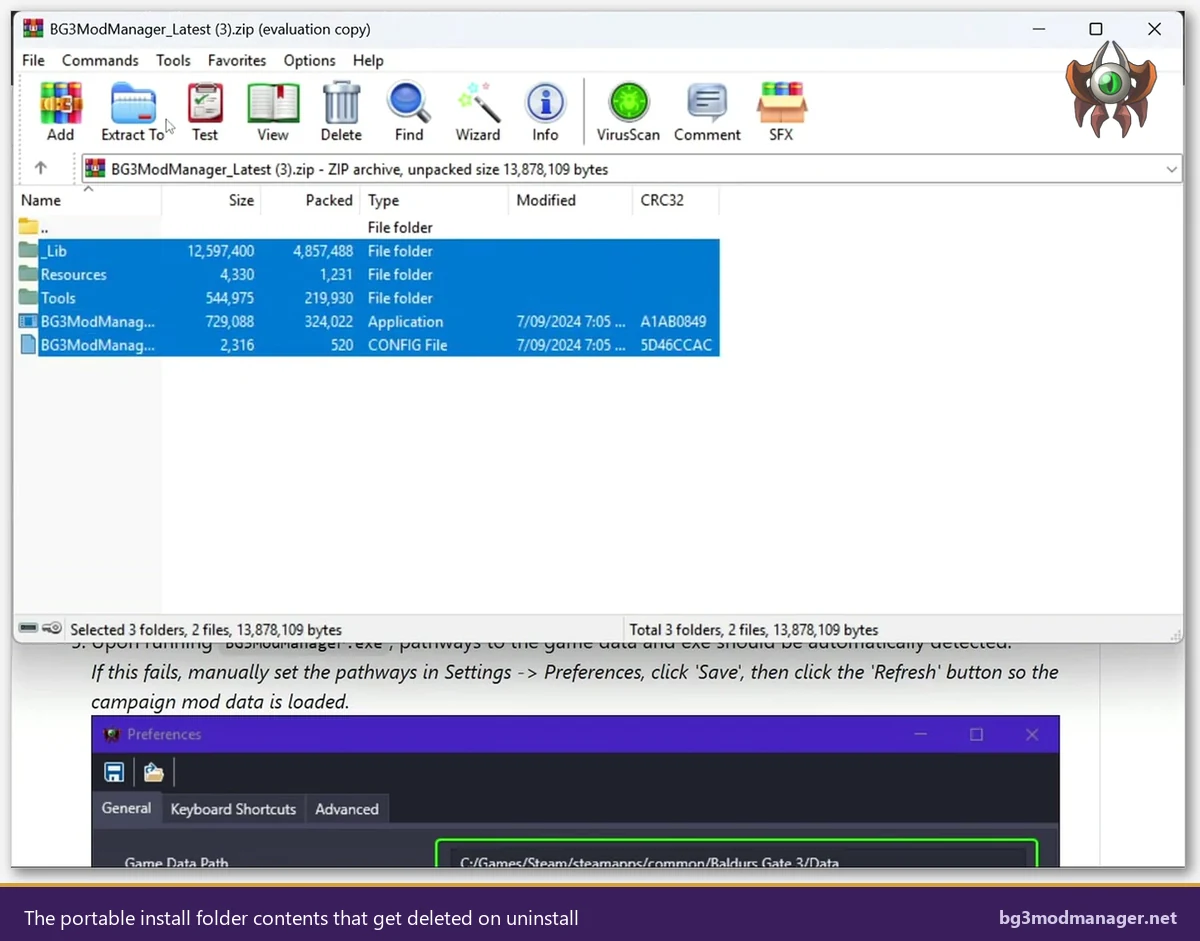
%APPDATA% and the Larian Mods folder are unaffected by removing the install directory alone.Standard Uninstall: Delete the BG3MM Folder
Step one of any clean BG3 Mod Manager clean uninstall is to remove the install folder. Because BG3MM is portable, this single folder contains the executable, the .NET 8 entry-point assemblies in _Lib, the icon resources, the bundled Tools helpers (Divine.exe and friends used for converting LSX/LSF files), and the Data subfolder where saved load orders live. Deleting this folder eliminates the application binary entirely. Windows Search Indexer may need a moment to drop cached entries, and any pinned shortcut on the taskbar or Start menu will need to be unpinned manually since BG3MM never registered an install record that Windows could automatically clean up.
- Close BG3 Mod Manager. Confirm via Task Manager (Ctrl+Shift+Esc) that no
BG3ModManagerprocess is running. File locks onBG3ModManager.exewill prevent the parent folder from being deleted. - Locate the install folder. Right-click any BG3MM shortcut, choose Open file location, then click the up-arrow to reach the parent directory. Operators who launched the application directly from the extracted ZIP folder can find it in
Downloadsor wherever the archive was unpacked. - Back up the Data subfolder (optional). Copy the
Data\SavedLoadOrdersdirectory to a safe location if any saved load orders are worth preserving for future use. The JSON format BG3MM uses is forward-compatible and can be re-imported into a future install. - Delete the folder. Select the entire BG3MM install folder, press Shift+Delete to bypass the Recycle Bin (or press Delete to keep a recoverable copy), and confirm the prompt. Folders containing thousands of files take a few seconds to disappear from File Explorer.
- Unpin shortcuts. Right-click any BG3MM shortcut on the taskbar, Start menu, or desktop. Choose Unpin or Delete. The shortcut targets are now broken and will produce error dialogs if double-clicked.
Operators who installed BG3MM into a system-protected location (C:\Program Files or C:\Program Files (x86)) will need an elevated File Explorer or an admin PowerShell window to delete the folder. The LaughingLeader maintainer has discouraged this install pattern repeatedly because it forces UAC prompts every time the manager writes to its own Data subfolder. The official download page and project README both recommend extracting to a user-writable location instead.
Removing User Data and Settings (delete BG3MM AppData)
Deleting the install folder leaves the roaming user-data folder behind. To delete BG3MM AppData, navigate to %APPDATA%\BG3ModManager and remove the entire directory. The fastest way to reach it is pressing Win+R, typing %APPDATA%\BG3ModManager, and pressing Enter. File Explorer opens directly to the folder, regardless of which Windows user account is logged in. Older builds (v1.0.11.x and earlier) wrote to %APPDATA%\LaughingLeader\BG3ModManager instead, so users migrating across the .NET 8 transition should check both paths.
The user-data folder typically holds a small number of files: a settings.json with the last-known game data path and AppData path, the most recently active profile reference, and a cache of mod metadata pulled from the Workshop URL field on each .pak. None of these files are large; the entire folder is rarely above one megabyte. Deletion is instant. Users who want to remove BG3MM entirely should delete the folder rather than just clearing its contents, because Windows otherwise leaves the empty parent directory behind and a future reinstall would inherit the empty shell.
- Press Win+R to open the Run dialog.
- Type
%APPDATA%\BG3ModManagerand press Enter. File Explorer opens directly to the user-data folder. - Click the up-arrow in File Explorer to reach the
Roamingparent. TheBG3ModManagerfolder is visible. - Right-click
BG3ModManagerand choose Delete. Confirm the prompt. The folder disappears immediately. - Repeat for
%APPDATA%\LaughingLeader\BG3ModManagerif a legacy v1.0.11.x install ever ran on this account. The folder is empty if no legacy build was ever used.
One subtle gotcha: BG3MM v1.0.12.x writes a logs subfolder under the user-data path that captures application errors and DLL load traces. Issue #213, which tracked the .NET 8 runtime migration, recommends preserving these logs when filing a bug report against the maintainer. Operators uninstalling because of a bug should copy the logs directory to a safe location before deletion so that the contents can be attached to a GitHub issue. Operators uninstalling for a clean fresh start can simply remove the folder along with everything else.
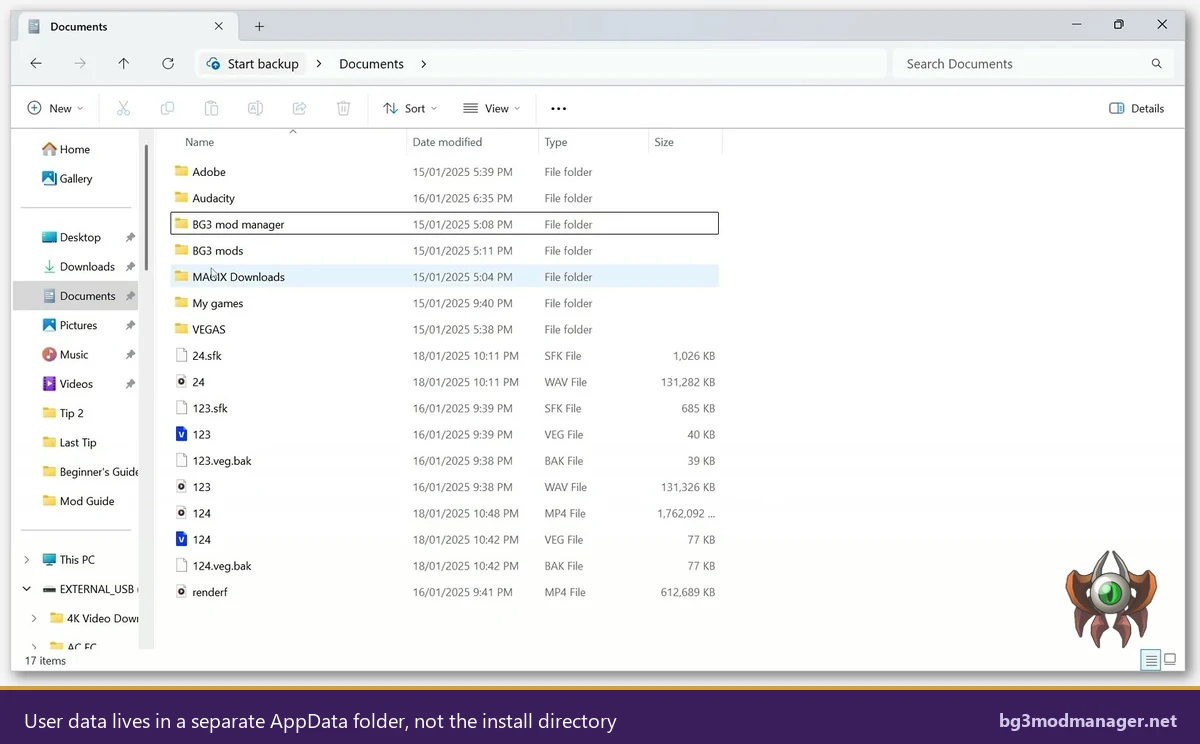
%APPDATA%\BG3ModManager and is a third independent location.Preserving the Larian Mods Folder (.pak Files Are Independent)
This is the single most important section of the guide and the source of countless support threads on the Larian forums and on r/BaldursGate3. The %LOCALAPPDATA%\Larian Studios\Baldur's Gate 3\Mods folder is owned by Baldur’s Gate 3, not by BG3 Mod Manager. The .pak files inside that folder are the actual mods the game loads when it launches. Deleting them effectively uninstalls every mod the player has ever added, regardless of whether BG3MM was used to install them or whether they were dropped in manually. Operators who delete this folder as part of “cleaning up after BG3MM” will discover their entire modded playthrough no longer loads.
Removing BG3 Mod Manager does not require touching the Larian Mods folder. The .pak files there are independent assets. They will continue to load when Baldur’s Gate 3 launches as long as modsettings.lsx still references them. Users switching to a different load-order tool (such as the in-game mod manager that Larian shipped after Patch 7) can leave the Mods folder untouched and let the new tool index the existing .pak files in place. The new tool will rewrite modsettings.lsx the first time it runs, but the .pak files themselves remain valid.
- DO NOT delete
%LOCALAPPDATA%\Larian Studios\Baldur's Gate 3\Modsas part of uninstalling BG3MM. - DO NOT delete
%LOCALAPPDATA%\Larian Studios\Baldur's Gate 3\PlayerProfiles\Public\modsettings.lsx. Removing this file forces the game to regenerate it from scratch, losing the active load order. - DO preserve any backup of
modsettings.lsxtaken before uninstalling. Restoring it after a future BG3MM reinstall recovers the previous load order in seconds. - DO preserve any custom .pak files the player downloaded directly (from Nexus Mods or from forum threads). These files are not stored anywhere else on the system.
The naming overlap between “BG3 Mod Manager Mods folder” (which does not exist as a literal directory; BG3MM uses Data in its install folder) and “Larian Mods folder” (which is real and at %LOCALAPPDATA%\Larian Studios\Baldur's Gate 3\Mods) is what trips people up. The two are not the same. Issue #355 on the LaughingLeader tracker contains a long thread of users who deleted the Larian-side Mods folder thinking they were cleaning BG3MM artifacts and wound up with broken saves. The lesson: leave the Larian Mods folder alone unless the goal is to also uninstall every mod from the game.
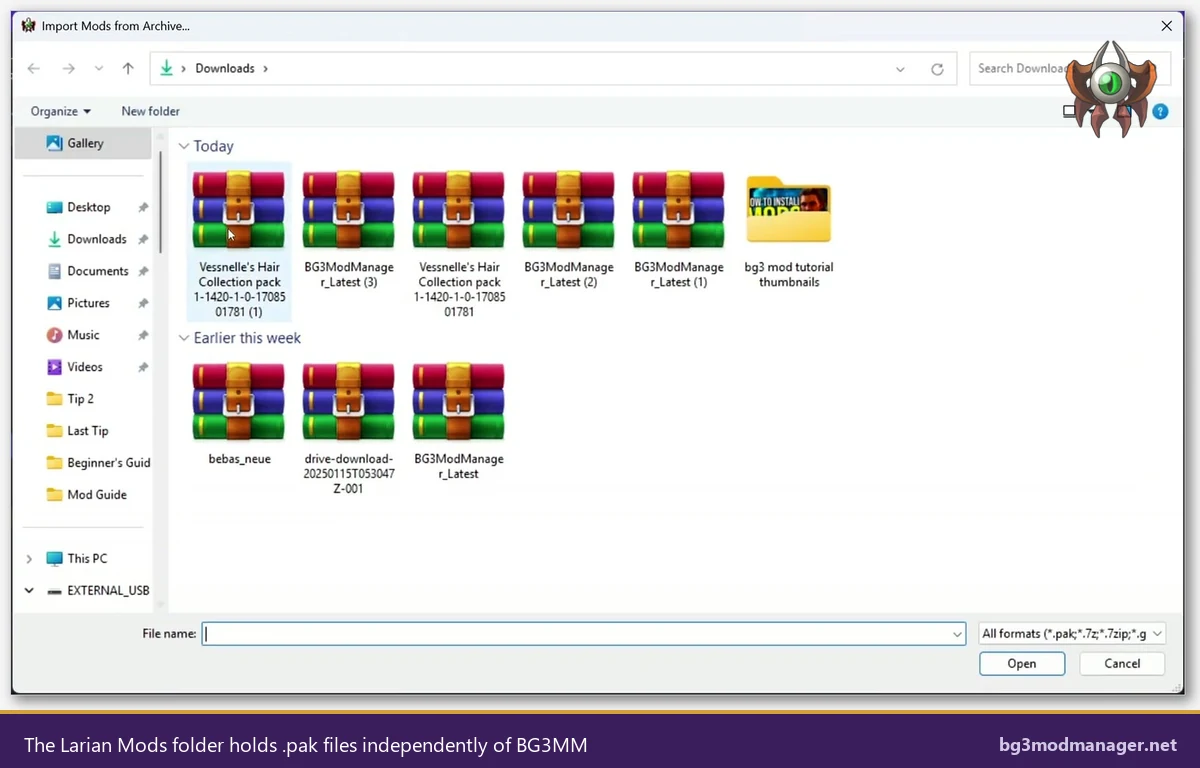
%LOCALAPPDATA%\Larian Studios\Baldur's Gate 3\Mods is owned by the game, not by BG3 Mod Manager. The .pak files inside continue to load even after BG3MM is fully removed.Optional: Remove .NET 8 Desktop Runtime
BG3 Mod Manager v1.0.12.x depends on the Microsoft .NET 8 Desktop Runtime, a transition tracked in issue #213. Users who installed the runtime solely to run BG3MM and who do not use any other .NET 8 application can remove it via Windows Settings. This is optional. The runtime is roughly 60 MB on disk and is used by an increasing number of Windows applications, so most users should leave it installed even after BG3MM is gone. Removing it on a system that has another .NET 8 application will break that application until the runtime is reinstalled.
To verify whether other applications depend on .NET 8, open PowerShell and run dotnet --list-runtimes. The output lists every runtime version installed and whether it is the Desktop or non-Desktop variant. If only one entry exists and it is the Desktop variant tied to BG3MM, removal is safe. If multiple entries exist or other software vendors have dropped .NET 8 prerequisites alongside their installers, leave the runtime alone. The Desktop Runtime is the one with “Microsoft.WindowsDesktop.App” in the listing; the plain Runtime (“Microsoft.NETCore.App”) is what console-mode .NET tools use and is unrelated to BG3MM.
- Open Settings → Apps → Installed apps on Windows 11 (or Settings → Apps → Apps & features on Windows 10).
- Search for .NET 8. Two or three entries usually appear: the Runtime, the Desktop Runtime, and possibly an SDK. Only the Desktop Runtime is required for BG3MM.
- Click the three-dot menu next to Microsoft Windows Desktop Runtime – 8.x.x and choose Uninstall. Confirm the UAC prompt.
- Optionally repeat for the Runtime and SDK entries if no other software requires them.
- Reboot the machine. The runtime is fully unloaded after the reboot.
Operators removing the runtime as part of troubleshooting should reinstall it before reinstalling BG3MM. The runtime is downloaded from the official Microsoft .NET 8 page. The Desktop Runtime variant (not the plain Runtime) is required because BG3MM uses Windows Presentation Foundation, which only ships in the Desktop variant. Skipping this distinction is the most common cause of the silent-launch failure where BG3MM opens for a fraction of a second and then closes without an error window, exactly the symptom issue #213 documents.
Verify a Clean Uninstall
Verification is what separates a “deleted folder” from an actual clean uninstall. The check has four parts: confirm the install folder is gone, confirm the user-data folder is gone, confirm the registry has no leftover keys, and confirm no Windows service or scheduled task references the manager. BG3MM never installs services or scheduled tasks under normal operation, so the latter two checks should always come back empty. If anything turns up there, it points to malware impersonating BG3MM rather than a real BG3MM artifact, and the suspicious entry should be quarantined immediately.
- Folder check: confirm both the install folder and
%APPDATA%\BG3ModManagerno longer exist. Press Win+R, type each path, and press Enter. File Explorer should display “Windows cannot find” rather than opening the folder. - Registry check (optional): open
regeditand search (Ctrl+F) forBG3ModManager. The portable application should produce zero results acrossHKEY_CURRENT_USERandHKEY_LOCAL_MACHINE. If any keys appear, they were written by Windows itself when a shortcut was pinned (these can be deleted safely once unpinned). - Service check: open
services.mscand scroll to the B section. No service named BG3ModManager or LaughingLeader should appear. The application does not register services. - Scheduled task check: open Task Scheduler and look under the root and the Microsoft branch. No task referencing BG3MM should exist.
- Process check: open Task Manager and look under the Details tab for any
BG3ModManager.exeentry. None should appear after the uninstall and a reboot.
A clean uninstall completes when all five checks return negative results. The Larian Mods folder is intentionally untouched, the saved load orders backup (if taken) sits safely outside any of the deleted directories, and the .NET 8 runtime is either still installed or has been removed deliberately. A future reinstall of BG3MM is now a fresh setup: extracting a new ZIP into a chosen folder and pointing it at the existing Larian Mods folder produces a working manager with the previous .pak files immediately visible. The BG3 Mod Manager homepage tracks the active version, and the download page serves the latest verified ZIP from the LaughingLeader release feed.
Watch a BG3MM Workflow Walkthrough
The video below covers the BG3 Mod Manager workflow including the install location structure that gets removed during a clean uninstall. Operators preferring a visual reference for which folder is the install folder versus the Larian Mods folder can mirror the on-screen actions while following the procedure outlined above.