
A missing dependency in BG3 Mod Manager is the small red flag that appears next to a mod row when its declared parent .pak is absent from the load order. The flag traces back to the Dependencies node inside that mod’s meta.lsx, which lists every other .pak the file expects to find loaded ahead of it at game start. Skip that resolution step and Baldur’s Gate 3 boots into a corrupt save state, freezes during the Story Editor stage, or silently disables the affected mod, depending on whether the parent provides scripting hooks (Script Extender, Compatibility Framework) or only assets (ImpUI templates, MCM menus).
This guide walks through the diagnostic flow used to clear every bg3 missing dependencies warning in BG3 Mod Manager v1.0.12.x: how the manager parses meta.lsx at refresh time, how to read the Dependencies side panel, which parent mods account for roughly nine out of ten of these warnings (Compatibility Framework, ImpUI, MCM, BG3 Script Extender), and how to verify the fix before launching the game. The procedure draws on issue threads #234, #330, and #404 on the LaughingLeader/BG3ModManager repository, where the dependency resolver behaviour was discussed and refined across several v1.0.12.x point releases.
Treat Every Red Flag as Launch-Blocking
A missing parent .pak does not always crash the game at the title screen. Some dependencies (asset-only) cause silent feature disablement; others (scripting parents like Script Extender or Compatibility Framework) trigger a hard crash inside the Larian Story Editor on the first load. Treat every red flag as launch-blocking until proven otherwise.
How BG3 Mod Manager Detects Missing Dependencies
The detection runs entirely against each mod’s embedded meta.lsx. When a .pak is dropped into %LOCALAPPDATA%\Larian Studios\Baldur's Gate 3\Mods and BG3 Mod Manager performs a refresh, the parser opens the archive in read-only mode, locates the Mods/<ModName>/meta.lsx path inside it, and walks the LSX tree for the Dependencies node. That node is structured as a list of ModuleShortDesc children, each of which carries a UUID, a Folder, a Name, a Version64, and an MD5. The manager then cross-references every UUID against the catalogue of .pak files currently visible to the user, covering both the active load order and the inactive pool on the right pane. Any UUID that fails to match flips the parent mod’s row to the missing-dependency state.
The state is rendered as a small red exclamation icon prefixed to the affected row in the active load order, plus a tooltip that prints the human-readable name of the missing parent. Hovering the icon expands the Dependencies side panel on the right of the manager window, listing the missing UUIDs alongside any version constraints declared in meta.lsx. The detection is non-destructive: BG3 Mod Manager does not auto-disable the row, does not silently rewrite the modsettings.lsx on the user’s behalf, and does not block the Export button. The decision to launch the game with a known-broken load order remains entirely with the operator. That conservative posture is documented in issue #234.
- Trigger: a
UUIDdeclared underDependenciesinmeta.lsxis not present in the visible mod catalogue. - Visible signal: red exclamation icon on the affected row plus a hover tooltip with the parent name.
- Side panel: the Dependencies pane on the right lists each missing UUID, its declared parent name, and any minimum-version constraint.
- Behaviour: the manager flags but does not block. Export Order to Game still writes
modsettings.lsx, leaving the user free to launch (and to crash).
meta.lsx declares a parent .pak not present in the catalogue. The flag is rendered next to the mod name and the Dependencies side panel populates on hover.Reading the Dependencies Panel and Identifying the Missing Parent
The Dependencies side panel is the first place to look once a flag appears. Click the affected row in the load order, then expand the Dependencies tab on the right of the application. The panel lists, for each declared dependency, the parent mod’s Name, its UUID, the Folder string the original author embedded in their meta.lsx, and a status column. Three status values matter: Found (parent is in the catalogue and active), Inactive (parent is in the catalogue but sitting in the right pane), and Missing (parent is not in the catalogue at all). A BG3MM missing dependency warning is the third state.
The Name column is the lookup key. Compatibility Framework, ImpUI, Mod Configuration Menu, BG3 Script Extender, and a handful of other large parent mods publish stable, recognisable names that users can paste straight into Nexus Mods search. The UUID is the canonical identifier and the only field guaranteed to be unique across the ecosystem; folder and name strings can collide between unrelated mods. When a parent name looks unfamiliar, copying the UUID into a search at nexusmods.com/baldursgate3 or onto the relevant mod’s GitHub page will surface the right download. The Dependencies panel exposes a right-click “Copy UUID” action specifically for this workflow, added in the v1.0.12.x line per issue #330.
- Click the flagged row in the active load order pane.
- Expand the Dependencies tab on the right side of the manager window. The panel populates with one entry per declared dependency.
- Filter for the Missing status. Found and Inactive entries do not need action at this stage; only Missing requires a download.
- Read the Name and UUID columns. Use Name for the Nexus search, UUID as the disambiguator when name lookups return multiple candidates.
- Note the Version64 constraint if present. Some authors pin to a specific version range, which becomes relevant when the parent mod has shipped breaking changes between releases.
meta.lsx. The Name column drives the Nexus lookup; the UUID is the canonical disambiguator if more than one candidate parent surfaces.The Most Common Missing Parents
Across the issue tracker on the LaughingLeader repository and the Nexus Mods comment threads, four parent mods account for the overwhelming majority of BG3 mod dependency error reports. Recognising them on sight short-circuits most diagnostic sessions: instead of treating each flag as a fresh investigation, the operator can match the parent name against this list and resolve it in under a minute.
Compatibility Framework (the most common missing parent)
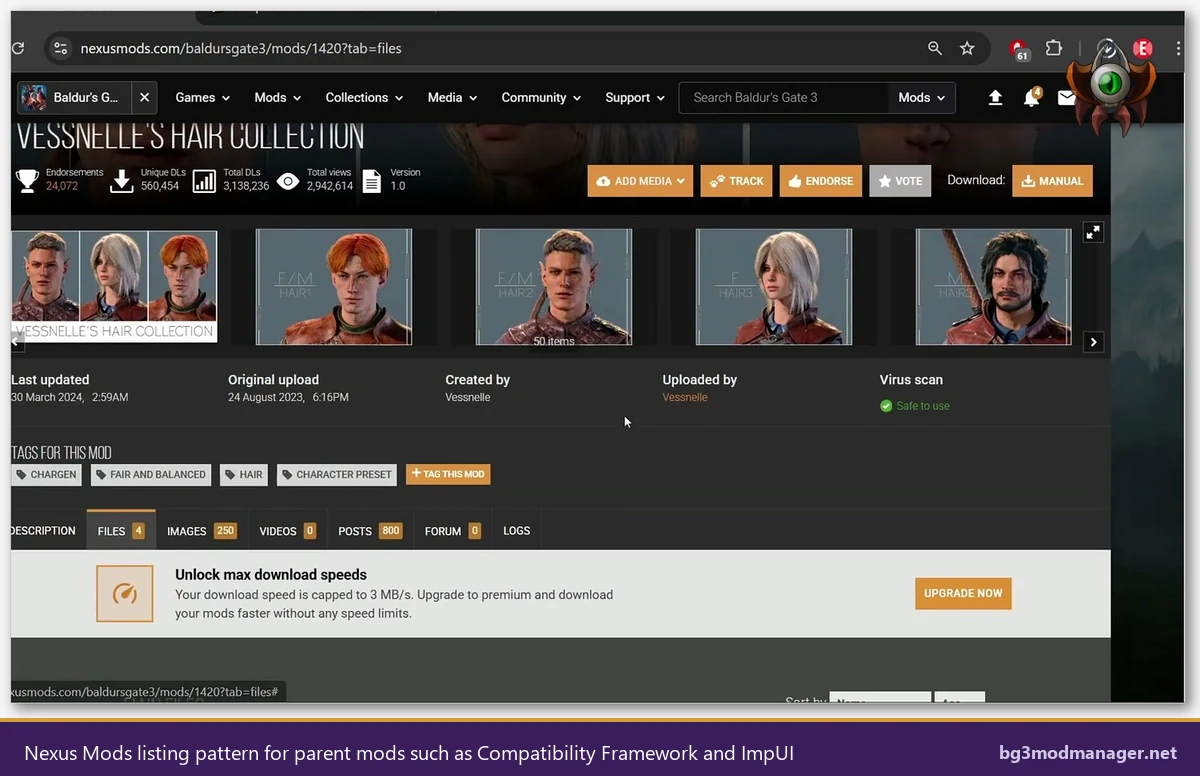
Compatibility Framework is a scripting library that exposes a stable hook surface for downstream mods to register class additions, race additions, feat tweaks, and progression edits without each author having to ship duplicated patcher code. It is the single most-declared parent in the BG3 modding ecosystem on Nexus. The Nexus listing for Compatibility Framework lives at nexusmods.com/baldursgate3; the canonical search returns it as the top result for the literal phrase. A Compatibility Framework missing warning resolves by downloading the latest .pak from that page and dropping it into the standard Mods folder, then refreshing BG3 Mod Manager.
ImpUI (Improved User Interface)
ImpUI is the umbrella UI replacement framework that downstream UI mods (extra hotbars, larger inventory grids, custom tooltip layouts) build against. An ImpUI dependency warning typically appears when a UI tweak mod has been installed without its required ImpUI base. ImpUI ships through Nexus and updates frequently to track Larian’s UI revisions, which means a downstream UI mod and ImpUI itself can drift out of sync after a Larian patch. The Dependencies panel will surface the version constraint when this happens, allowing the operator to grab the matching ImpUI build rather than the latest one.
Mod Configuration Menu (MCM)
Mod Configuration Menu provides an in-game settings panel that lets users tweak per-mod variables (toggle features, adjust spawn rates, set cooldowns) without editing files by hand. Dozens of larger gameplay mods declare MCM as a soft dependency: the mod will load without it, but the user-facing configuration surface disappears. A missing MCM warning therefore does not always crash the game; it does silently strip the configuration UI for every dependent mod that ships with one.
BG3 Script Extender
The BG3 Script Extender (often abbreviated BG3SE or simply Script Extender) is the runtime that exposes Larian’s Osiris script engine to external Lua scripts. It is the most consequential parent on the list because a missing Script Extender does not produce a mod-load failure inside BG3 Mod Manager; it produces a hard game crash a few seconds into the Story Editor stage on game launch. Script Extender installs differently from a normal .pak mod (a DWrite.dll dropped into the game’s bin folder) and is therefore not always tracked through the Dependencies panel by older mods, even when their scripting paths assume it is loaded.
Step-by-Step Resolution: Add the Missing .pak to the Load Order
The resolution flow takes the same shape for every missing parent, regardless of which one the Dependencies panel surfaces. Treat the seven steps below as a checklist rather than a script: most users will complete the loop in under five minutes once they have done it once or twice. The procedure assumes the operator has already run BG3 Mod Manager at least once, has the standard Mods folder created at %LOCALAPPDATA%\Larian Studios\Baldur's Gate 3\Mods, and has the application closed at the start of the flow.
- Read the missing parent’s name from the Dependencies panel. Copy the Name and the UUID to a scratch note.
- Locate the parent on Nexus Mods. Search nexusmods.com/baldursgate3 for the exact Name. For the four common parents, the top result is almost always correct.
- Open the Files tab on the parent’s Nexus page. Identify the Main Files
.pakand check the version against the constraint shown in the Dependencies panel. - Download Manual (not Mod Manager Download, since the goal is to add the file directly to the BG3 Mod Manager catalogue rather than route through Vortex). The download lands in the browser’s default folder.
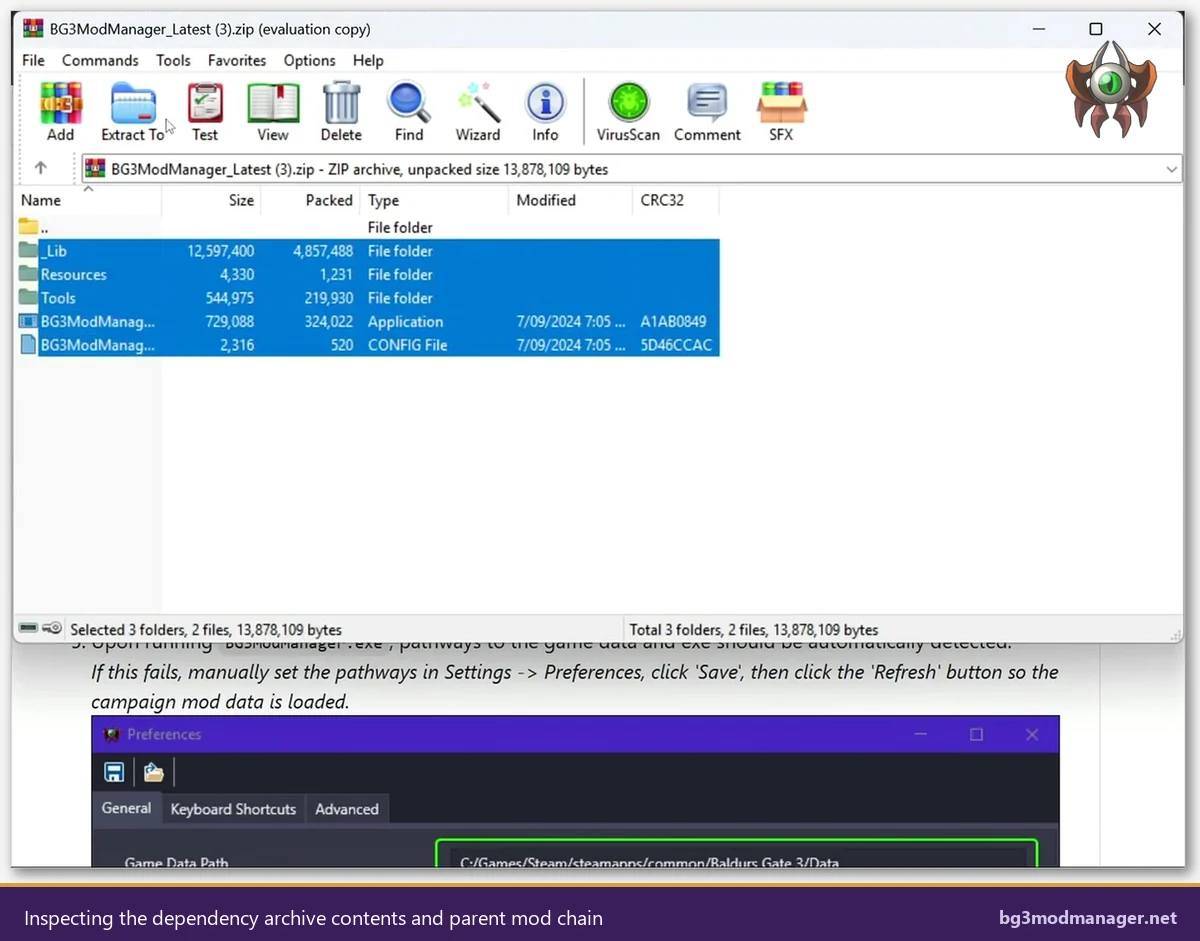
- Drop the .pak into the Mods folder at
%LOCALAPPDATA%\Larian Studios\Baldur's Gate 3\Mods. If the download is a ZIP archive, extract first and copy only the.pakacross; do not copy ReadMe files or installer scripts into the Mods folder. - Refresh BG3 Mod Manager via File → Refresh (or Ctrl+R). The new
.pakshould appear in the right-pane inactive list. - Move the parent into the active load order (left pane) ahead of every mod that declared it as a dependency. The red flag on the dependent rows should clear within a second of the move.
Auto-Sort vs Manual Order: When the Dependency Resolver Helps vs Hurts
BG3 Mod Manager exposes a Tools → Auto-Sort action that reads the Dependencies graph and re-orders the active load order so that every parent precedes its dependents. The implementation performs a topological sort on the dependency DAG and then preserves the relative position of unrelated mods. For collections of small, well-behaved gameplay tweaks this is the fastest way to get a clean load order: enable the parents first, drag the children across, hit Auto-Sort, export. The resolver took its current shape after the discussion in issue #404, where the maintainer documented the trade-offs around stability of the sort order.
Auto-Sort hurts in three specific scenarios. The first is when an author has shipped a mod with an out-of-date or incorrect Dependencies node, for example, declaring a dependency on a parent that has since been merged into a larger framework. Auto-Sort still trusts the declaration and may move the row to a position that conflicts with the user’s intended overrides. The second is when a Patch 8 hotfix mod needs to load very late to override Larian’s own files. Auto-Sort places it where the dependency graph dictates, which is often too early. The third is when a mod has a circular soft dependency declared (rare but real, mostly seen in test builds), in which case the resolver picks an arbitrary tie-break that may not match the intended order.
- Use Auto-Sort when the load order is large, the dependency graph is well-behaved, and the user has not made manual override choices.
- Avoid Auto-Sort when a Patch 8 hotfix mod must load last, when an author’s
meta.lsxis known to be inaccurate, or when the load order has been hand-tuned for compatibility. - Preview before committing. The Auto-Sort dialog displays the proposed new order before applying. Reading through it once before clicking Apply prevents most surprises.
Edge Cases: Multi-Level Chains, Optional Dependencies, Version Mismatches
Multi-level dependency chains
A common real-world pattern is a chain three or four levels deep. A subclass mod depends on a class-extender mod, which depends on Compatibility Framework, which depends on the BG3 Script Extender. Resolving the warning at the top of the chain is not enough: each parent in the chain must itself be present and active. BG3 Mod Manager’s Dependencies panel shows only one level at a time (the immediate parents of the selected mod). After adding the immediate parent, the operator should click the parent in turn and re-read the Dependencies panel to confirm the next level is satisfied. Repeat until the panel shows no Missing entries for any mod in the load order.
Optional vs required dependencies
The LSX schema in current use does not distinguish strictly between required and optional dependencies. Authors sometimes work around this by listing optional parents in the description text on Nexus while keeping the Dependencies node in meta.lsx tight. When in doubt, the description on the parent’s Nexus page is the authoritative source for whether the dependency is hard or soft. A soft dependency that surfaces as a Missing flag is still worth resolving, because the silent feature disablement that follows can mask other bugs during the next play session.
Version mismatches
The Version64 field on a dependency entry encodes a 64-bit version number that authors typically populate from the parent mod’s release tag. When the user has installed a parent that is older than the dependent mod expects, BG3 Mod Manager surfaces a version-mismatch warning rather than a Missing flag, which is a different visual state with a yellow icon. The fix is to update the parent rather than to add a second copy. After a Larian game patch, the most likely cause of cascade version warnings is that Compatibility Framework or ImpUI has shipped a compatibility update which downstream mods immediately rebuilt against, while the user’s local install of the parent is still the previous build.
Prevention: Reading Dependency Notes Before Installing Mods
Most missing-dependency warnings are avoidable. Every Nexus Mods description has a Requirements section near the top of the page that lists the parent mods the author considers mandatory. Reading that block before clicking download adds about ten seconds to each install but eliminates the back-and-forth of: install, refresh, see flag, search, download parent, refresh again. For users building larger collections, a small text file in the install folder listing the order in which mods were added (and which parents were grabbed for which child) makes future debugging trivial. The same file becomes the recovery script if a Larian patch invalidates part of the load order and the operator needs to rebuild the dependency tree from a clean state.
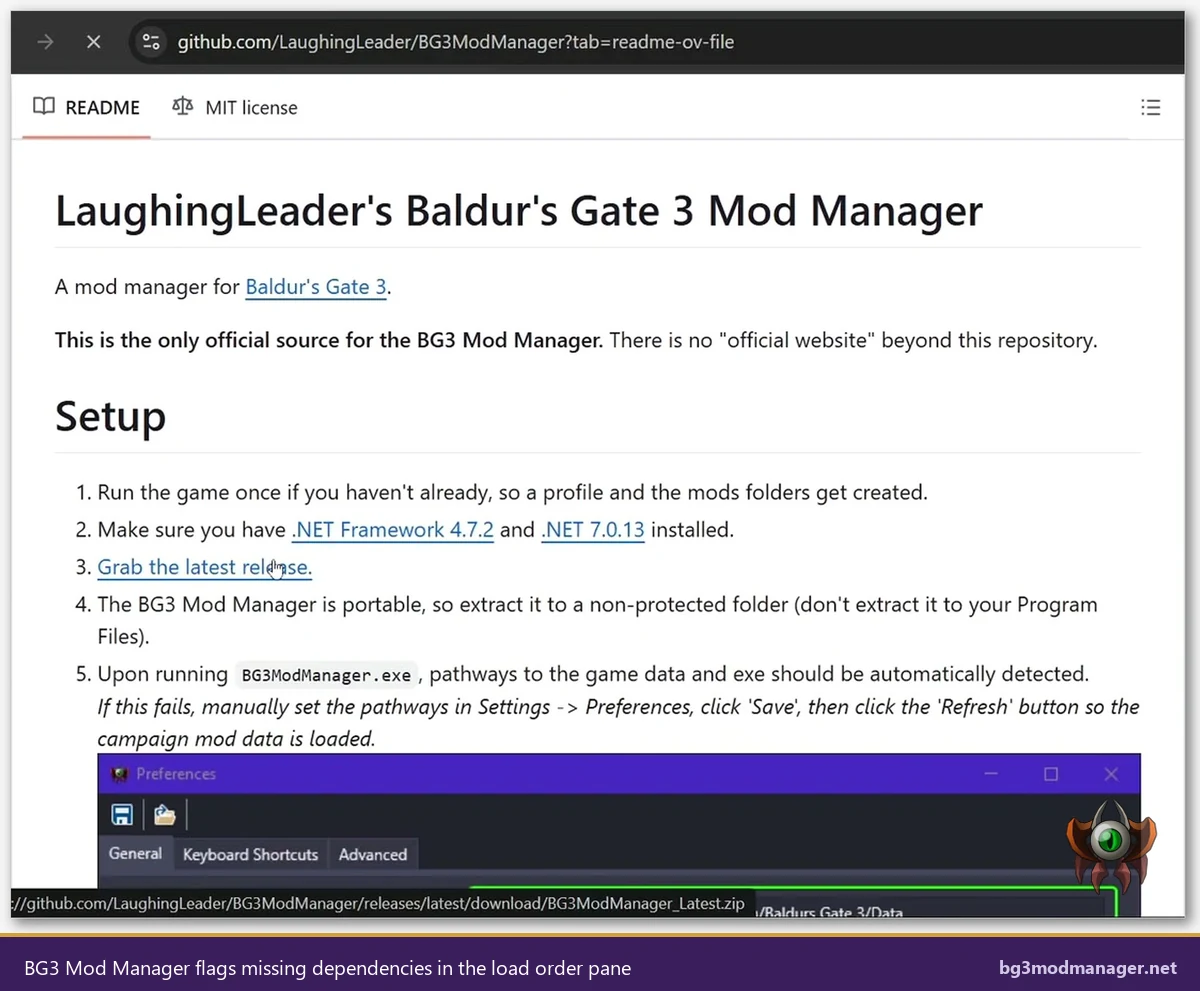
The official BG3 Mod Manager download page mirrors the latest LaughingLeader release with verified file hashes; the homepage tracks the active version and links into the GitHub Releases listing for prior tags. Operators preparing for a major Larian patch should refresh both the manager itself and the parent mods (Compatibility Framework, ImpUI, MCM, Script Extender) before resuming a modded playthrough. That single pre-flight check resolves the bulk of the post-patch dependency warnings the issue tracker sees.
- Read the Requirements block on every Nexus mod page before downloading.
- Pre-stage the four common parents (Compatibility Framework, ImpUI, MCM, Script Extender) before adding any downstream gameplay mods.
- Track installs in a notes file so the dependency tree can be rebuilt after a Larian patch.
- Refresh parents first after every game patch. Only then update or add new dependent mods.
Watch the Workflow
The video below covers the BG3 Mod Manager workflow end-to-end and includes scenes that illustrate the dependency-resolution flow: spotting the red flag in the load order, opening the Dependencies panel, and adding the missing parent .pak to the Mods folder. Operators who prefer a visual walkthrough can mirror the on-screen actions while following the procedure list above.