
BG3 Script Extender (BG3SE) by Norbyte extends Baldur’s Gate 3 with a Lua scripting runtime that .pak mods alone cannot reach. Many of the most popular Patch 7 and Patch 8 mods, including widescreen UI tweaks, party-size expansions, and combat overhauls, list BG3SE as a hard dependency. This guide walks operators through the recommended BG3 Script Extender install path using BG3 Mod Manager’s Tools menu, then covers the manual DWrite.dll fallback for systems where the auto-installer is blocked.
The instructions below assume Baldur’s Gate 3 is installed through Steam, GOG, or the Larian launcher, and that BG3 Mod Manager is already configured with the correct game data path. Operators who have not finished first-time setup should complete that workflow first, then return here.
What BG3 Script Extender Adds That .pak Mods Cannot Do Alone
A standard .pak mod ships data files: stat overrides, new equipment definitions, dialogue tables, visual templates. The Larian engine reads those files at load time and applies them. Anything that requires runtime logic, a fresh Lua state, or hooks into engine functions sits outside what a .pak can deliver. That is the gap BG3SE fills.
Norbyte’s extender injects a DLL into the bg3.exe process at startup, stands up a Lua runtime that mod authors can target, and exposes hundreds of engine functions to scripting. Mods that change combat math during a fight, react to dialogue choices, or rewrite UI panels at runtime all depend on this layer. The official Norbyte repository documents the API surface for mod authors and links the latest release builds.
Common mod categories that require BG3SE to function:
- Party size expansion mods (4-player default raised to 6, 8, or 12)
- Camera and UI overhauls that hook the rendering pipeline
- Combat mods that adjust action economy or spell behavior at runtime
- Custom subclasses that need Lua to register feats correctly
- Dialogue and companion AI extensions
- Save game tools that read or write engine state outside .pak boundaries
Mods that are pure cosmetic retextures, equipment-stat tweaks, or simple replacers usually do not require the extender. Mod pages on Nexus and mod.io flag the dependency clearly when it exists. Operators should assume any mod whose description references “Lua”, “scripting”, or “extender” needs BG3SE installed before it will function.
Recommended: BG3 Mod Manager’s Tools Menu Auto-Installer
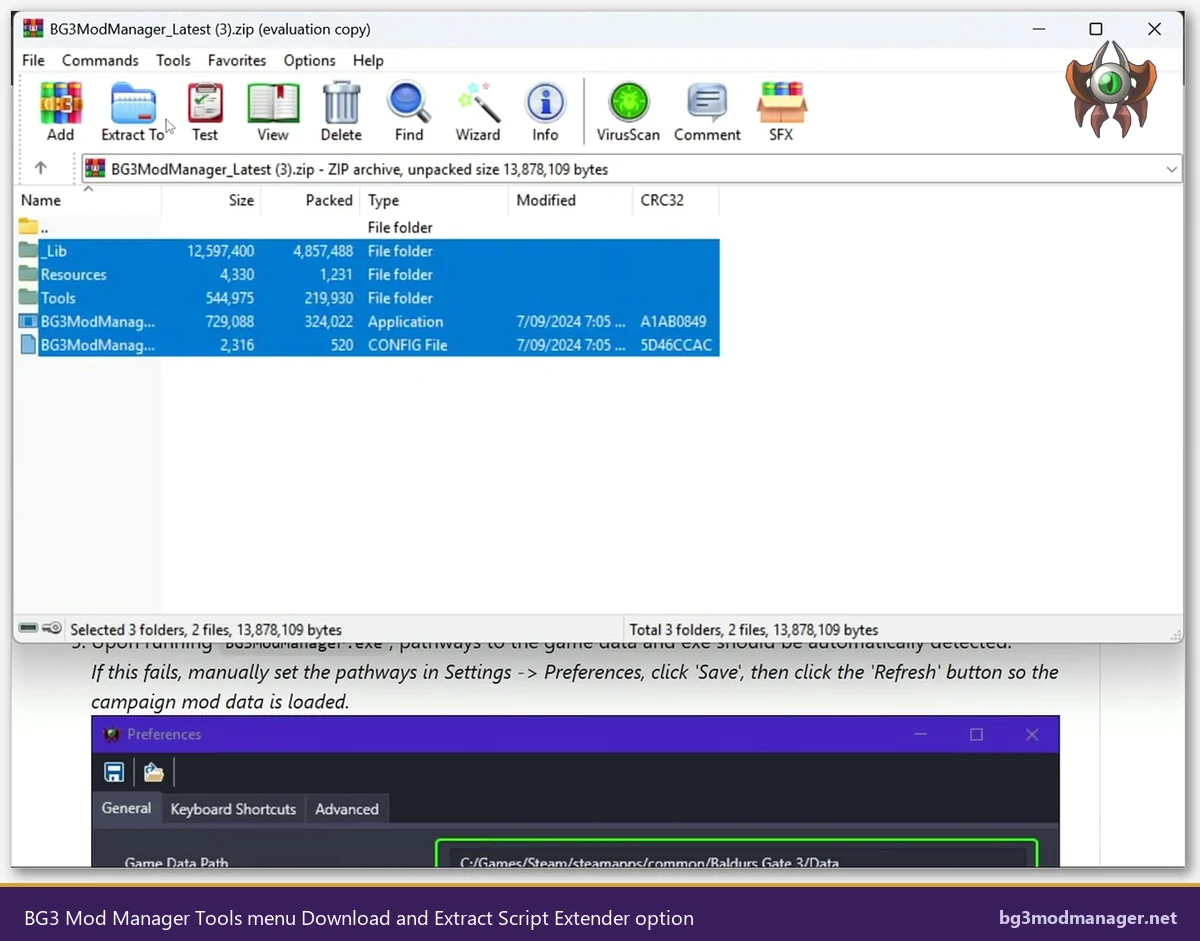
LaughingLeader’s BG3 Mod Manager ships a one-click installer for the extender under its Tools menu. The auto-installer fetches the latest updater from Norbyte’s GitHub release feed, extracts the payload, and copies the required DLL into the game’s \bin folder without manual file handling. This is the path that keeps the running version aligned with what mod authors test against.
The installer entry sits at Tools > Download & Extract Script Extender. Selecting it opens a confirmation dialog, then BG3 Mod Manager handles the network request, archive extraction, and file placement automatically. The status bar reports success when DWrite.dll is in place. Operators who have set the game data path correctly will see the install complete in a few seconds.
Step-by-Step: Tools > Download & Extract Script Extender
The full workflow takes under two minutes on a stable connection. Operators should close Baldur’s Gate 3 before starting, since DWrite.dll cannot replace itself while the game process holds it open.
- Launch BG3 Mod Manager. Confirm the bottom status bar reads “Game Data Path: OK” and that the active profile loads cleanly.
- Open the Tools menu in the top menu bar.
- Select Download & Extract Script Extender. A confirmation dialog appears.
- Click Yes. BG3 Mod Manager fetches the latest release archive from Norbyte’s GitHub Releases feed.
- Wait for the status bar to display the success message. The window does not freeze; downloads typically finish in five to ten seconds.
- Verify DWrite.dll appears inside the Baldur’s Gate 3 \bin directory. On Steam, that path is usually
C:\Program Files (x86)\Steam\steamapps\common\Baldurs Gate 3\bin. - Launch Baldur’s Gate 3 normally. The first launch after install triggers the auto-updater to fetch the live extender DLL matching the current game build.
If the operator launches the game through Steam’s main library, the launcher window should be skipped. Larian’s launcher introduces a startup race that occasionally causes the extender DLL to load before the game finishes initializing, producing a silent failure. The community workaround, documented in issue threads on the BG3 Mod Manager repository, is to launch bg3.exe directly through BG3 Mod Manager’s Run button or to disable the Larian launcher in Steam properties.
Manual Install Fallback: DWrite.dll and libprotobuf-lite.dll Drop-In
When the Tools menu auto-installer fails, the manual path always works. Failures usually trace back to firewall blocks on the GitHub API endpoint, antivirus quarantine of the DLL, or a misconfigured game data path. The Norbyte release page documents the manual procedure verbatim.
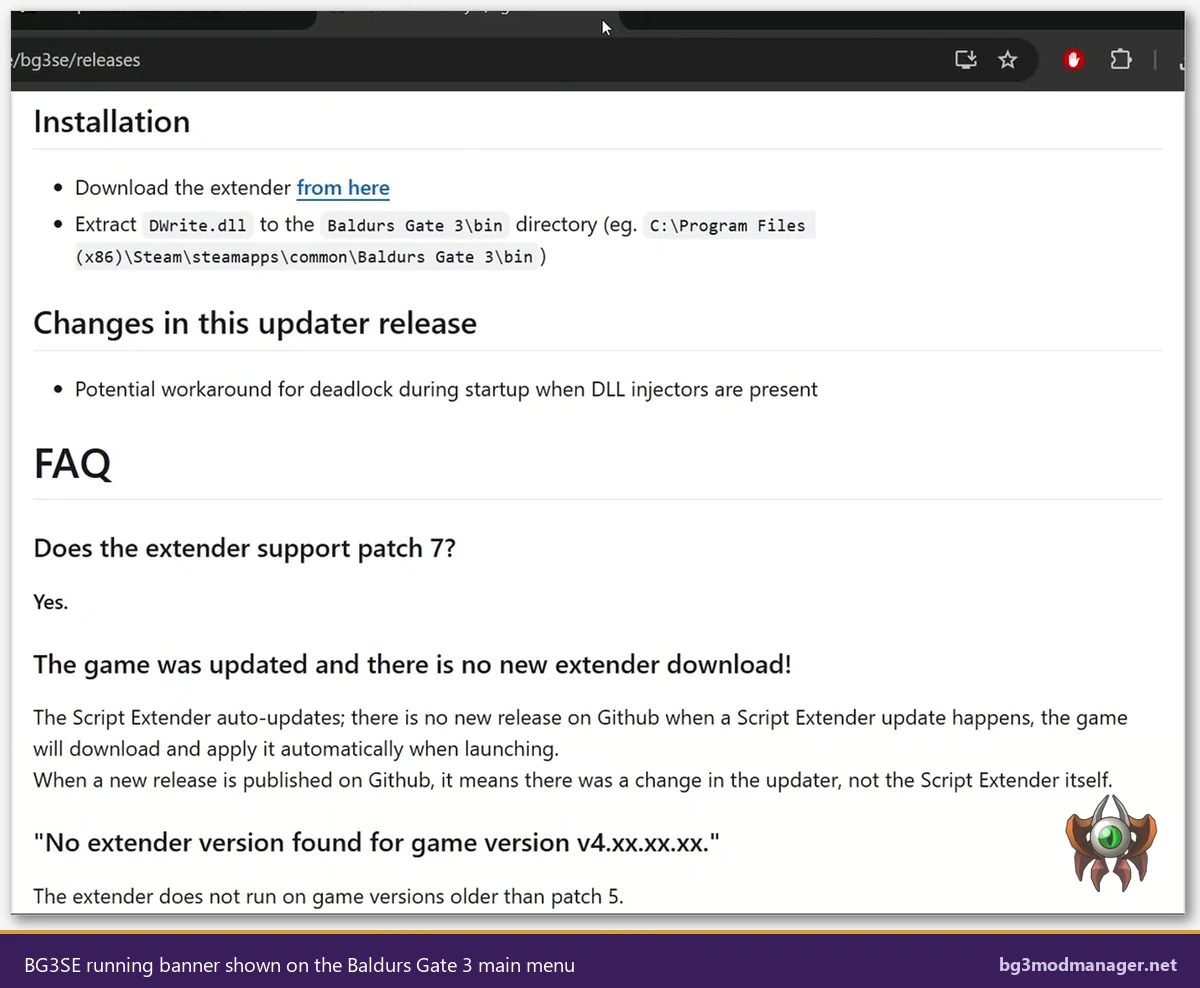
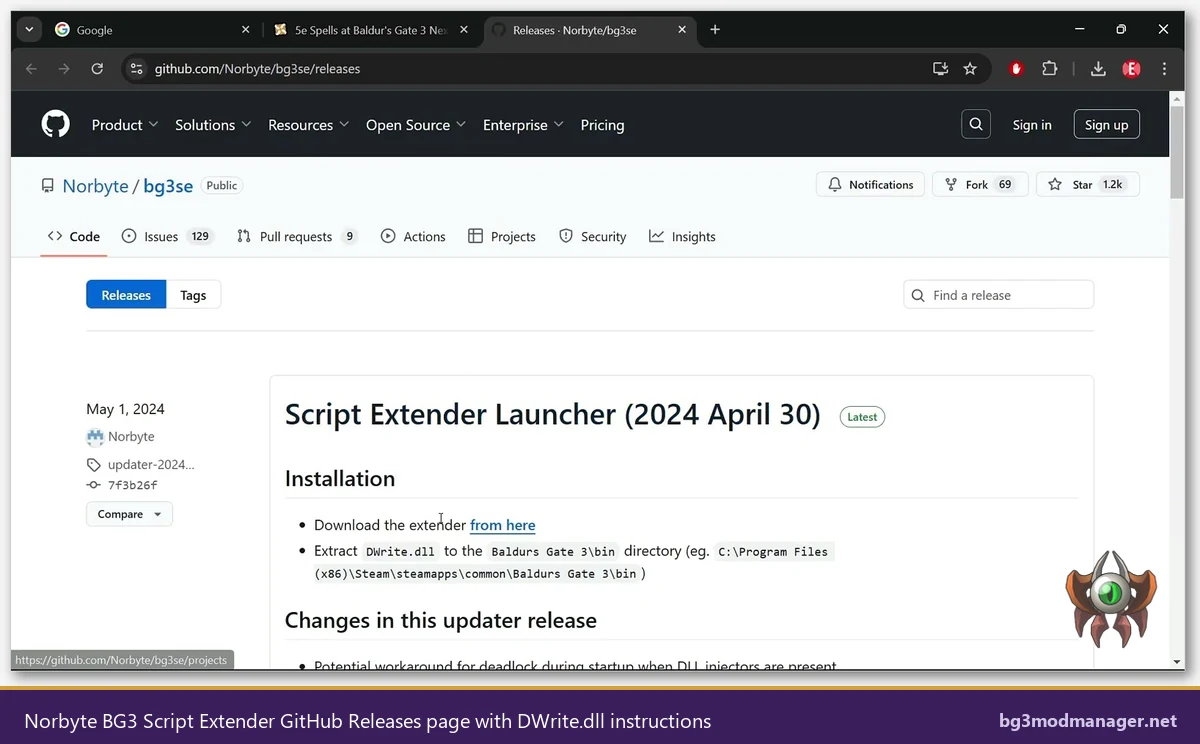
- Open the Norbyte/bg3se Releases page in any browser.
- Locate the latest release tagged “Script Extender Launcher”. Click the linked archive in the body of the release notes.
- Download the archive (typically a .zip). Save to any location.
- Extract the archive. Inside, the file DWrite.dll is the launcher. Some older release packages also include libprotobuf-lite.dll, which is required only when the release notes explicitly mention it.
- Open the Baldur’s Gate 3 install directory. For Steam:
steamapps\common\Baldurs Gate 3\bin. For GOG:GOG Galaxy\Games\Baldurs Gate 3\bin. For the standalone launcher: the location chosen during install. - Drop DWrite.dll directly into the
\binfolder, alongside bg3.exe and bg3_dx11.exe. Do not place it in the parent directory. - If the release ships libprotobuf-lite.dll, drop it into the same \bin folder.
- Launch Baldur’s Gate 3.
Antivirus tools occasionally quarantine DWrite.dll because it injects into a third-party process. Windows Defender, Bitdefender, and Norton have all flagged the file at various points. The solution is to add an exclusion for the Baldur’s Gate 3 \bin directory before extracting, then verify the file is still present after the AV scan completes. Permission-related failures during the manual drop, tracked in BG3 Mod Manager issue #22, usually mean the operator needs to run BG3 Mod Manager as administrator or move the game install out of Program Files.
Verifying Script Extender Loaded Correctly
BG3SE prints a small banner on the Baldur’s Gate 3 main menu when it loads successfully. The banner typically reads “BG3 Script Extender vX.X.X.X” in the top-left corner of the screen, visible immediately after the studio logos finish playing. If that banner is missing, the extender did not inject.
A more thorough verification is to check the extender log file. The launcher writes to %LOCALAPPDATA%\Larian Studios\Baldur's Gate 3\Script Extender\. A successful load creates a fresh log entry with the current timestamp and the resolved game build version. An empty folder, or a log file dated weeks ago, indicates the DLL is not loading. Operators who reach this state should walk back through the install: confirm DWrite.dll exists in \bin, check antivirus quarantine history, and verify the game launched without the Larian launcher window.
Mod authors who target BG3SE will refuse to load on a vanilla install. A loaded extender is a hard prerequisite for any mod whose description references runtime scripting. Mod listings on the Larian-supported in-game manager surface a dependency badge when BG3SE is required.
How Script Extender Auto-Updates (and Why GitHub Releases Don’t Match the Running Version)
The DWrite.dll dropped into \bin is not the full extender. It is a small launcher binary that, on every game start, queries Norbyte’s update server for the live extender DLL matching the current Baldur’s Gate 3 build. The live DLL is downloaded into a cache folder and injected at runtime. This design means a single launcher installation tracks every Larian patch automatically, without any manual update step.
The side effect is that the GitHub release version visible on the Norbyte/bg3se Releases page rarely matches the version banner in-game. The release page shows updater builds, not extender builds. The FAQ on that page states this directly: a new GitHub release indicates a launcher update, not an extender update. Operators who see version mismatches between the GitHub page and the in-game banner are observing expected behavior, not a broken install.
The auto-update mechanism also means the extender keeps working across Larian hotfixes. When Patch 7 shipped and broke compatibility temporarily, Norbyte pushed a server-side update within 24 hours. Players with a working DWrite.dll picked it up automatically on the next launch. The Tools menu auto-installer is the cleanest way to maintain this state because it always lands the latest launcher, which is the only piece that ever needs updating manually.
Common Issues During Install
Three failure modes account for the majority of support threads.
DLL injector conflicts. Tools that hook bg3.exe for unrelated reasons, including some overlay software, screen recorders, and reshade variants, can prevent DWrite.dll from injecting. Norbyte’s recent updater builds added a workaround for the startup deadlock that occurs when DLL injectors are present, documented directly in the release notes. If the extender silently fails to load on a system that runs overlay tools, operators should disable those overlays as the first diagnostic step.
.NET runtime missing. BG3 Mod Manager’s auto-installer relies on the .NET 8 Desktop Runtime, the same dependency BG3 Mod Manager itself requires. Operators who have not installed .NET 8 will see the Tools menu installer fail without a clear error. The fix, tracked in BG3 Mod Manager issue #213, is to install the .NET 8 Desktop Runtime from Microsoft’s official download page and restart BG3 Mod Manager.
Mod dependency cascades. A common confusion: BG3SE installs cleanly, but a mod that depends on it still refuses to load. The usual cause is a missing companion mod that the BG3SE-dependent mod also requires. Issue #234 in the BG3 Mod Manager tracker collects examples. The diagnostic is to check the mod page’s “Requirements” section and confirm every listed mod is present in the active load order.
Steam launcher race. When Steam launches Baldur’s Gate 3, the Larian launcher window appears first. This launcher initializes its own process before handing off to bg3.exe. On some systems, the timing causes DWrite.dll to load against the launcher process instead of the game, resulting in a silent failure. The reliable workaround is to set Steam to skip the launcher (right-click the game, select Properties, Launch Options, add the line that suppresses the launcher) or to run the game directly through BG3 Mod Manager’s Run button.