
BG3 Mod Manager won’t open is one of the most frequent installation symptoms reported against version 1.0.12.9 of the LaughingLeader/BG3ModManager project. The application is a portable .NET 8 Desktop tool that depends on a small set of Windows runtime components, file-system permissions, and a small profile folder under %APPDATA%. When any of those preconditions break, the executable typically fails silently: the splash flickers for a fraction of a second, no window appears, and Windows Event Viewer is the only place that records the failure. This guide collects eight working fixes covering every common cause documented in the project’s GitHub issue tracker, ordered from the single fix that resolves the majority of reports through to a clean reinstall procedure for stubborn cases.
Each section below identifies the root cause, lists the diagnostic signal that points to it, and gives the exact remediation. Fixes are written for v1.0.12.9 (the current build distributed from the BG3 Mod Manager download page) but apply equally to nightly builds compiled from source. Readers experiencing a different symptom (mods not appearing, load order reset, “Mod Was Not Imported”) should use the BG3 Mod Manager hub as a starting point, since each of those failure modes has a dedicated diagnostic flow that differs from the silent-launch problem covered here.
Quick Diagnosis: Silent Launch Failures
BG3MM silent fail (the application closes without an error window) is almost always a missing or outdated .NET 8 Desktop Runtime. Confirm the runtime is installed before working through any other fix on this page.
Cause 1: Missing or Outdated .NET 8 Desktop Runtime
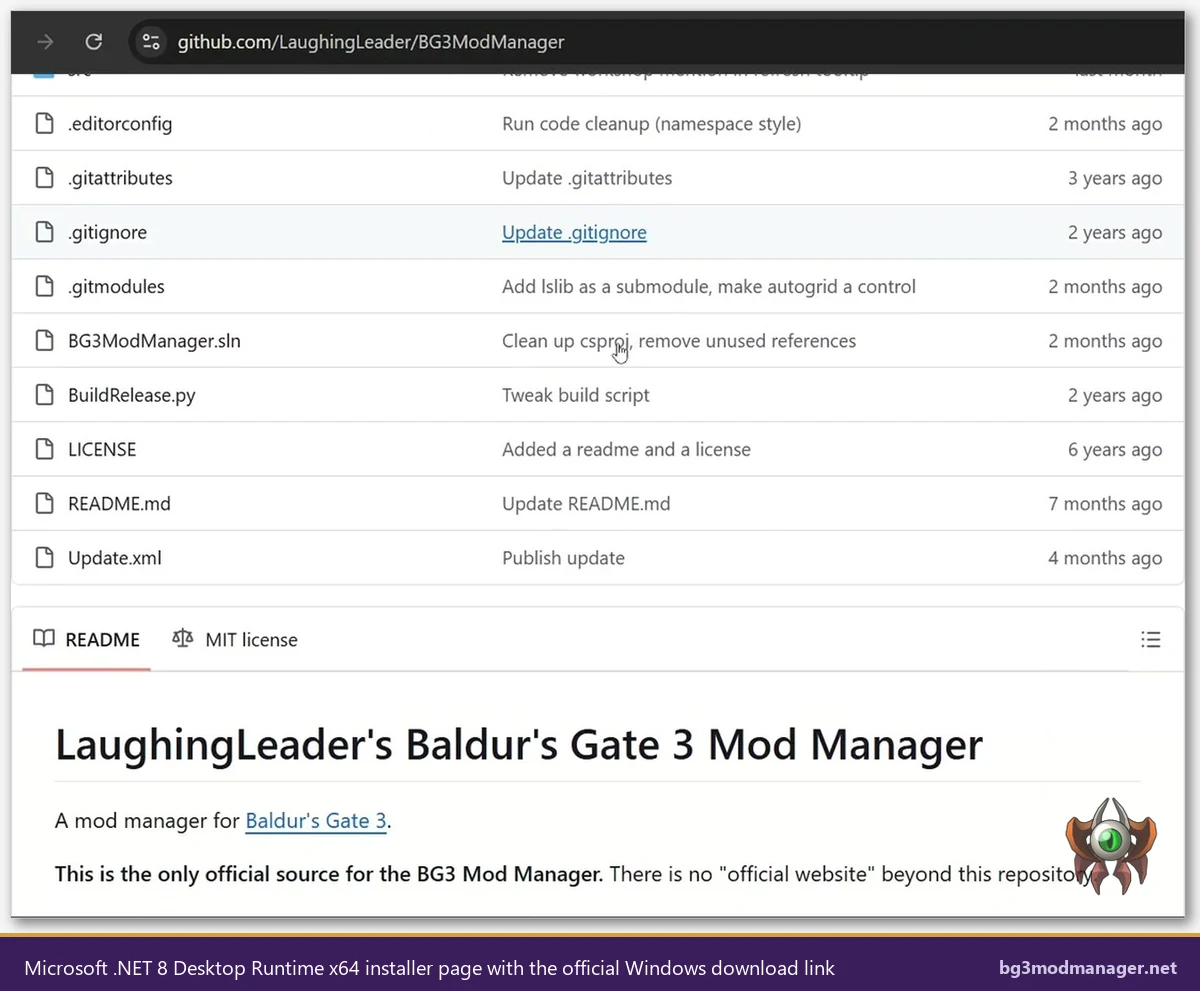
The single largest source of “BG3 Mod Manager not launching” reports is a missing .NET 8 Desktop Runtime. Build 1.0.12.9 was migrated from .NET 7 to .NET 8 in early 2025, and a system that previously ran v1.0.11 without issue can fail silently after upgrading because the older .NET 7 runtime no longer satisfies the new dependency. Issues #353 and #355 on the LaughingLeader tracker both describe the same symptom: a brief splash, an instant exit, and an Event Viewer entry referring to Microsoft.WindowsDesktop.App.
How to confirm the runtime is missing
Open a Command Prompt and run dotnet --list-runtimes. The required entry is Microsoft.WindowsDesktop.App 8.0.x. If only Microsoft.WindowsDesktop.App 7.0.x appears, the runtime is outdated. If the dotnet command itself returns “not recognized”, no .NET runtime is installed at all and the manager will never launch.
Installing the correct runtime
Download the .NET 8 Desktop Runtime (x64) directly from dotnet.microsoft.com/download/dotnet/8.0. The package required is labelled Desktop Runtime, not the ASP.NET runtime or the SDK. Install the package, reboot, and re-run dotnet --list-runtimes to confirm the 8.0.x line is present. After the runtime is installed, double-clicking BG3ModManager.exe should produce the main window within two to three seconds on a typical SSD.
Cause 2: Folder Permissions, Program Files, and OneDrive
BG3 Mod Manager is a portable application: it writes settings, log files, and saved load orders to its own folder and to %APPDATA%\BG3ModManager. When the executable lives somewhere Windows treats as protected (notably C:\Program Files, C:\Program Files (x86), or any location synced by OneDrive), those writes fail and the application either exits at startup or hangs on the first input/output attempt. Issue #238 documents the OneDrive variant of this problem in detail.
Permitted install locations
- Recommended:
C:\Tools\BG3ModManageror any user-writable folder outsideProgram Filesand outside any cloud-synced root. - Acceptable: a sub-folder of
%USERPROFILE%such asC:\Users\<name>\AppData\Local\BG3ModManager, provided that path is not redirected to OneDrive. - Not acceptable:
Program Files,Program Files (x86), the Windows directory, OneDrive (C:\Users\<name>\OneDrive\...), and any folder where Controlled Folder Access is enabled.
Disabling OneDrive folder redirection
If the Documents folder is currently redirected to OneDrive, Windows silently rewrites paths under C:\Users\<name>\Documents to C:\Users\<name>\OneDrive\Documents. To check, open Settings > Accounts > Windows backup and confirm Documents is not being backed up. If it is, pause the sync, copy the BG3 Mod Manager folder to a non-redirected path such as C:\Tools\BG3ModManager, and launch from there. Saved load orders carry over because they live under %APPDATA%\BG3ModManager, which is on a separate path tree.
Cause 3: Antivirus Quarantine of Dependency DLLs
BG3 Mod Manager bundles LSLib, the open-source library used to read Baldur’s Gate 3 .pak archives. Several antivirus engines have flagged LSLib’s native helpers as “potentially unwanted” since the v1.0.12 line shipped, and the most common outcome is a silent quarantine of one or more files inside the _Lib folder. The application then launches, fails to load LSLib, and exits without an error window. Issue #313 and the related discussion in #404 both record this pattern.
Confirming files are missing
Open the BG3 Mod Manager extraction folder and look inside _Lib. The expected contents include LSLib.dll, LSLib.Native.dll, and a set of supporting .dll files. If any of these files are absent, an antivirus engine has likely removed them. Re-extracting BG3ModManager_Latest.zip over the existing folder will not help: the security software will quarantine the same files again as soon as they hit disk.
Adding the correct exclusions
- Windows Defender: Settings > Privacy & security > Windows Security > Virus & threat protection > Manage settings > Exclusions > Add an exclusion > Folder, and select the BG3 Mod Manager extraction folder.
- Third-party engines: add the same folder under the equivalent “exclusions” or “trusted folders” panel. Restoring the file from the quarantine list without adding an exclusion will only delay the next removal.
- After exclusion: re-extract
BG3ModManager_Latest.zipon top of the existing folder so that any quarantined files are restored. ConfirmLSLib.dllis present before launching.
Cause 4: Corrupted User Profile in %APPDATA%\BG3ModManager
BG3 Mod Manager stores its preferences, saved load orders, and last-known Game Data Path inside %APPDATA%\BG3ModManager. A power loss, an interrupted save, or a malformed entry written by a previous build can leave one of the JSON files in this folder in an unparseable state. The application reads these files synchronously during startup, and a parsing exception inside that load step takes the process down before the main window is shown. Issue #418 covers the corrupted-profile scenario specifically.
Non-destructive profile reset
Close BG3 Mod Manager, open Windows Explorer, paste %APPDATA% into the address bar, and locate the BG3ModManager folder. Rename it to BG3ModManager.bak. Launch the application. If it now opens, the original profile was the cause and the saved load orders inside BG3ModManager.bak\Profiles can be copied back one at a time to identify the corrupt file. If the application still fails to open, rename the backup back to its original name and continue with the remaining causes below.
Files most likely to be corrupted
settings.jsonat the root of the folder, which holds Game Data Path and window state.Profiles\Default\modsettings.lsx, which mirrors the load order written to the game.- Any
*.jsoninsideProfiles\Defaultthat ends with a zero-byte truncation, indicating an interrupted save.
Less Common Causes
The four causes above account for roughly nine out of ten reports against v1.0.12.9. The remaining cases tend to fall into one of the following categories. Each is rarer than the runtime/permissions/antivirus/profile bucket but is fully documented in the issue tracker.
Patch 7 modsettings.lsx hang
After Larian’s Patch 7 reorganised mod handling, BG3 Mod Manager began parsing a modsettings.lsx file written by the in-game manager that contains entries the desktop tool did not previously expect. On systems where the in-game manager has been used heavily, the manager can hang on the “Loading Profiles” splash for thirty seconds or more, and on slower disks it can time out before any window is shown. Issue #330 tracks the parser-side fix. The workaround until that fix lands is the profile reset described above.
Visual C++ Redistributable missing
LSLib’s native helpers depend on the Microsoft Visual C++ 2015-2022 Redistributable (x64). Most up-to-date Windows installations include this package, but stripped or LTSC images sometimes do not. Symptoms match the antivirus quarantine case: silent failure with no window. Installing the latest vc_redist.x64.exe from Microsoft and rebooting resolves the dependency.
Outdated v1.0.10 builds
Older v1.0.10 archives sometimes still circulate on third-party sites. Those builds were compiled against .NET 7 and .NET Framework 4.7.2 and will not launch on a system that has only .NET 8 installed. Issue #213 records several reports of this. The fix is to discard the v1.0.10 archive and download v1.0.12.9 from the official release page.
SmartScreen blocking the executable
Windows SmartScreen will sometimes display a “Windows protected your PC” dialog rather than launching the application. Choosing More info followed by Run anyway is the supported response. If the dialog dismisses without launching the application, the executable was likely flagged as untrusted and stored as a blocked file: right-click BG3ModManager.exe, choose Properties, and tick Unblock on the General tab.
Step-by-Step Diagnostic Procedure
For users who prefer to walk through every check in order rather than guess at the cause, the following procedure resolves nearly every recorded BG3 Mod Manager not launching report on the LaughingLeader tracker. The order is deliberate: each step rules out the most likely cause before moving to the next, and most readers will find a fix within the first three steps.
- Confirm .NET 8 Desktop Runtime is installed. Run
dotnet --list-runtimesand verify theMicrosoft.WindowsDesktop.App 8.0.xline. If absent, install from dotnet.microsoft.com and reboot. - Verify the install location. The folder containing
BG3ModManager.exemust be outsideProgram Filesand outside OneDrive. Move toC:\Tools\BG3ModManagerif unsure. - Add an antivirus exclusion for the BG3 Mod Manager folder, then re-extract the archive. Inspect
_Lib\LSLib.dllafter extraction to confirm it is present. - Rename
%APPDATA%\BG3ModManagertoBG3ModManager.bak. Launch with a fresh profile to rule out a corrupt settings file. - Right-click the executable, choose Properties, tick Unblock on the General tab if a SmartScreen mark-of-the-web is present.
- Install the latest Visual C++ Redistributable (x64) from microsoft.com and reboot.
- Open Event Viewer > Windows Logs > Application immediately after a failed launch attempt. The first error from source .NET Runtime or Application Error typically names the missing dependency or the parsing exception.
- If all else fails, perform a clean reinstall as described in the next section.
Reading Event Viewer entries
Event Viewer is the most reliable source of information when the application fails silently. Open Start > Event Viewer > Windows Logs > Application, sort by date, and look for the most recent error logged within thirty seconds of the failed launch. The Source column will read .NET Runtime or Application Error, and the General tab will name the offending exception. Common entries include System.IO.FileNotFoundException for missing DLLs, System.Text.Json.JsonException for corrupted settings, and System.IO.UnauthorizedAccessException for permission failures.
When to Reinstall From Scratch
If steps one through seven of the diagnostic procedure all complete without resolving the issue, a clean reinstall is the appropriate next move. The procedure below removes every BG3 Mod Manager artefact from disk and rebuilds the installation from a freshly downloaded archive. Saved load orders are preserved by backing up %APPDATA%\BG3ModManager before the wipe.
Clean reinstall procedure
- Close BG3 Mod Manager and Baldur’s Gate 3.
- Copy the entire
%APPDATA%\BG3ModManagerfolder to a safe location (Desktop is fine) so that load orders can be restored later. - Delete the original
%APPDATA%\BG3ModManagerfolder. - Delete the BG3 Mod Manager extraction folder.
- Download a fresh copy of
BG3ModManager_Latest.zipfrom the download page and extract toC:\Tools\BG3ModManager(or another non-protected folder). - Launch
BG3ModManager.exe. The application should open with a default profile and prompt for the Game Data Path. - Once the application is confirmed working, copy the saved
Profilessub-folder back into the freshly created%APPDATA%\BG3ModManagerdirectory one profile at a time, restarting the application after each addition to identify any corrupt profile.
When the reinstall does not resolve the failure
If the manager still refuses to open after a clean reinstall on a system with .NET 8 confirmed, the next step is to file a fresh report on the issue tracker with the Event Viewer output attached. Existing thread #22 serves as the canonical “won’t open” diagnostic ticket and includes the maintainer’s preferred log-attachment template. Including the output of dotnet --list-runtimes and the install-folder path in the report shortens the round-trip considerably.