
Baldur’s Gate 3 Patch 8 changed how the engine validates installed mods, and the side effect for many users was an immediate crash on launch when older mods sit in the load order. The crash signature varies: some installs hit the desktop within two seconds of clicking Play, others stall at the Larian splash and exit silently, and a smaller number reach the main menu before failing on the first save load. This guide walks through the diagnostic order that resolves the great majority of post-Patch-8 crashes without a clean reinstall: identifying the offending mod, removing the deprecated Override-type entries that Patch 8 no longer accepts, rebuilding the dependency graph in BG3 Mod Manager, updating outstanding mods to their Patch 8 releases, and (only as a last resort) regenerating modsettings.lsx from a clean Mods folder.
The procedure assumes BG3 Mod Manager v1.0.12.x and Baldur’s Gate 3 Patch 8 (build 4.1.1.x or later). It applies equally to Steam, GOG, and Microsoft Store / Game Pass installs because the modsettings schema and the .pak validator live on the engine side, not the storefront side.
Patch 8 Crash Reality Check
Patch 8 added a strict dependency validator. A mod that was silently broken in Patch 7 can now hard-crash the game on launch. The fix is almost never a full reinstall: in 90 percent of reported cases the trigger is one or two specific mods, and identifying them takes under fifteen minutes with a binary search.
What Patch 8 Changed That Breaks Older Mods
Patch 8 introduced three changes that interact poorly with mods written for earlier patches. First, the engine now refuses to load loose-file Override mods that bypass the .pak system. Second, the modsettings.lsx schema gained two new attributes (PublishHandle and Version64) that older modsettings writers omit, producing parse warnings that the validator promotes to fatal errors when the dependency tree is incomplete. Third, the launcher executes a new dependency resolution pass before the main render thread starts: any mod that declares a dependency on a UUID not present in the active load order causes an immediate exit before the title screen renders.
Override Mod Deprecation
Override mods are mods that write loose files directly into the Baldurs Gate 3\Data directory rather than packaging the changes in a .pak archive. This style was common from launch through Patch 6 and was tolerated under Patch 7 with warnings in the engine log. Patch 8 stops tolerating loose files entirely: any non-bundled asset under Data that conflicts with a Larian asset triggers an integrity check failure that crashes the game during early initialisation. The cleanest workaround is to remove the loose files and reinstall the same content as a properly packaged .pak through BG3 Mod Manager when the author has shipped a Patch 8 release.
The modsettings.lsx Schema Update
The Patch 7 to Patch 8 transition added two new attributes to every ModuleShortDesc entry in modsettings.lsx. BG3 Mod Manager v1.0.12.x writes both attributes correctly on export. Older v1.0.11 builds, and modsettings.lsx files left over from manual edits or from third-party mod managers, omit the attributes. The Patch 8 dependency validator interprets the missing attributes as an unresolved dependency and refuses to start the campaign. Issue #353 on the LaughingLeader tracker captures the original Patch 7 schema change that flows directly into Patch 8 behaviour.
Strict Dependency Validation
Every mod’s meta.lsx declares zero or more dependencies by UUID. Under Patch 7, a missing dependency produced a soft warning and the game continued. Under Patch 8, the launcher iterates each declared dependency at startup, confirms the matching UUID is present in the active load order, and exits if any reference is unresolved. This is the largest single source of Baldur’s Gate 3 Patch 8 mod crash reports: a load order that worked perfectly on Patch 7 because the engine ignored a broken reference now hard-fails on Patch 8 because the same reference is checked.
How to Identify Which Mods Are Causing the Crash
Before removing or updating anything, the offending mod must be located. Two tools handle this: a binary search performed inside BG3 Mod Manager, and inspection of the BG3MM and engine log files. The binary search is faster on installs with fewer than thirty mods; log inspection is the better starting point on larger installs where deactivating half the order at a time becomes tedious.
Binary Search Inside BG3 Mod Manager
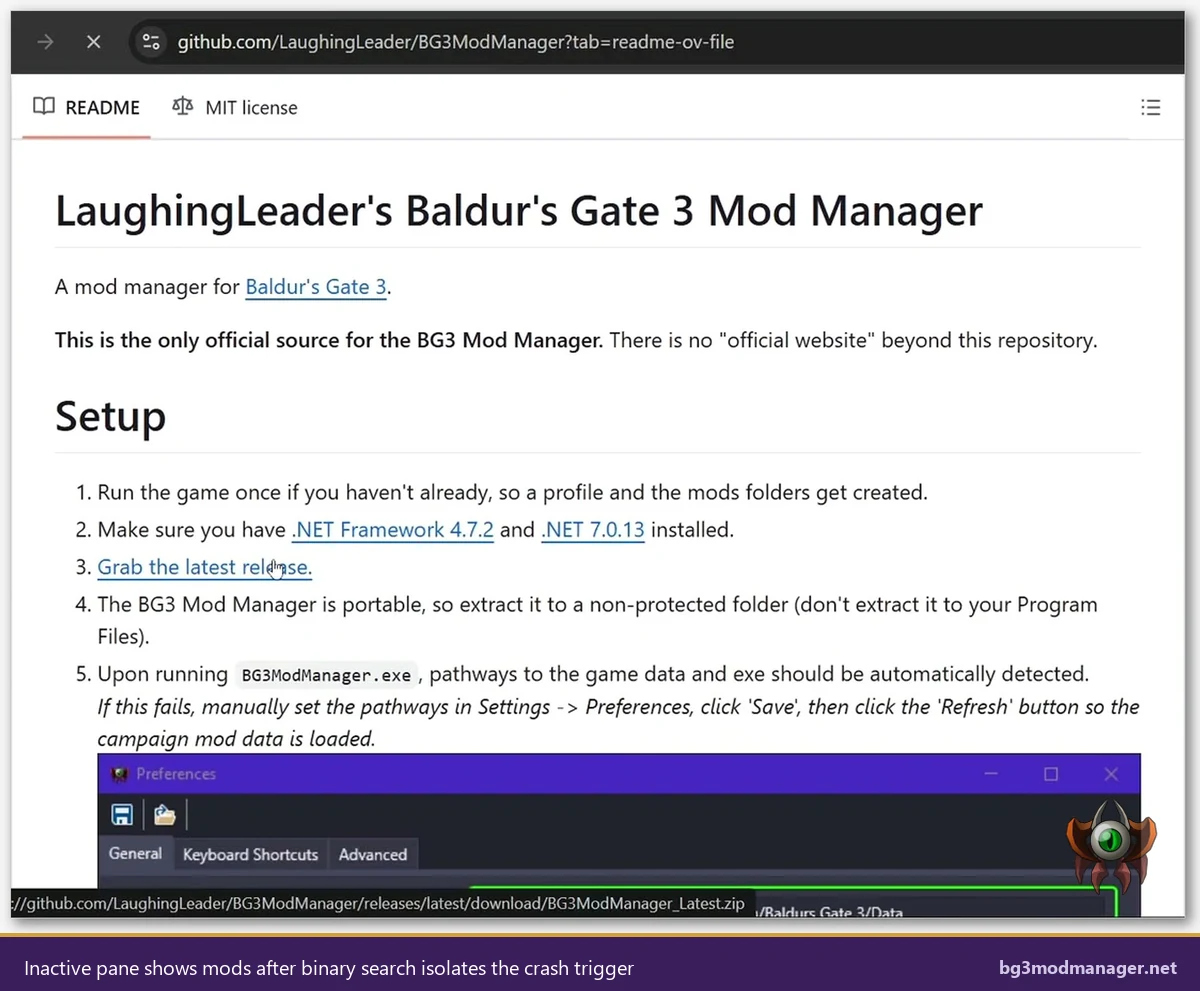
The binary search procedure is mechanical and avoids guesswork. Operators should select the bottom half of the Active Mods pane (Shift+click), drag the selection to Inactive Mods, click Save and Export Order to Game, and launch BG3. If the game starts cleanly, the offending mod is in the disabled half: re-enable a quarter of the originally disabled mods and retest. If the game still crashes, the offender is in the still-active half: disable another quarter of the active mods. Each iteration cuts the search space in half, so a thirty-mod load order isolates the trigger in five launch cycles.
Reading the BG3 Mod Manager Log
BG3 Mod Manager writes a log file under %APPDATA%\LaughingLeader\BG3ModManager\Logs when logging is enabled (Preferences, Advanced, Enable Logging). The most recent log file records every mod the manager loaded into the active order, every dependency it resolved or failed to resolve, and every parser warning emitted during the Export Order step. A line beginning with Failed to resolve dependency UUID followed by a UUID and a referencing mod name names the offender directly. A line beginning with Override file detected identifies a loose file that Patch 8 will reject.
The Engine Log Under PlayerProfiles
Baldur’s Gate 3 itself writes a launch log under %LOCALAPPDATA%\Larian Studios\Baldur's Gate 3\PlayerProfiles\Public\Levelcache and a more detailed crash log under the same profile root. The crash log captures the exact line at which the dependency validator gave up, including the offending mod’s UUID. Cross-referencing the UUID against the BG3MM Active Mods list (right-click a mod, Properties, copy UUID) names the mod that triggered the exit.
Removing Override-Type Mods That Patch 8 No Longer Supports
Once an Override-style mod has been identified (either through the BG3MM log line or by recognising loose files inside the game’s Data directory), the safest removal procedure is to verify game files via the storefront after manually deleting the loose entries. The verification step ensures the engine’s integrity check sees a pristine Data tree, which is what the Patch 8 startup pass evaluates.
- Close Baldur’s Gate 3 and BG3 Mod Manager. Confirm both processes have exited via Task Manager.
- Open the game’s
Datadirectory. Steam users find it at...\Steam\steamapps\common\Baldurs Gate 3\Data; GOG users at...\GOG Games\Baldurs Gate 3\Data; Game Pass users at...\XboxGames\Baldur's Gate 3\Content\Data. - Identify any subdirectories or loose files that did not ship with Larian. Common Override patterns include a
Publicfolder containing third-party UUIDs, aGeneratedfolder with custom assets, or stray .lsx and .lsf files at the Data root. - Move the suspicious files to a backup directory outside the game install. Do not delete them outright on the first pass: keeping a backup allows recovery if a Larian-shipped file is mistakenly removed.
- Run the storefront integrity check (Steam: right-click the game, Properties, Installed Files, Verify integrity of game files; GOG: Manage Installation, Verify / Repair). Any genuine Larian asset that was moved is restored automatically.
- Launch Baldur’s Gate 3 from BG3 Mod Manager. A clean main menu confirms the Override mods were the trigger.
Patch 8 compatible re-releases of formerly Override-only mods almost always exist on Nexus Mods, packaged as proper .pak archives. Searching the original mod’s Nexus page comments for “Patch 8” or “v8 update” usually surfaces the maintained fork. Mods whose authors have abandoned the project may not have a Patch 8 release: those mods need to stay removed until a community fork appears.
Rebuilding the Mod Dependency Graph After Patch 8
After deprecated Override mods have been removed and any individually-failing mod has been disabled, the next step is to rebuild the dependency graph BG3 Mod Manager uses to order the load. The rebuild is a single-pass operation: BG3MM rescans every .pak in the Mods directory, re-reads each mod’s meta.lsx, recomputes the dependency tree, and writes a fresh modsettings.lsx with the Patch 8 schema attributes populated. The rebuild fixes the second of the three Patch 8 crash classes (the schema-attribute mismatch) and is the natural follow-up to the Override removal.
The Refresh, Save, Export Order Sequence
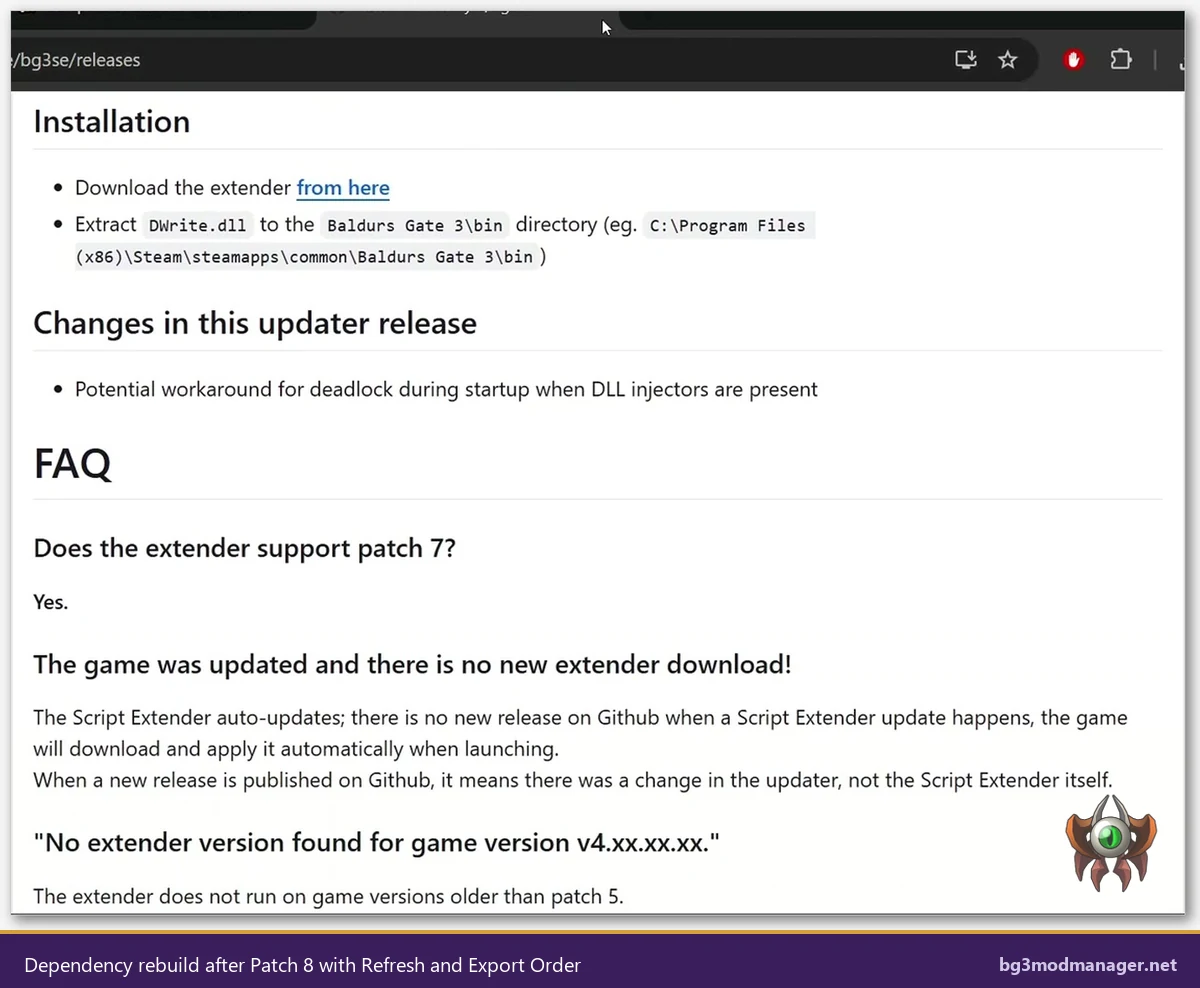
The canonical post-update rebuild sequence in BG3MM is three clicks. First, click Refresh in the toolbar: the manager rescans the Mods directory, drops any cached entries, and re-parses each .pak’s meta.lsx. Second, click Save: the active load order is committed to the BG3MM cache. Third, click Export Order to Game: a fresh modsettings.lsx is written under %LOCALAPPDATA%\Larian Studios\Baldur's Gate 3\PlayerProfiles\Public, using the Patch 8 schema with both PublishHandle and Version64 populated for every entry.
Verifying the Dependency Tree Is Healthy
BG3 Mod Manager flags unresolved dependencies in two ways. The first is a yellow or red icon next to the offending mod entry in the Active Mods pane. The second is a status-bar message after Refresh that reads Missing dependency: <UUID> and names the dependent mod. A healthy dependency tree shows neither indicator. If a mod entry remains flagged after Refresh, the missing dependency must be located on Nexus or mod.io and added to the load order, or the dependent mod must be disabled.
Cross-Referencing With the Engine’s Own Validator
A successful BG3MM dependency rebuild does not guarantee the engine will accept the load order, because the engine’s validator runs additional checks (file integrity, signature presence on signed mods) that BG3MM does not duplicate. The fastest end-to-end check is to launch Baldur’s Gate 3 from the BG3MM Play button: the engine either reaches the main menu (rebuild succeeded) or exits during early initialisation with a crash log under PlayerProfiles\Public. Any new failure recorded in that log identifies the next mod that needs attention.
Updating Outdated Mods to Their Patch 8-Compatible Releases
A mod that is not Override-style and has no missing dependencies can still crash Patch 8 if the .pak was built against an older bg3se (BG3 Script Extender) version, against a deprecated meta.lsx schema, or against game scripts that Patch 8 has rewritten. The remediation is to update the mod itself rather than to patch around it. Most actively-maintained mods on Nexus Mods received a Patch 8 update in the first two weeks after the patch shipped; checking the changelog identifies which mods are current and which are stale.
Reading the Nexus Mods Changelog
Every Nexus Mods page has a Changelog tab next to Description, Files, and Posts. The mod’s Patch 8 compatibility status is almost always called out explicitly in the most recent entry: a line such as “Updated for BG3 Patch 8” or “v2.4 – Patch 8 hotfix” confirms the .pak was rebuilt against the current game. A mod whose latest entry predates April 2026 has not been updated for Patch 8 and is a reasonable suspect for the crash. The download in this case is to grab the newest Files entry, drop it into the BG3MM Mods directory, and Refresh.
Replacing the Old .pak Without Losing Load Order Position
BG3 Mod Manager keys mods by UUID, not by filename. Replacing a .pak with a newer build of the same mod (same UUID, higher version) preserves the mod’s position in the active load order automatically. Operators should delete the old .pak from the Mods directory before dropping in the new one to avoid two .paks with the same UUID confusing the parser. The download workflow on the homepage at bg3modmanager.net details the import step, and the longer install walkthrough at bg3modmanager.net/download/ explains where the Mods directory lives on each storefront.
Mods Without a Patch 8 Update
A non-trivial fraction of Patch 7 mods will never be updated for Patch 8 because the author abandoned the project, the mod relies on a removed engine feature, or the mod’s purpose has been absorbed into the base game. The pragmatic approach is to disable any such mod in BG3 Mod Manager, run the Refresh / Save / Export sequence, and accept the loss. Searching the mod’s Nexus comments for “fork” or “continued” sometimes surfaces a community maintainer who has shipped a Patch 8 build under a different page name.
Last Resort: Clean Mods Folder + Fresh modsettings.lsx Regeneration
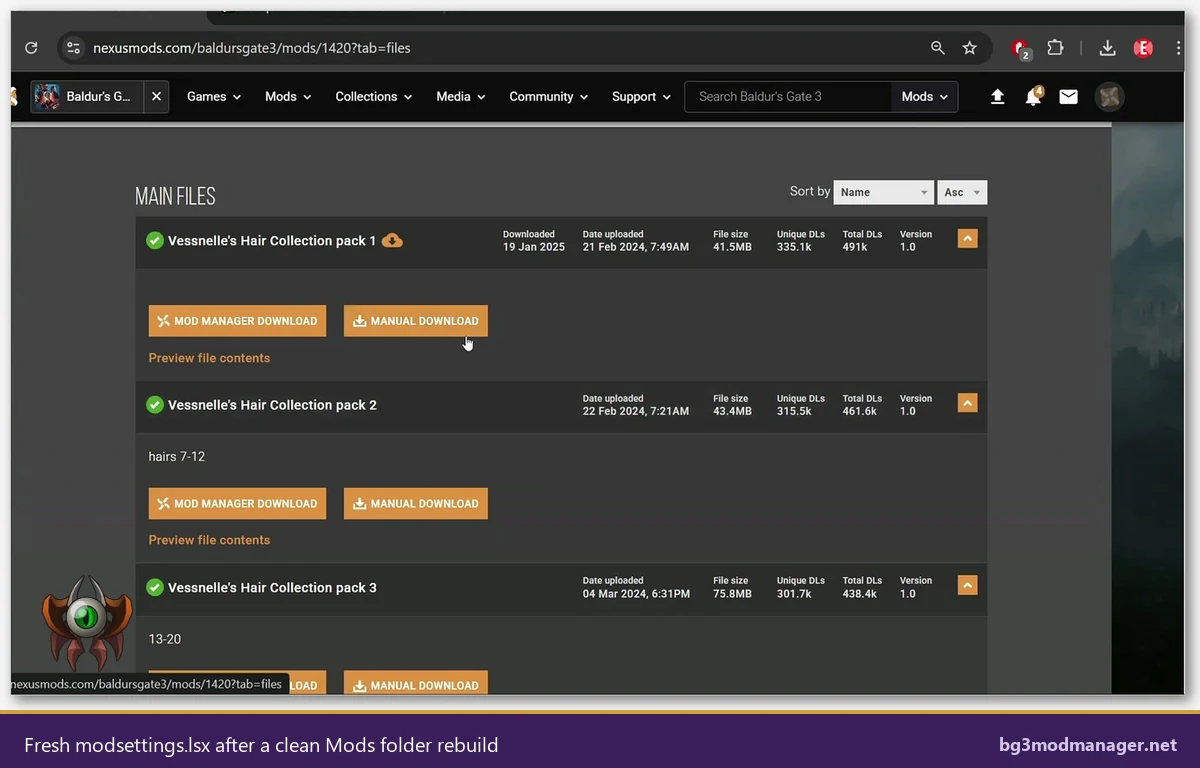
If the previous four steps have not produced a clean launch, the load order itself is no longer trustworthy: an accumulated set of partial fixes, stale cache entries, and inconsistent modsettings.lsx writes typically blocks further progress. The reset procedure below treats the Mods directory and the modsettings.lsx as disposable, regenerates both from a clean baseline, and reapplies mods one at a time. The rebuild takes thirty to ninety minutes depending on mod count and download speeds, and resolves the long tail of post-Patch-8 crashes that the targeted fixes do not.
- Close BG3 Mod Manager and Baldur’s Gate 3. Open
%LOCALAPPDATA%\Larian Studios\Baldur's Gate 3\Modsand move every .pak to a backup folder. The Mods folder itself should remain empty (do not delete the folder). - Open
%LOCALAPPDATA%\Larian Studios\Baldur's Gate 3\PlayerProfiles\Public. Move bothmodsettings.lsxandmodsettings.lsx.bakto the same backup folder. - Launch Baldur’s Gate 3 directly (not via BG3MM). The engine writes a clean default modsettings.lsx under the Public profile and confirms the install reaches the main menu without mods. Issue #418 on the LaughingLeader tracker documents a similar profile-defaults reset after a Patch 8 hotfix.
- Exit BG3, launch BG3 Mod Manager, click Refresh. Both panes should be empty (no mods cached).
- Drop one .pak into the Mods directory (start with whichever mod is most important to the playthrough), Refresh in BG3MM, drag the entry to Active Mods, Save, Export Order to Game, and launch BG3 from the Play button. Confirm a clean main menu.
- Repeat step 5 for each remaining mod in the original load order, one .pak at a time. The first mod that reproduces the crash is the trigger; the previous step’s working subset is the largest known-good order.
The official Patch 7 troubleshooting page on the BG3 community wiki documents the modsettings.lsx regeneration step as a canonical recovery for any modsettings file the engine cannot parse, and the same procedure carries forward to Patch 8 because the underlying schema is shared. The LaughingLeader project page at github.com/LaughingLeader/BG3ModManager is the authoritative source for the manager build that writes the Patch 8 schema correctly.
How to Tell If a Crash Is Patch-8-Related vs a Different BG3 Mod Manager Bug
Not every post-Patch-8 crash is caused by Patch 8. Three other failure classes look superficially similar and have separate fixes. Recognising the fingerprint of each saves time before applying the procedures above.
- Load order resets between launches: the symptom is a saved order that disappears when BG3MM reopens. This is a separate bug tracked under issue #355 and is documented as the load-order-reset-externally failure mode. The fix is unrelated to Patch 8 mod compatibility.
- Crash on save load only, not on main menu: a clean main menu followed by a crash when loading a Patch 7 save file usually indicates a mod that changed UUID between Patch 7 and Patch 8. The save file references the old UUID; the engine cannot resolve it. The fix is either a save edit or starting a new campaign on the Patch 8 load order.
- BG3MM hangs on Loading Profiles before any launch: the manager itself never reaches the Active Mods pane. This is the Patch 7 schema parser bug, fixed by updating BG3MM to v1.0.12.x (covered in a future article on the troubleshooting hub).
The Patch 8 mod-crash signature is specific: the game starts, the launcher window appears, the Larian splash plays, and the game exits during early initialisation (typically before the title screen renders) without any error dialog, leaving a crash log under PlayerProfiles\Public. Any failure that does not match this exact pattern is more efficiently diagnosed against the relevant separate guide rather than the procedure in this article.