
This guide walks through the complete first-time installation of BG3 Mod Manager v1.0.12.9 on Windows 10 and Windows 11. The walkthrough covers the .NET 8 Desktop Runtime prerequisite, archive extraction to a user-writable folder, first-launch configuration of the Game Data Path, and verification that the application is reading the Baldur’s Gate 3 mods folder correctly. The article assumes a 64-bit Windows installation, a working copy of Baldur’s Gate 3 from any storefront, and administrator-level access on the user account performing the install.
Before You Start: Prerequisites
BG3 Mod Manager is a portable .NET 8 application maintained by LaughingLeader under the MIT license. The installation process is straightforward, but three prerequisites cause the majority of failed first-launch attempts reported on the LaughingLeader/BG3ModManager issue tracker. Confirming each item below before downloading the archive saves time when troubleshooting.
- Operating system: Windows 10 (build 1809 or later) or Windows 11, 64-bit edition. The application has not been tested on 32-bit Windows or on Windows 7 or 8.1.
- Microsoft .NET 8 Desktop Runtime (x64): Required for v1.0.12.x and newer. The official installer is available from dotnet.microsoft.com. The ASP.NET Core runtime alone is not sufficient; the Desktop Runtime variant is the correct download.
- Baldur’s Gate 3 launched at least once: Larian’s launcher generates the user profile directory and the Mods folder under
%LOCALAPPDATA%\Larian Studios\Baldur's Gate 3only on first run. BG3 Mod Manager cannot create these folders itself, and missing folders are a common cause of mod-import errors documented in GitHub issue #234. - A user-writable folder for extraction: The application is portable and stores nothing in
Program Files. A folder under the user profile, such asC:\Tools\BG3ModManageror%USERPROFILE%\Documents\BG3ModManager, works well. OneDrive-synced paths such as%USERPROFILE%\OneDrive\Documentsshould be avoided because OneDrive’s reparse points have caused intermittent file-lock errors reported in issue #313. - An archive utility: Windows 11 includes built-in support for ZIP extraction through File Explorer. Windows 10 also ships with a basic ZIP extractor; users with 7-Zip or WinRAR installed can use those instead. No installer wizard is required.
The .NET 8 Runtime Is Not Optional
The .NET 8 Desktop Runtime is the single most common reason BG3 Mod Manager opens briefly and closes without an error window. If the application fails to launch silently, install or reinstall the runtime from the Microsoft .NET site and reboot before troubleshooting anything else.
Step-by-Step Installation Guide
The following sequence covers a clean install of BG3 Mod Manager v1.0.12.9. Each step lists the exact action to perform and the expected on-screen result, so users can confirm progress before moving on. Total install time is typically under five minutes once the .NET runtime is in place.
- Install Microsoft .NET 8 Desktop Runtime (x64). Download the runtime from the official Microsoft .NET site, run
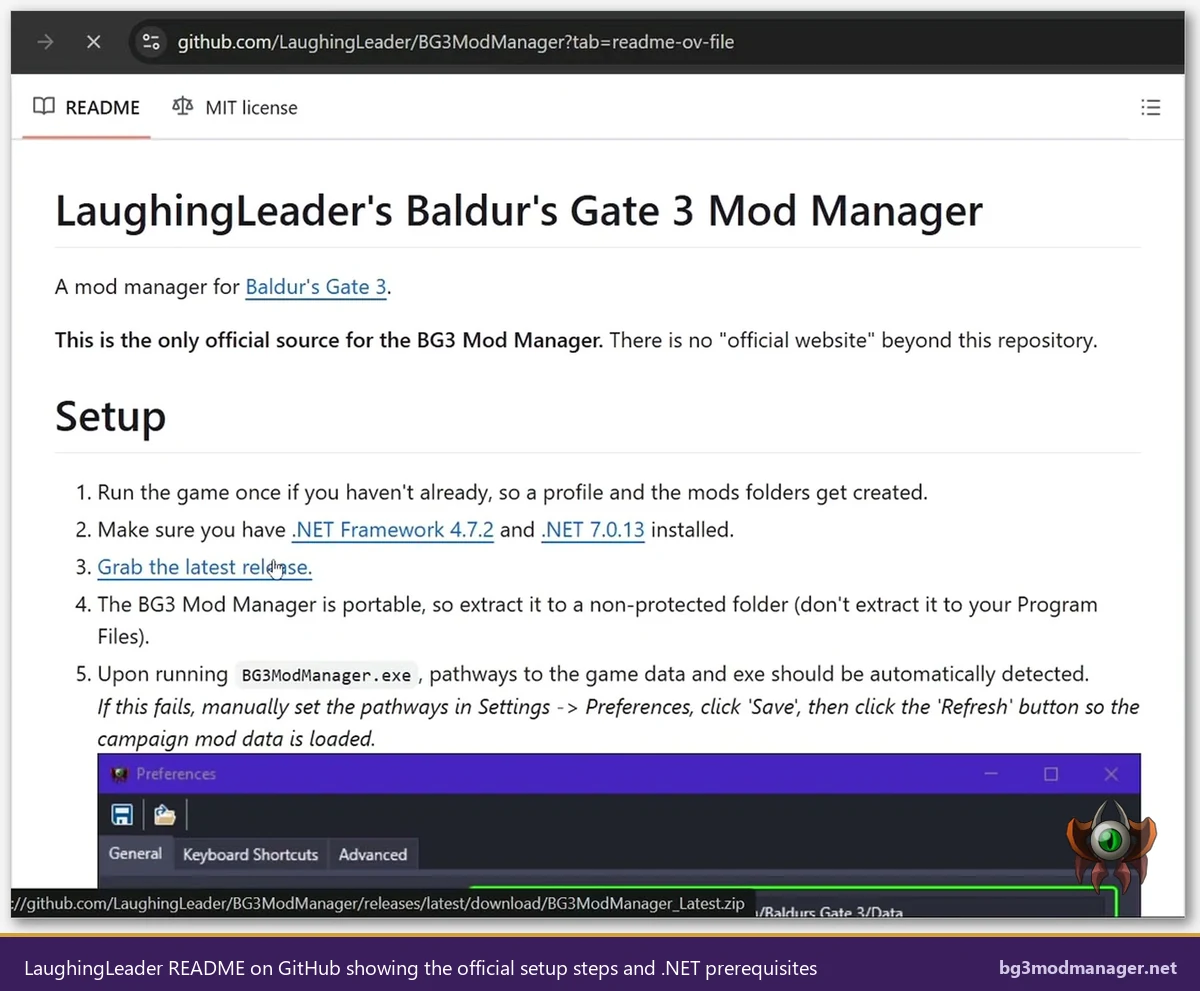
windowsdesktop-runtime-8.0.x-win-x64.exe, and follow the wizard. A reboot is recommended after installation, particularly on systems that previously had .NET 7 installed. - Open the official GitHub release page. The release archive is hosted at github.com/LaughingLeader/BG3ModManager. The latest stable build at the time of writing is v1.0.12.9, released May 19, 2025, with the file
BG3ModManager_Latest.zip(11.1 MB) listed under Assets. - Download
BG3ModManager_Latest.zip. The archive is the only required asset. Source-code zips and tarballs published on the same release page are intended for developers and are not needed by end users. - Verify the file size and source. The archive should be approximately 11.1 MB. Anything significantly larger or smaller is a red flag for a tampered third-party mirror; the only official distribution channel is the LaughingLeader/BG3ModManager GitHub repository.
- Extract the archive to a user-writable folder. Right-click
BG3ModManager_Latest.zipin File Explorer and select Extract All. Choose a destination such asC:\Tools\BG3ModManager. AvoidC:\Program Files,C:\Program Files (x86), the Windows directory, and any folder synchronised by OneDrive, Dropbox, or Google Drive. - Open the extracted folder. Inside, users should see
BG3ModManager.exe,BG3ModManager.exe.config, and three subfolders:_Lib,Resources, andTools. The presence of all five items confirms the archive extracted cleanly. - Double-click
BG3ModManager.exe. Windows SmartScreen may display a “Windows protected your PC” dialog because the executable is not signed by a Microsoft-trusted publisher. Click More info followed by Run anyway to allow the launch. This SmartScreen prompt only appears on the first run. - Wait for the main window to render. A normal first launch takes two to four seconds. The Active load order pane on the left and Inactive pane on the right both display, with a blank Active list and any auto-detected mods pre-populating the Inactive list.
SmartScreen and Antivirus Notes
Windows Defender SmartScreen treats unsigned binaries from low-reputation publishers with caution by design. The BG3 Mod Manager release archive is not code-signed by a Microsoft-trusted certificate authority, which triggers the warning. Users who want to verify the binary independently can compute the SHA-256 hash of the downloaded zip and compare it against the hash published on the GitHub release page. Some third-party antivirus products (notably older builds of Avast, AVG, and Bitdefender) have flagged BG3ModManager.exe as a generic heuristic detection in the past; these reports are documented in issue #213 and have consistently been false positives related to .NET WPF executables.
Where Settings Are Stored
BG3 Mod Manager stores user settings, saved load orders, and custom tags in %APPDATA%\BG3ModManager. The application folder created during extraction holds only program files and is not modified during normal use. Upgrading to a newer release is therefore a matter of replacing the contents of the application folder; saved load orders and preferences survive the upgrade because they live in the AppData path.
First-Launch Configuration
On first launch, BG3 Mod Manager attempts to auto-detect the Baldur’s Gate 3 install via Steam registry keys. Steam users with default install paths typically see the Game Data Path populated correctly without any manual intervention. GOG, GamePass, and custom-path users need to configure the path manually under Settings > Preferences > General.
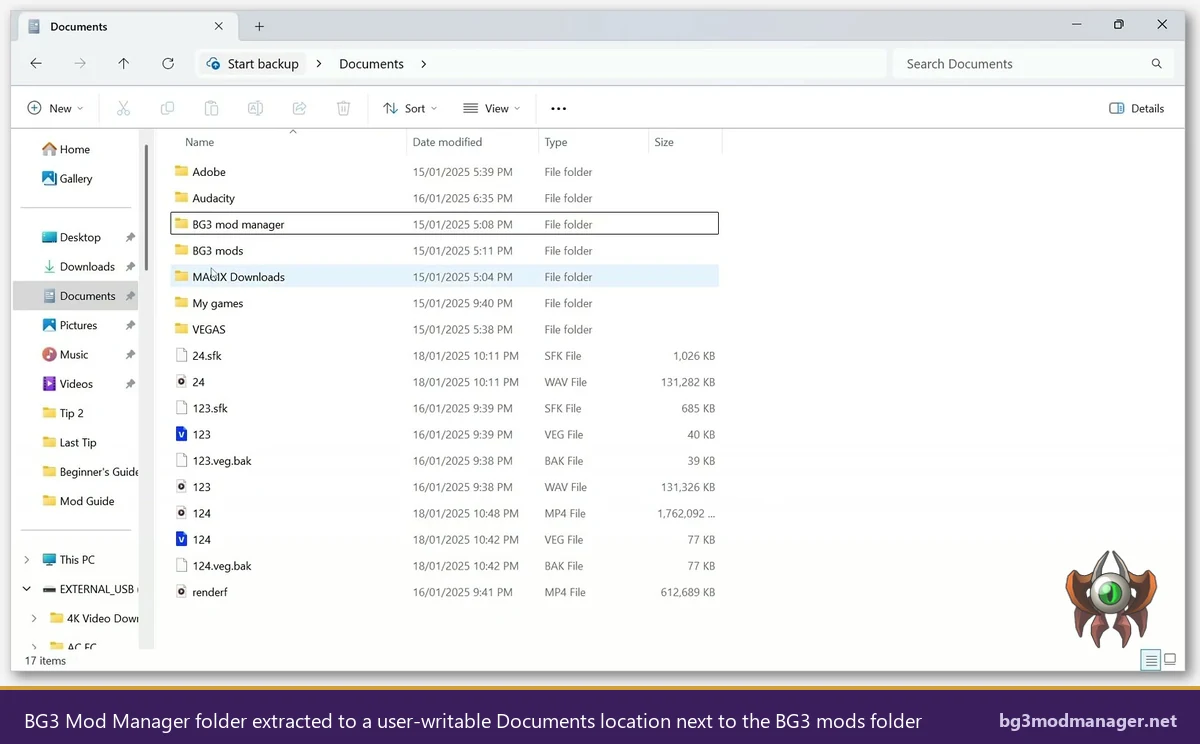
%LOCALAPPDATA%\Larian Studios\Baldur's Gate 3\Mods is where Baldur’s Gate 3 itself looks for .pak files.Setting the Game Data Path
The Game Data Path points to the Data folder inside the Baldur’s Gate 3 install directory. Typical values per storefront are:
- Steam (default):
C:\Program Files (x86)\Steam\steamapps\common\Baldurs Gate 3\Data - GOG Galaxy (default):
C:\Program Files (x86)\GOG Galaxy\Games\Baldur's Gate 3\Data - Microsoft Store / GamePass:
C:\XboxGames\Baldur's Gate 3\Content\Data
After entering or browsing to the path, click Save in the Preferences dialog and then Refresh on the main toolbar. The Refresh action forces BG3 Mod Manager to re-scan the path and rebuild its internal cache of the campaign mod list. Failing to click Refresh after changing the path is the cause of the “no mods showing” symptom reported in issues #238 and #355.
Confirming the Mods Folder
The Mods folder where .pak files are dropped is separate from the game’s Data folder. Its location is %LOCALAPPDATA%\Larian Studios\Baldur's Gate 3\Mods. If the folder does not exist, the BG3 Mod Manager Mods Folder field will display a red indicator. The fix is to launch Baldur’s Gate 3 once and reach the main menu, which causes Larian’s launcher to create the folder structure.
Verifying the Installation Worked
A clean BG3 Mod Manager install passes three quick checks: the application launches without an error, the campaign mod list populates after Refresh, and a test .pak file dropped into the Mods folder appears in the Inactive pane after another Refresh.
- Confirm the version banner. The window title bar shows
BG3ModManager v1.0.12.9on a successful install. If the banner shows a lower version, the upgrade replaced only some of the program files; re-extract the archive cleanly. - Click Refresh on the main toolbar. The application scans the Game Data Path and the Mods folder. The status bar at the bottom of the window briefly displays a progress indicator before settling.
- Confirm the campaign list populates. The drop-down at the top should list
Mainfor the base campaign. A blank or “No campaigns found” entry indicates the Game Data Path is wrong. - Drop a test
.pakinto the Mods folder. Any free mod from Nexus Mods or mod.io works. Place the.pakfile directly inside%LOCALAPPDATA%\Larian Studios\Baldur's Gate 3\Mods, then click Refresh in BG3 Mod Manager. The mod should appear in the Inactive pane on the right. - Drag the test mod to the Active pane. The Active pane on the left holds the load order that gets exported to
modsettings.lsx. Drag-and-drop reordering is the standard mechanism; click Save Order to persist the change.
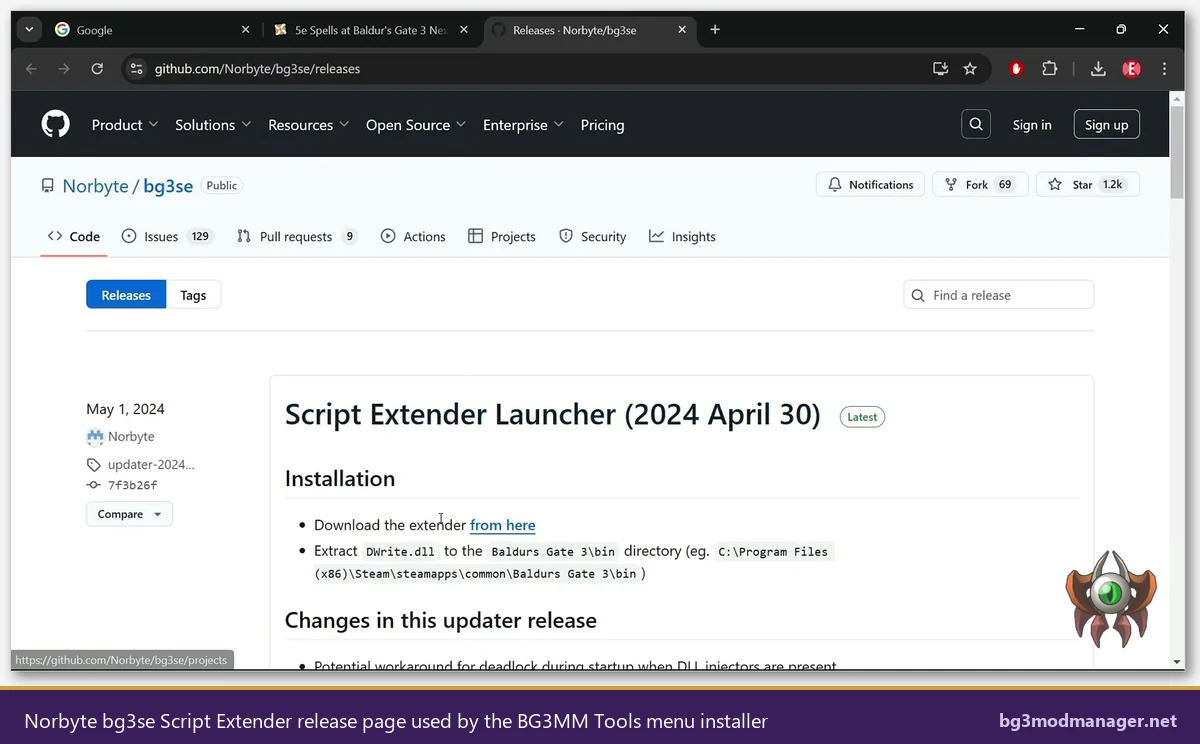
DWrite.dll from this exact release feed and places it in the Baldur’s Gate 3 bin directory.Common Installation Pitfalls
Five recurring issues account for the majority of failed installations reported on the LaughingLeader/BG3ModManager issue tracker. Each is straightforward to avoid once the cause is understood.
- The Program Files trap: Extracting BG3 Mod Manager into
C:\Program FilesorC:\Program Files (x86)causes the application to throw permission errors when it tries to write to its own folder during settings migration. Windows treats those directories as protected, and the portable application has no UAC manifest to elevate. Extract under the user profile or a customC:\Toolsdirectory instead. - The OneDrive sync trap: Folders inside
%USERPROFILE%\OneDrive\Documentsare reparse points that OneDrive can convert between cloud-only and locally-cached states. BG3 Mod Manager’s settings file can be locked mid-write while OneDrive is uploading, producing an “Access denied” dialog. Issue #313 covers this scenario; the fix is to extract outside any cloud-synced folder. - Antivirus quarantine: Some endpoint security suites quarantine
BG3ModManager.exeon first launch because the binary is unsigned and uses .NET reflection at startup. Whitelisting the application folder in the antivirus exclusion list, then re-extracting from the archive, resolves the issue. Issue #213 documents the false-positive history with specific products. - Missing .NET 8 runtime: A silent launch failure (the application opens for under a second and disappears) almost always means .NET 8 Desktop Runtime is missing or corrupt. The application produces no error window because the .NET runtime itself fails to load before WPF can initialise the UI thread. Install the runtime from dotnet.microsoft.com and reboot. This pattern is referenced in issues #353 and #404.
- GamePass path detection: Microsoft Store and GamePass installs of Baldur’s Gate 3 live in
C:\XboxGames\Baldur's Gate 3\Content\Data, a path that the auto-detect logic does not probe. The Game Data Path must be set manually under Preferences. Separately, the protectedWindowsAppsdirectory is not the correct path; users who pointed there in older builds reported the symptom in issue #418.
What to Do Next
With BG3 Mod Manager installed and reading the Mods folder, the next priorities are populating an initial mod list, setting up the Script Extender if scripted mods are planned, and learning the export workflow that pushes load orders into modsettings.lsx. The main BG3 Mod Manager guide covers each of these in detail with workflow diagrams and load-order strategy notes.
Future point releases of the manager will appear on the GitHub release page and on the download page, which mirrors version metadata, file size, and prerequisite changes for each release. For Script Extender setup, BG3 Mod Manager ships an installer accessible via Tools > Download & Extract Script Extender; the menu pulls the latest DWrite.dll from the Norbyte/bg3se release feed and copies it into the Baldur’s Gate 3 bin directory. Users who prefer to install Script Extender manually can follow the documentation on wiki.bg3.community.