
Keeping BG3 Mod Manager current is the single highest-leverage maintenance task for any modded Baldur’s Gate 3 install. Each Larian patch (notably Patch 7 and the Patch 8 hotfix wave) shifts how the game reads modsettings.lsx, how Story Editor data is parsed, and how PAK overrides resolve at load time. The LaughingLeader maintainer team ships fast: GitHub issues such as #355 (Patch 7 compatibility) and #418 (Patch 8 hotfix) were both closed within days of the underlying game patch. Running a stale build of the manager against a freshly patched game is the most common cause of the “load order has been reset” error that floods the issue tracker after every Larian update.
This guide walks through the official update workflow for BG3 Mod Manager v1.0.12.9: confirming the installed version, downloading the latest release ZIP from GitHub, replacing the executable cleanly, preserving the saved load order, and verifying that the upgrade landed correctly. The process is portable and reversible. There is no installer, no registry write, and no admin privilege required, which means a botched update can be rolled back by restoring the previous folder. Every step below assumes Windows 10 or Windows 11 (64-bit) with the .NET 8 Desktop Runtime present, since v1.0.12.x and newer ship as a .NET 8 application per issue #213.
Back Up modsettings.lsx Before Updating
Back up modsettings.lsx before any update. The file lives in %LOCALAPPDATA%\Larian Studios\Baldur's Gate 3\PlayerProfiles\Public and stores the active load order. If a future BG3 Mod Manager build introduces a regression that rewrites the file incorrectly, a copy taken before the update is the fastest way to restore the previous state.
Check Your Current BG3 Mod Manager Version
Before downloading anything, users should confirm what version is already installed. BG3 Mod Manager exposes the build string in two places. The first is the application title bar, which prints the running version after the application name, for example “BG3 Mod Manager v1.0.12.9”. The second is the Help → About menu, which opens a small dialog displaying the version, the build date, and a link to the project’s GitHub page. Older builds (v1.0.11 and below) used a slightly different About dialog layout and ran on .NET Framework 4.7.2 rather than .NET 8.
Users running v1.0.12.0 through v1.0.12.8 are still on the .NET 8 line and can update to v1.0.12.9 by replacing the executable only. Users on v1.0.11.x or earlier should treat the move to v1.0.12.x as a fresh install rather than an in-place update, because the runtime dependency changed. The simplest way to capture the current version for record-keeping is a screenshot of the About dialog, or copying the title bar text into the support folder alongside any saved load orders.
- Method 1 (fastest): Read the version from the title bar at the top of the application window.
- Method 2 (canonical): Click Help in the menu bar, then About. The dialog prints version, build date, and the GitHub URL.
- Method 3 (file system): Right-click
BG3ModManager.exein the install folder, choose Properties, then the Details tab. The “File version” field matches the published release tag.
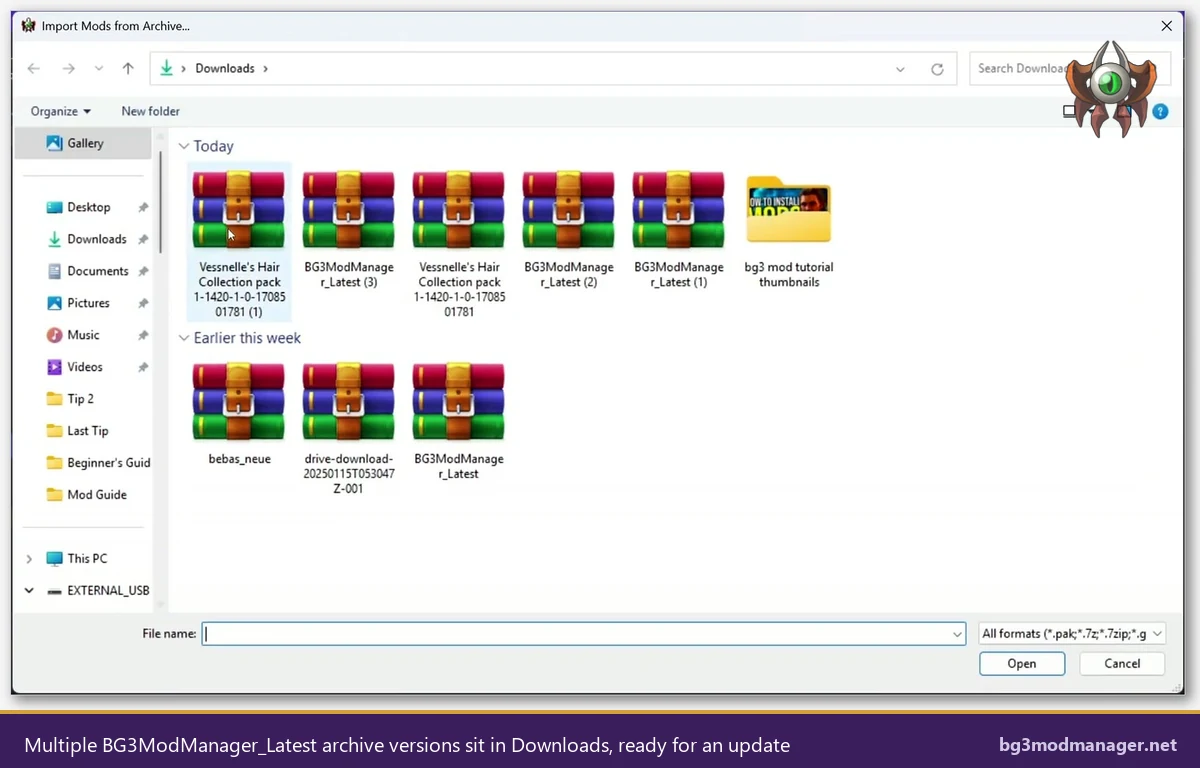
Recommended Path: Download the Latest Release from GitHub
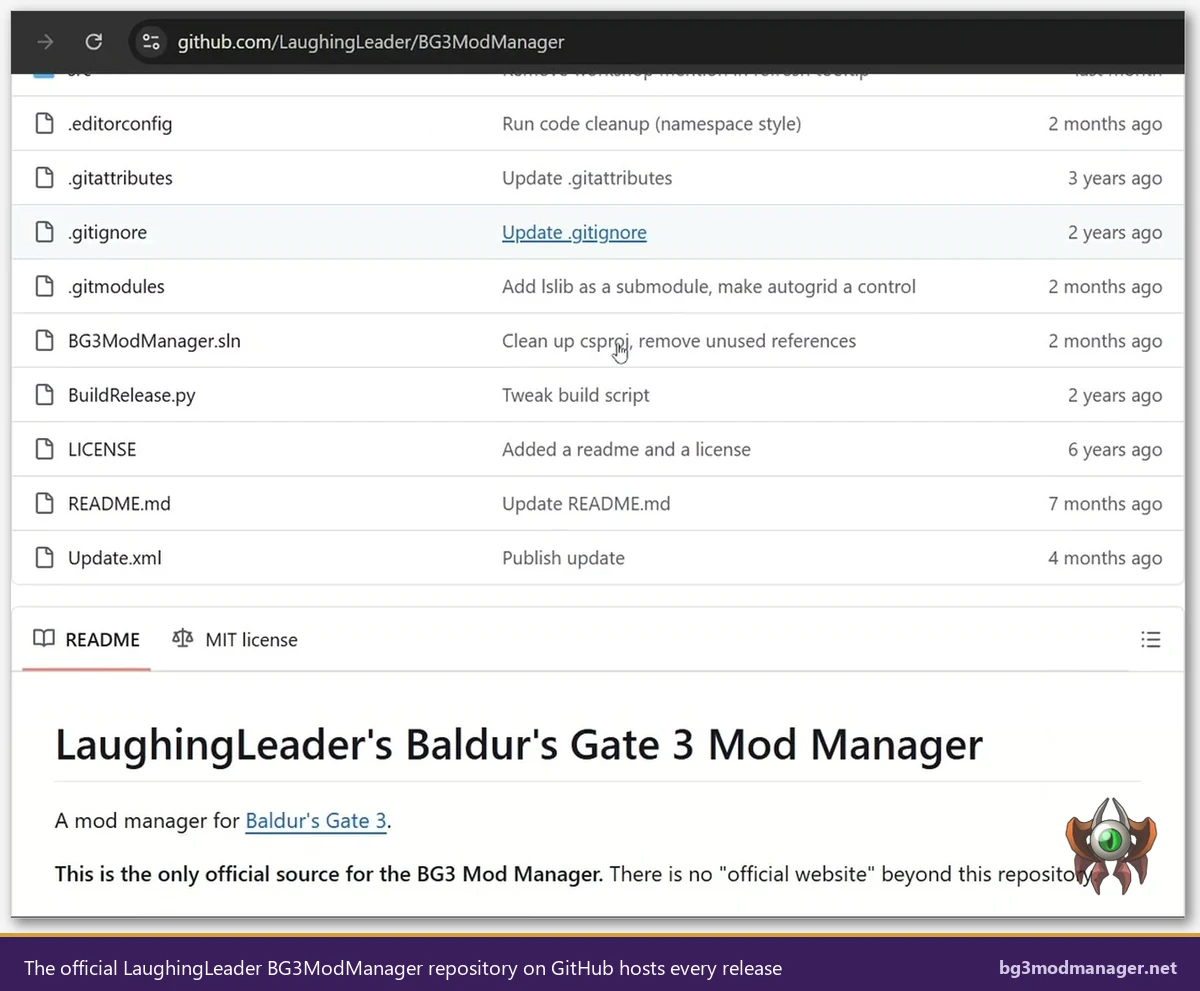
BG3 Mod Manager has no first-party automatic update channel. The application does not silently replace its own binaries, and the Tools menu does not contain a “Check for Updates” entry in the v1.0.12.x line. Earlier versions briefly experimented with an in-app update prompt, but that surface was removed because it created confusion when GitHub release tags shifted between pre-release and stable. The result is straightforward: every update for the manager itself flows through the GitHub Releases page maintained by LaughingLeader.
The canonical URL is github.com/LaughingLeader/BG3ModManager/releases. The latest stable build sits at the top of the list with the “Latest” green badge. The downloadable asset is named BG3ModManager_Latest.zip and weighs roughly 11.1 MB at v1.0.12.9. Release notes for each version describe the fixes and enhancements bundled into that build, including which game patch the build was tested against. Operators preparing for a major Larian update should watch this page for the corresponding compatibility release before resuming a modded playthrough.
- Open the Releases page in any modern browser. No GitHub account is required to download.
- Locate the entry tagged Latest. Below the release notes, expand the Assets section.
- Click
BG3ModManager_Latest.zipto download. Source code archives are also listed but are only relevant for users compiling from source. - Verify the downloaded file size against the figure on the release page. Mismatched sizes typically indicate a transfer error that warrants re-downloading.
Step-by-Step Update Procedure
The update procedure below preserves all user data: saved load orders, custom profiles, configured paths under Settings → Preferences, and any per-mod metadata. The application stores its working data in the install folder under Data/ and in the Windows roaming profile under %APPDATA%\LaughingLeader\BG3ModManager. Replacing only the executable and the bundled _Lib, Resources, and Tools folders is sufficient. Operators who want a belt-and-braces backup can copy the entire install folder before extracting the new ZIP.
- Close the running BG3 Mod Manager. File locks on
BG3ModManager.exewill block any in-place replacement. Confirm via Task Manager that noBG3ModManagerprocess remains. - Back up modsettings.lsx. Copy
%LOCALAPPDATA%\Larian Studios\Baldur's Gate 3\PlayerProfiles\Public\modsettings.lsxto a safe location. - Extract the new ZIP. Right-click
BG3ModManager_Latest.zipand choose Extract All, or open it in 7-Zip / WinRAR. The archive containsBG3ModManager.exe, aBG3ModManager.exe.configsibling file, and the_Lib,Resources, andToolsfolders. - Replace the existing files. Copy the extracted contents on top of the current install folder. Choose “Replace the files in the destination” when Windows prompts about duplicates. Do not delete the existing folder first, since that would also remove the
Data/subfolder where saved load orders live. - Launch the updated executable. Double-click
BG3ModManager.exe. The first launch after an update may take a few seconds longer than usual because the .NET 8 runtime caches the new assemblies. - Confirm permissions. If the application fails to start with a permissions error, see issue #22. Moving the install folder out of
Program Filesto a user-writable location resolves the majority of UAC-related failures.
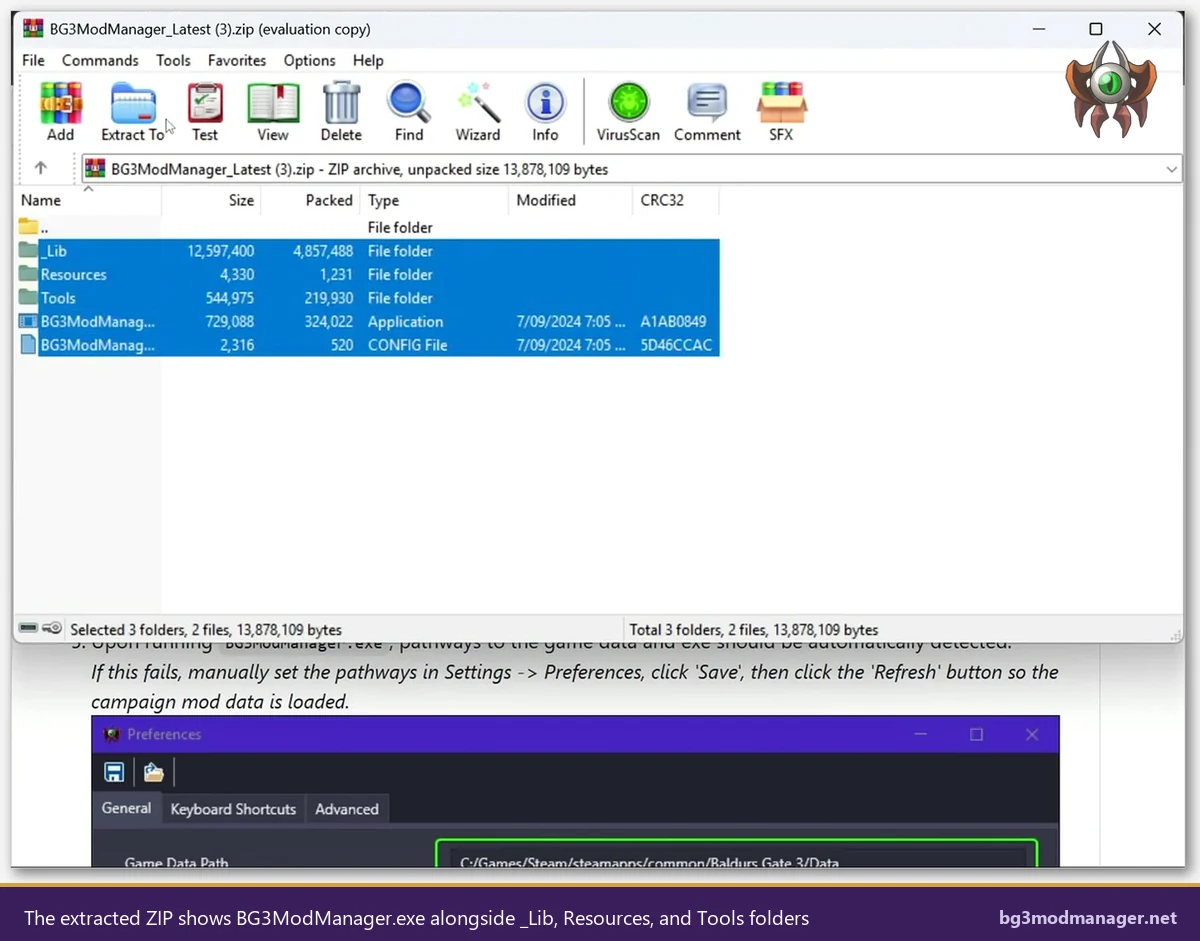
BG3ModManager.exe and the _Lib, Resources, and Tools folders are the only files that need to be replaced. The user’s Data folder, where saved load orders live, stays untouched.Verifying the Update Worked
Verification has two parts: the application reports the new version, and the saved load order is intact. After launching the updated executable, the title bar should print v1.0.12.9 (or whatever release was downloaded). Opening Help → About should display the same version with a current build date. If the title bar still prints the old version, the executable replacement was not applied. The most common cause is that File Explorer wrote the new files into a subfolder named after the ZIP rather than directly into the install folder. Re-extract using “Extract Here” rather than “Extract to BG3ModManager_Latest\” and copy the contents one level higher.
Load order verification is equally direct. The left panel of the manager should still display every active mod that was present before the update, in the same order. The right panel shows inactive mods. If the left panel is empty after the update, the manager has lost track of the saved load order, which usually happens when the Data/ folder was overwritten. Restoring the backup of modsettings.lsx taken in the pre-update step, then clicking File → Refresh, rebuilds the load order from the game’s perspective and most often resolves the issue.
- Title bar prints the new version string.
- Help → About dialog matches the title bar version.
- Left panel shows the previously active mods in the previously saved order.
- The status bar at the bottom shows valid Game Data and AppData paths under Settings → Preferences.
- Clicking Export Order to Game writes a refreshed
modsettings.lsxwithout errors.
Common Update Issues
.NET 8 Desktop Runtime missing after update
Users coming from v1.0.11.x will hit a silent-launch failure on the first run of v1.0.12.x because the runtime dependency moved from .NET Framework 4.7.2 to .NET 8 Desktop Runtime (x64). Symptoms include the application opening for a fraction of a second and then closing without an error window, no entry written to the Windows Event Log under Application errors, and a complete absence of any process named BG3ModManager in Task Manager. Installing the .NET 8 Desktop Runtime from the official Microsoft .NET downloads page and rebooting resolves this immediately. The Desktop Runtime variant is the correct one. The Runtime (without “Desktop”) variant ships only the console-mode libraries and is insufficient.
modsettings.lsx wiped after first launch
This is the symptom users describe in issue #355 and adjacent threads. After a Larian patch, the game itself rewrites modsettings.lsx to remove entries it considers invalid. If BG3 Mod Manager is updated immediately after the game patch but before re-applying the saved load order, the manager reads the trimmed file and concludes that no mods are active. Restoring the pre-patch backup of modsettings.lsx, opening the manager, and clicking Save Load Order to File writes the saved order back to the game’s profile. Issue #418 covers a Patch 8 hotfix that addresses an edge case where the file was saved in a slightly different LSX dialect.
Antivirus quarantine on the new executable
Some antivirus engines flag freshly published binaries with a generic “low reputation” verdict simply because the file is new. Microsoft Defender’s SmartScreen, Avast, and Kaspersky have all done this at different points across the v1.0.12.x release cycle. The submitted file is the same one served from the GitHub release page, and the project’s open MIT license means the entire source tree is available for review. Users encountering a quarantine should restore the file from the antivirus quarantine queue and add the install folder as an allowed exception. Re-downloading the ZIP from the official LaughingLeader release page (rather than a mirror) ensures the file matches what the maintainer actually published.
Bundled dependency mismatch
Issue #234 tracks situations where the _Lib folder of an older install collides with the new release. The fix is to delete the entire _Lib folder before copying the new one in, rather than letting Windows merge contents. The same applies to Resources and Tools. Stale DLLs in those folders surface as TypeLoadException dialogs at startup, which the v1.0.12.x release does not suppress.
When NOT to Update
Updating mid-playthrough is risky for one specific reason: if the new release introduces a load-order regression, restoring the previous order requires either a clean rollback to the prior build or a manual modsettings.lsx repair. Players in a stable, working modded playthrough should treat each update as a maintenance window: complete the current session, back up modsettings.lsx, run the update outside of any active save, and verify that the load order survives a launch-and-quit cycle before resuming the campaign. Updating five minutes before a planned multi-hour session is the worst time to discover an incompatibility.
Pre-release builds are a separate caution. The Releases page occasionally lists tags marked “Pre-release” or “Beta”. Those builds are intended for users actively testing fixes referenced in open issues and should not be used for normal playthroughs unless the player is also tracking the relevant GitHub issue threads. The “Latest” green badge always points to the most recent stable release, and that is the build that should be downloaded for general use. If the Latest badge is missing on the Releases page, the maintainer has not yet promoted the most recent tag, which means a pre-release is at the top of the list. Scrolling down to the previous stable tag is the correct response.
Two other situations argue for a deliberate pause: a Larian patch that has just dropped and for which BG3 Mod Manager has not yet shipped a compatibility release, and an active issue thread on GitHub describing a regression in the very latest build. The former resolves itself within days as the maintainer pushes a tagged release. The latter is visible by sorting the issues list by “Recently created” and skimming for reports against the version number that matches the latest tag.
Watch a Walkthrough
The video below covers the LaughingLeader BG3 Mod Manager workflow end-to-end and includes scenes that match the update flow described above: extracting the release ZIP, replacing the executable, and verifying the saved load order. Operators who prefer a visual walkthrough can mirror the on-screen actions while following the procedure list above.
For the official download archive, release notes, and direct links to every prior build, the BG3 Mod Manager download page mirrors the latest LaughingLeader release with verified file hashes. The homepage tracks the active version and links straight into the GitHub Releases listing.