
An “override” mod in Baldur’s Gate 3 is a mod that ships as loose, unpacked game files dropped into the live Data folder of the install (...\Baldurs Gate 3\Data\Public, ...\Data\Generated, sometimes ...\Data\Mods) instead of as a single self-contained .pak archive. The technique pre-dates Larian’s official mod manager and was the dominant way mods shipped in 2023 and early 2024. After Patch 7 in September 2024 and the Patch 7 hotfixes that followed into 2025, most of these override mods stopped working: the file-integrity check Larian shipped alongside the in-game mod browser detects modified game files in Data at launch and either refuses to load them, silently restores the original asset, or, in the worst cases, fails the load entirely.
This guide explains exactly what changed, why bg3 override mods patch 7 queries spike every time Larian ships a hotfix, how to identify whether a currently installed mod is an override-style file replacement rather than a proper .pak, how to remove override files cleanly without wiping the entire install, and what packaged alternatives exist for the most common ex-override mods. The procedure draws on issue threads #355, #404, and #418 on the LaughingLeader/BG3ModManager repository, which between them document the Patch 7 integrity-check behaviour, the override-mod regression, and the Patch 8 hotfix workaround.
BG3MM Cannot Uninstall Override Mods
BG3 Mod Manager only manages .pak files in the Mods folder. Override mods sit outside that scope: they live in the Baldur’s Gate 3 install Data folder, not in %LOCALAPPDATA%\Larian Studios\Baldur's Gate 3\Mods. BG3MM cannot uninstall them. Removal is a manual file operation against the install directory, not a Remove button click.
What an Override-Type Mod Actually Does
Baldur’s Gate 3 ships its assets as a tree of LSPK packages indexed under the install’s Data directory. The engine reads from that tree at boot, layering content based on a priority list defined inside modsettings.lsx. A proper .pak mod ships as a single packed archive, lands in %LOCALAPPDATA%\Larian Studios\Baldur's Gate 3\Mods, and is registered in modsettings.lsx by BG3 Mod Manager when the user clicks Export Order to Game. The engine then layers that .pak on top of the base game LSPKs at the priority dictated by the load order. No game file is touched on disk; the engine merges in memory.
An override mod skips that entire pipeline. Instead of packaging assets into a .pak, the author ships unpacked files (typically extracted with the LSLib toolset) and instructs the user to copy them directly into specific subfolders under the BG3 install Data directory: Public\Game\Mods\GustavDev\, Public\Game\GUI\, Generated\Public\Game\, or similar. The engine’s asset loader, when it walks the Data tree at boot, finds the modified files in place and uses them in preference to the equivalent files inside the original LSPK archives. The result is a “free” mod that does not need to register with modsettings.lsx and does not show up in BG3 Mod Manager’s load order at all.
- .pak mod path: archive in
%LOCALAPPDATA%\Larian Studios\Baldur's Gate 3\Mods\+ entry inmodsettings.lsx+ visible in BG3MM load order. - Override mod path: loose files dropped into
...\Baldurs Gate 3\Data\Public\,...\Data\Generated\, or other game-install subfolders. Nomodsettings.lsxentry. Not visible in BG3MM. - Common override targets: UI templates, hair models, body textures, dice skins, splash screens, loading-screen tips, font replacements.
- Why authors used it: simpler distribution, no UUID generation, no
meta.lsxauthoring, no dependency declaration, faster iteration during a patch cycle.
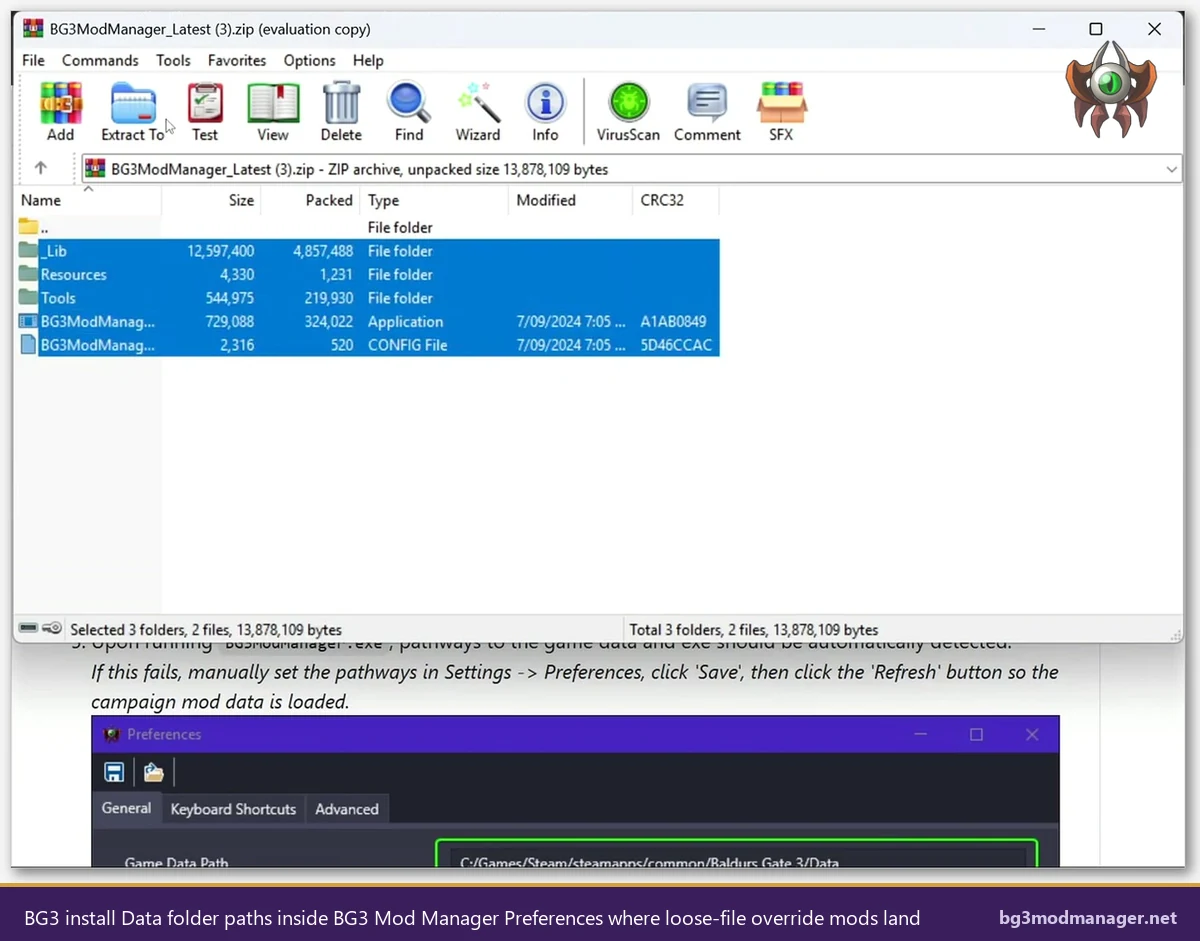
Data folder visible inside BG3 Mod Manager’s Preferences (Game Data Path field). Override-type mods drop loose files into subfolders of this directory rather than into the AppData Mods folder that BG3MM scans.Why Patch 7 Broke Most Override Mods
Patch 7 shipped on 17 September 2024 and introduced two major changes that, taken together, regressed the override-mod technique. The first was the official in-game mod manager: a Larian-built mod browser that ingests .pak files via curated mod.io listings and registers them through a hardened version of the existing modsettings.lsx flow. The second, less advertised, was a tightened file-integrity pass that runs at launch and verifies the contents of the Data tree against the expected manifest from the installed game version.
The integrity pass was the killer. When the engine walks Data\Public or Data\Generated at boot and finds a file whose hash does not match the manifest, the post-Patch-7 launcher takes one of three actions depending on the file type: refuse to load and surface a generic error to the user, silently restore the original from the LSPK archive (overwriting the override file), or fail to load the dependent mod that referenced the override asset. The behaviour is documented in issue #355 on the LaughingLeader repository, which tracked the wave of breakage reports filed in the week after Patch 7 went live, and again in issue #404 when a subsequent hotfix tightened the check further. The Patch 8 hotfix referenced in issue #418 did not relax the integrity pass; it only adjusted how the engine reports the failure.
The community wiki at wiki.bg3.community maintains a Patch 7 troubleshooting page that lists the categories of override mods most affected: UI replacements (ImpUI predecessors that shipped as loose XAML), hair-model replacements, custom dice skins, and splash-screen edits. Each of these categories has since pivoted to .pak distribution, but legacy installs still carry the loose files in Data, and those legacy files continue to break new launches every time Larian re-runs the integrity check after a hotfix.
How to Identify If a Currently Installed Mod Is an Override
The diagnostic is mechanical. BG3 Mod Manager exposes the entire .pak catalogue in its load-order panes; anything not visible there but visibly affecting the game is, by elimination, an override. Three signals together confirm the diagnosis. First, the mod is missing from the BG3MM load order despite the user remembering the install. Second, the in-game effect is still partially visible (a hair model still appears, a UI tweak still renders, a dice skin still applies) even when BG3MM is closed and the user has not exported the load order. Third, the mod’s installation instructions on its Nexus Mods page or its README explicitly named a subfolder of the BG3 install Data directory rather than the AppData Mods folder.
For mods that shipped as a hybrid (a small .pak plus loose override files), BG3MM will show the .pak half but is silent about the override half. The packaged .pak typically displays in the load order with no UUID metadata or with a placeholder UUID, and its Dependencies side panel reads as empty. That signature, paired with documented override files in the install directory, is the canonical hybrid pattern. The reasoning for why BG3MM cannot detect override files is straightforward: the manager’s scanner is bound to the AppData Mods folder by the Game Data Path in Preferences, and no setting points it at the install Data tree.
- Open BG3 Mod Manager and review the active load order. Note any mod the user expects to be installed but cannot find.
- Open File Explorer at
...\Steam\steamapps\common\Baldurs Gate 3\Data\Publicand at...\Data\Generated. Sort by Date Modified, descending. - Look for non-Larian folder names at the top of the listing. Folder names that match a mod author handle, a mod title, or a third-party project ID are override fingerprints.
- Cross-reference any suspect folder against the current Steam manifest by running Steam Library, Baldur’s Gate 3, Properties, Installed Files, Verify integrity of game files. Any reported difference identifies an override file precisely.
- Consult the original mod page. The README or installation instructions name the destination subfolder. Match those names against the suspect folder list.
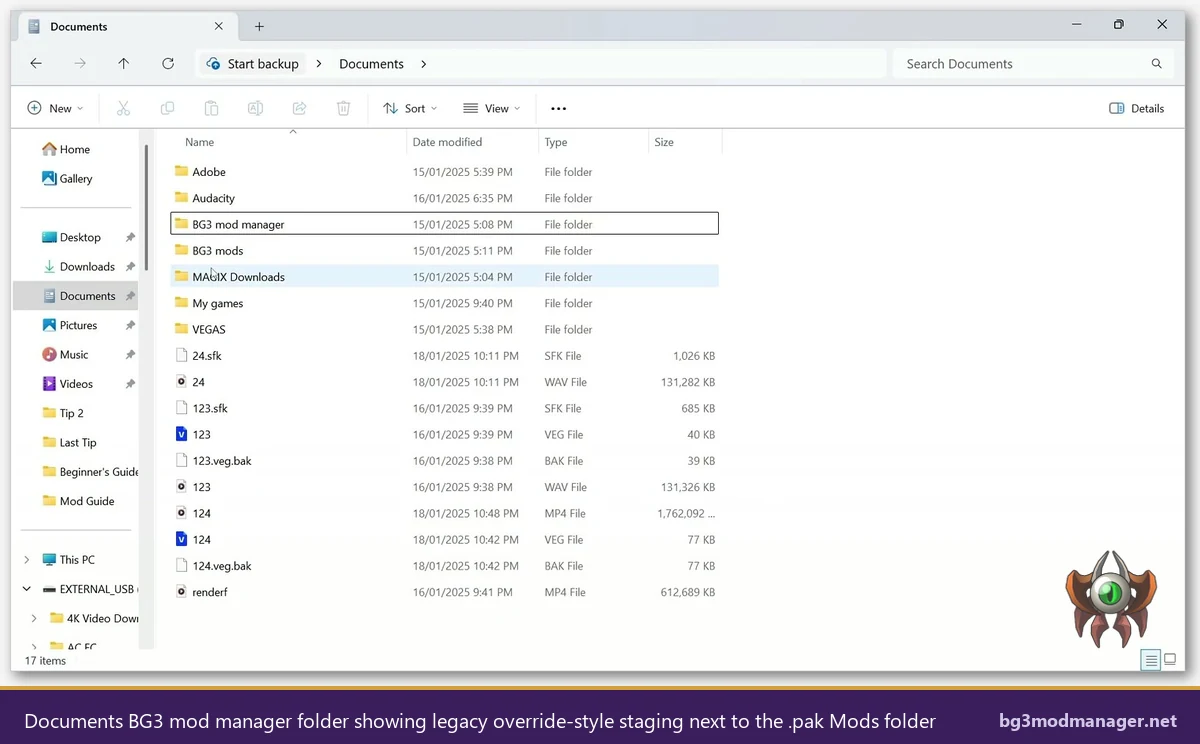
.pak archives. After Patch 7, only the second of these is safe to copy into the live install.Step-by-Step: Remove Override Files Cleanly Without a Reinstall
A clean removal does not require a full reinstall of Baldur’s Gate 3. The Steam Verify integrity of game files command will replace any modified or deleted file with the canonical version from the depot, but only for files that match an entry in the manifest. Files added by an override mod that did not replace an original (purely additive files in a third-party subfolder) will not be removed by Verify; they have to be deleted manually first. The ordering matters: delete additive override files, then run Verify against modifications, then refresh BG3 Mod Manager.
- Close Baldur’s Gate 3 and BG3 Mod Manager. Both can hold file handles inside the install
Datatree on Windows. - Back up the install directory. Copy
...\Baldurs Gate 3\Data\Publicand...\Data\Generatedto a separate drive or a ZIP archive. The backup is insurance, not a permanent file; it can be deleted once the launch verifies clean. - Delete additive override folders. Any third-party subfolder identified in the previous section gets removed in full. Do not delete Larian-named folders (
GustavDev,Shared, etc.); only the unfamiliar names. - Run Steam Verify integrity of game files. Steam Library, right-click Baldur’s Gate 3, Properties, Installed Files, Verify integrity of game files. Steam reports the count of files re-acquired and re-applies the canonical versions of any file the override mod modified.
- Re-launch BG3 Mod Manager. Use File then Refresh, or Ctrl+R. The catalogue rebuilds against the now-clean
Datatree. - Re-export the load order. Click Save Order to File first as a backup, then Export Order to Game.
modsettings.lsxrewrites with only the.pakentries. - Launch the game from the desktop or Steam. The integrity pass should now succeed silently. The Larian splash screen and main menu load without the override-mod-related errors.
Steam’s Verify is the load-bearing step for any file the override mod modified rather than added. The community wiki at wiki.bg3.community notes that on the GOG distribution, the equivalent is the GOG Galaxy Verify and Repair option under More, Manage Installation, Verify and Repair. The principle is the same: pull the canonical asset back into the install tree from the depot. Do not attempt to manually replace files from another user’s install; minor patch-level differences in the manifest will trigger fresh integrity errors at the next launch.
Modern Alternatives: Updated .pak Versions of Popular Override Mods
Most popular override mods now have a .pak-format successor on Nexus Mods, sometimes by the same author and sometimes by a maintainer who picked the project up after the original author stopped shipping updates. The package-format successor is always preferred: it slots into the existing BG3MM workflow, registers correctly with modsettings.lsx, gets a proper UUID and dependency record, survives Patch 7 and Patch 8 integrity checks, and uninstalls with a single Remove click in BG3MM. The cost is that some of the older override mods covered niches that the .pak successor does not exactly replicate; in those cases the user has a choice between adopting the closest available .pak or living without that specific tweak.
UI overhauls (the ImpUI lineage)
The earliest BG3 UI mods shipped as override XAML drops into Data\Public\Game\GUI\. Patch 7 broke the entire category. Improved User Interface (ImpUI) is the canonical successor: a packaged .pak that registers cleanly with BG3MM, declares its UUID, and stays loaded across hotfixes. Most downstream mods that used to declare a dependency on the legacy override UI now declare ImpUI as their parent in meta.lsx instead.
Hair, body, and head model replacements
Vessnelle’s Hair Collection, hair pack 1 and pack 2, ships as packed .pak archives that drop into the AppData Mods folder. The legacy override versions of similar hair packs live in Data\Public\Game\Mods\GustavDev\Assets\Characters\Heads\, where Patch 7’s integrity check now flags them. The replacement workflow is to delete the override files, install the .pak equivalent, refresh BG3MM, and export. The visual result is identical or near-identical for the hair packs that have a packaged successor.
Splash screens, loading tips, and dice skins
Cosmetic-only override mods (splash screen replacers, custom loading-screen tip text, custom dice roll graphics) historically shipped as loose drop-ins for Data\Public\Game\GUI\Assets\. Most of these now exist as .pak versions, but a fraction of the long-tail cosmetic catalogue never made the transition. For those, the practical recommendation is to drop the cosmetic and accept the vanilla version rather than maintain a broken override across hotfixes.
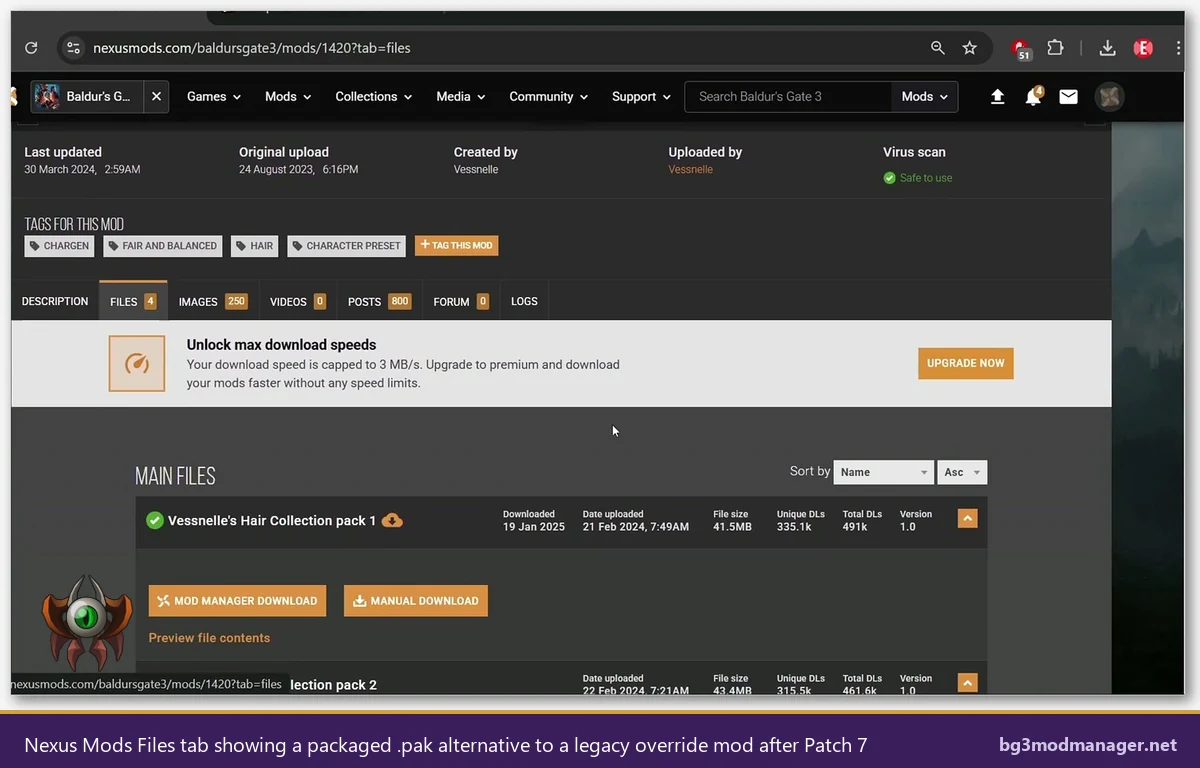
.pak archive plus Mod Manager Download and Manual Download buttons are the post-Patch-7 replacements for legacy loose-file override mods.When an Override Mod Is Worth Keeping (Rare Cases)
A small number of override mods remain useful in 2026 because no .pak equivalent exists or because the override is the only way to achieve a specific edit. Examples include certain texture-only replacements where the texture path inside the LSPK is non-trivial to redirect, custom font swaps that require a binary asset replacement rather than a layered edit, and a handful of pre-Patch-7 legacy mods that the original authors abandoned without releasing source. For these, the operator has to weigh keeping the override against the recurring breakage at every hotfix.
Operators who choose to keep an override mod after Patch 7 should adopt three habits. First, document every override file path in a plain-text manifest stored alongside the backup of the install. Second, expect to re-apply the override after every Larian patch, because the integrity check tends to restore the canonical asset over the override during the patching process. Third, never stack overrides; the more loose files in Data, the higher the chance of a launch-blocking integrity failure that only resolves through a full Steam Verify (which then wipes all the overrides at once). A single retained override is manageable; five is not.
- Document the override paths: keep a text file listing every modified or added file in
Data\PublicandData\Generated. - Plan to re-apply after every patch: the integrity check restores canonical assets during patch installation. Re-copying the override after the patch finishes is the standard workflow.
- Avoid stacking: one override is recoverable; five are a guaranteed launch-block at the next hotfix.
- Prefer .pak conversion if available: if a packaged successor exists, the override should be retired even when the override technically still works.
Verifying a Clean BG3 Install After Removal
After the override files have been removed and Steam Verify has run, three checks confirm the install is clean. The first is the launcher itself: Baldur’s Gate 3 starts to the main menu without an integrity-failure dialog. The second is BG3 Mod Manager: a refresh produces a load order that lists exactly the .pak files the user expects, with no missing-dependency flags and no UUID-less entries. The third is the in-game test: load the most recent save, walk to camp, and confirm no asset is rendering with a fallback texture or a placeholder mesh.
The Larian in-game mod manager, accessible from the main menu, is a useful secondary check on a clean state. With no override mods present and only validated .pak entries in the load order, the in-game manager should show the same set of mods as BG3MM (minus any mods that were sideloaded outside mod.io). A discrepancy between the two listings is usually a sign that an override mod is still influencing the engine and producing a phantom entry in one tool but not the other. Issue #418 on the LaughingLeader repository documents the specific case where the in-game manager and BG3MM diverged on a hotfix-affected install.
- Launch the game from Steam directly. Confirm the Larian splash and main menu load with no error overlay.
- Open the Larian in-game mod manager from the main menu. Confirm the listed mods match the BG3MM load order.
- Load a recent save. Walk through camp and the closest map area; watch for placeholder assets, fallback textures, or missing UI elements.
- Re-open BG3 Mod Manager. Confirm zero missing-dependency flags and zero UUID-less entries in the active load order.
- Save a Profile in BG3MM (Profiles, Save) so the clean state is restorable in one click after the next hotfix.
Watch the Patch 7 Modding Walkthrough
The video below covers the post-Patch-7 BG3 modding workflow, including how the in-game mod browser and BG3 Mod Manager relate, why .pak distribution is now mandatory for new mods, and how to identify the override files left over from earlier installs. Operators clearing a legacy install can mirror the on-screen actions while following the procedure list above.