
BG3 Mod Manager opens, the load order populates, the Export Order to Game button writes a clean modsettings.lsx, and then the Launch Game button does nothing. No window appears, no Steam overlay, no GamePass shim, no error dialog. The toolbar simply registers the click and returns to idle. This failure mode is distinct from the more familiar problem of BG3 Mod Manager refusing to open at all (covered separately under the homepage troubleshooting set): the application is alive, the file pipeline is working, and the launcher hand-off itself is broken.
The root cause, in roughly nine out of ten reports on the LaughingLeader/BG3ModManager issue tracker, is the Game Data Path setting inside Settings. BG3 Mod Manager does not bundle a copy of Baldur’s Gate 3, does not query Steam or GOG for the install location at runtime, and does not detect a moved game folder after the path was first configured. The launch flow reads a single string from userdata.json, walks one directory up to find the game’s bin folder, and spawns bg3_dx11.exe from there. When the path is wrong, missing, or pointed at a moved install, the spawn silently fails and the toolbar click goes nowhere. This guide covers the resolution path for every storefront variant: Steam, GOG, and GamePass/Microsoft Store.
Check the Game Data Path First
A Launch Game button that does nothing is almost always a Game Data Path problem. Before reinstalling BG3 Mod Manager or filing a new bug, open File then Preferences and confirm the Game Data Path actually points at the Data folder of the current Baldur’s Gate 3 install. The path may have been correct on first setup and broken silently after a Steam library move, a GamePass reinstall, or a GOG path change.
How BG3 Mod Manager’s Launch Button Works
The Launch Game action runs a short, deterministic sequence. The toolbar click handler reads the GameDataPath string from the manager’s userdata.json, located at %LOCALAPPDATA%\LaughingLeader\BG3ModManager\. That string is expected to point at the Data directory of the current Baldur’s Gate 3 install (for example C:\Program Files (x86)\Steam\steamapps\common\Baldurs Gate 3\Data). The launch routine resolves the parent directory of Data, descends into the sibling bin directory, and starts the executable named bg3_dx11.exe with no arguments. The DirectX 11 binary is the default rather than bg3.exe because the Vulkan binary historically refused to start cleanly when third-party DLL injection (Script Extender) was present, a behaviour discussed in issue #213.
When any link in this chain breaks, the launch fails silently. The handler does not print to a console, does not raise a dialog, and does not log to the Output pane in the user-facing window. The only visible signal is that the toolbar button returns to its idle state and Baldur’s Gate 3 never appears. The chain of failure points includes: a GameDataPath string that has never been populated, a string that points at a directory that no longer exists, a string that points at the wrong subfolder (the install root rather than the Data child), and a bin\bg3_dx11.exe that was deleted or replaced by an antivirus quarantine event. The Settings dialog (File then Preferences) is the only place to view or edit the path; this configuration surface is documented in issue #355.
- Configuration source:
%LOCALAPPDATA%\LaughingLeader\BG3ModManager\userdata.json, keyGameDataPath. - Expected target: the
Datafolder under the Baldur’s Gate 3 install root (not the install root itself). - Resolution step: parent of
Datais the install root;binsits next toData; the executable lives insidebin. - Process spawned:
bg3_dx11.exeby default, with no command-line arguments. - Failure mode: silent, no dialog, no log entry. Toolbar click returns to idle.
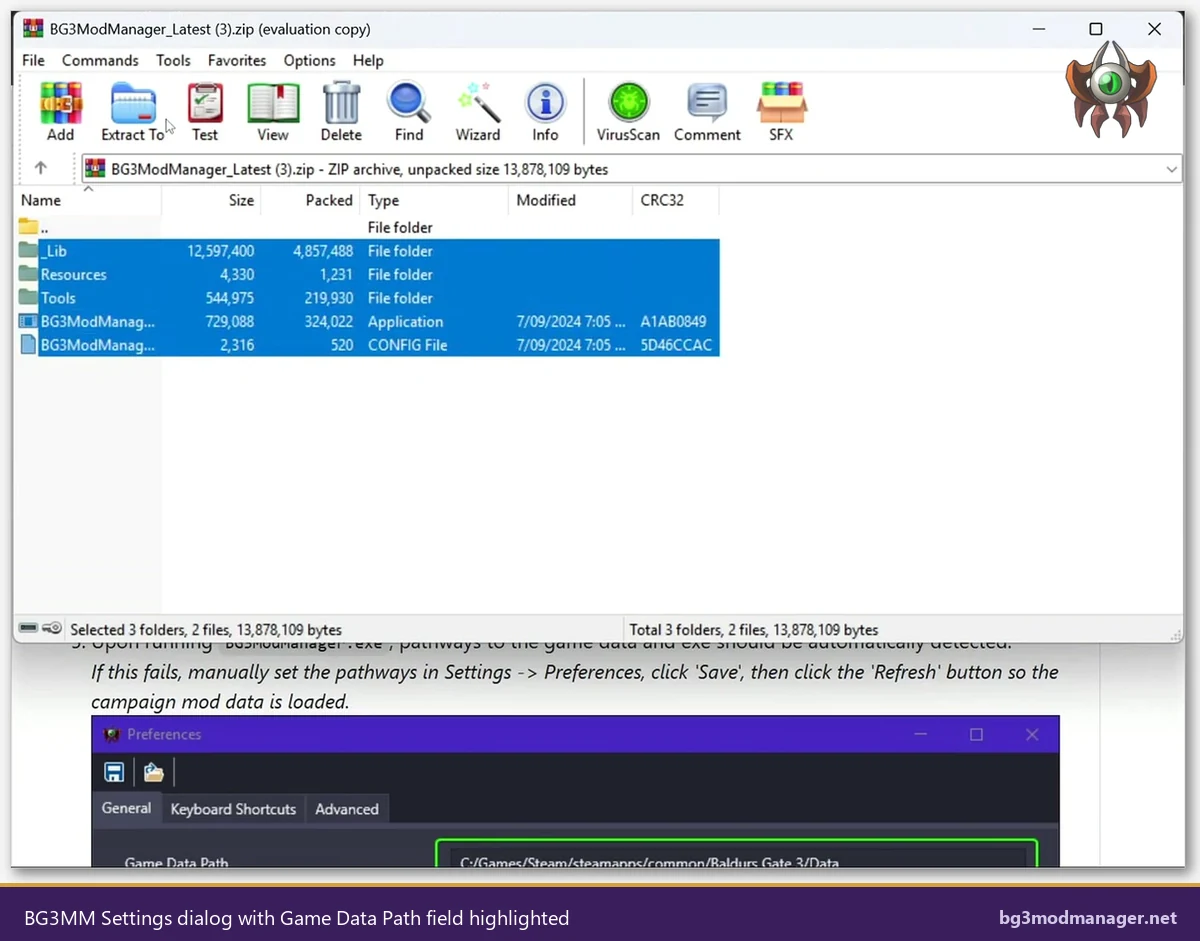
GameDataPath string. The value must point at the Data folder of the active install, not the install root and not the bin folder.Most Common Cause: Missing or Wrong Game Data Path Setting
The single most common cause of a non-responsive Launch Game button is a GameDataPath string that no longer matches the live install. Three sub-patterns dominate the issue tracker. The first is a fresh install of BG3 Mod Manager where the user clicked through the first-run prompts without setting the path, leaving the field blank. In that state the launcher click reads an empty string, fails the directory resolution step, and returns silently. The second is a path that was set correctly months ago and broken after a Steam library move (the user shifted Baldur’s Gate 3 from a 250 GB SSD to a 2 TB drive) without re-opening the BG3 Mod Manager Settings dialog to update the new location. The third is a path that points at the install root rather than the Data subfolder, which is a common misread of the Settings dialog text on first setup.
Each sub-pattern produces the same symptom and the same fix. The diagnostic flow is short: open File then Preferences in BG3 Mod Manager, read the current Game Data Path value, copy it into File Explorer’s address bar, and verify the directory exists and contains .pak archives such as Gustav.pak and Shared.pak. If File Explorer responds with a path not found message, the path is stale and needs updating. If the path resolves but the contents are not .pak files, the path points at the wrong level (most often the install root). If the path resolves and the contents look correct, the next link in the chain (the bin folder and bg3_dx11.exe) is where the failure lives. The BG3MM launch path missing warning users sometimes see in the Output pane is the human-readable form of this same condition.
- Blank path: first-run prompts skipped,
GameDataPathnever populated. - Stale path: install moved between Steam libraries or drives, BG3 Mod Manager not updated.
- Wrong level: path points at the install root, not the
Datasubfolder. - Diagnostic: paste the current value into File Explorer; verify that
Gustav.pakandShared.pakare visible.
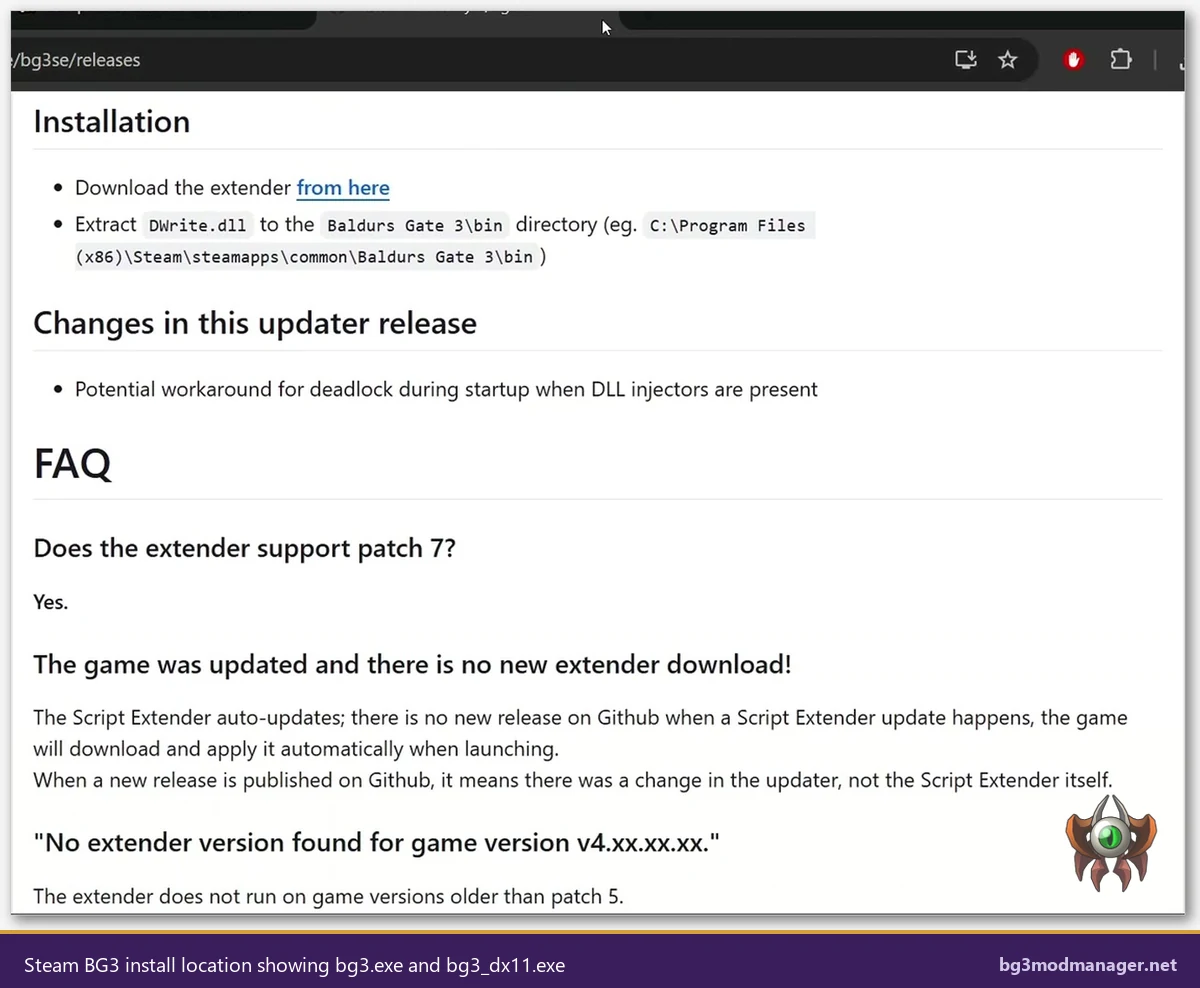
bin folder sits next to Data at the install root and contains both bg3.exe (Vulkan) and bg3_dx11.exe (DirectX 11). BG3 Mod Manager spawns the DX11 binary by default.Storefront-Specific Path Locations: Steam, GOG, GamePass
Each storefront installs Baldur’s Gate 3 to a different default location, and each has a different convention for letting the user move the install. Knowing the canonical layout for the operator’s storefront short-circuits most diagnostic time: the right value can be pasted into the Game Data Path field and the launcher tested in under a minute. The three storefronts that account for nearly every installation report on the LaughingLeader tracker are Steam, GOG, and GamePass via the Microsoft Store.
Steam install (default and custom library)
The Steam default install path is C:\Program Files (x86)\Steam\steamapps\common\Baldurs Gate 3\Data. Users who installed Steam to a non-default drive will see a different prefix; the suffix steamapps\common\Baldurs Gate 3\Data is constant. To confirm the live path, right-click Baldur’s Gate 3 in the Steam library, select Manage, and click Browse Local Files. Steam opens the install root in File Explorer; append \Data to the displayed path and that string is the value to paste into BG3 Mod Manager’s Game Data Path field. A BG3MM Steam launch fail after a fresh install is almost always traceable to the user picking the install root from the Browse Local Files dialog rather than the Data subfolder.
GOG Galaxy install
The GOG default install path is C:\GOG Galaxy\Games\Baldur's Gate 3\Data. As with Steam, users who customised the Galaxy library location will see a different prefix; the suffix Baldur's Gate 3\Data is constant. To confirm, open GOG Galaxy, locate Baldur’s Gate 3 in the library, click the Settings cog next to Play, and select Manage Installation then Show Folder. Galaxy opens the install root; the Data subfolder is the target. The GOG layout matches the Steam layout exactly inside the install root: bin, Data, EngineMods, and assorted Larian metadata folders. A correct path string therefore looks structurally identical to a Steam path string apart from the prefix.
GamePass / Microsoft Store install
GamePass is the difficult case. The Microsoft Store places UWP-style game packages under C:\Program Files\WindowsApps\ by default, and that directory is locked behind ACLs that block non-administrative users from reading or writing inside it. The expanded subdirectory for Baldur’s Gate 3 looks something like C:\Program Files\WindowsApps\LarianStudios.BaldursGate3_. Even after granting read access, the GamePass build differs from the Steam and GOG builds in important ways (a different binary name, different DLL load order, and an encrypted component layout) that make a direct BG3 Mod Manager hand-off unreliable. The BG3MM GamePass launch fail pattern is treated separately in the dedicated section below.
Step-by-Step: Set the Correct Game Data Path in BG3MM
The procedure below resolves the bulk of BG3MM launch button not working reports for Steam and GOG users. Operators on GamePass should still walk steps 1 through 4, then jump to the GamePass section that follows. The flow assumes BG3 Mod Manager is already installed and the application has been launched at least once so the userdata.json file exists.
- Locate the live install path. Steam: right-click Baldur’s Gate 3 in the library, Manage, Browse Local Files. GOG: open Galaxy, Settings cog next to Play, Manage Installation, Show Folder. Note the install root that File Explorer opens.
- Append
\Datato the install root. The full path should end in\Baldurs Gate 3\Data(Steam) or\Baldur's Gate 3\Data(GOG). Confirm the folder containsGustav.pakandShared.pak. - Open BG3 Mod Manager and navigate to File then Preferences. The Settings dialog opens with multiple path fields visible.
- Paste the path into the Game Data Path field. Do not use the Browse button on a network drive or on a path with non-ASCII characters; type or paste the literal string instead.
- Click Save at the bottom of the Settings dialog. BG3 Mod Manager writes the value to
userdata.jsonand refreshes the catalogue against the new path. - Click Refresh (Ctrl+R) and wait for the load order to repopulate. A path-related error at this stage will surface in the Output pane and confirm whether the new value resolved.
- Click Launch Game in the toolbar. With the corrected path, the launcher should spawn
bg3_dx11.exewithin a second or two and the Larian splash should appear.
Edge Case: GamePass Encrypted Install Folder
The GamePass build of Baldur’s Gate 3 ships under the Microsoft Store’s WindowsApps container. That container has two properties that interact poorly with BG3 Mod Manager’s launch flow. The first is the ACL on C:\Program Files\WindowsApps\, which blocks read access to most users by default; even after taking ownership through the folder properties Security tab, Windows will revert ownership on the next package update. The second is the executable layout: the GamePass build does not place a plain bg3_dx11.exe in bin. Instead, the Microsoft Store wraps the launch through a UWP shim that BG3 Mod Manager cannot invoke directly. A GameDataPath string pointed at the WindowsApps subfolder will resolve, but the subsequent spawn step fails because the binary path the manager expects does not exist in the wrapped layout.
Three workarounds are documented in the issue tracker. The first is to install the Xbox app’s optional Advanced installation options feature, which lets the user redirect the Baldur’s Gate 3 install to a folder outside WindowsApps. After redirecting, the install layout matches Steam and GOG closely enough that BG3 Mod Manager’s launch flow succeeds. The second is to skip the BG3 Mod Manager launcher entirely: export the load order via the toolbar, then start Baldur’s Gate 3 from the Xbox app or the Microsoft Store as normal. The third is to migrate to the Steam or GOG release; users with both a GamePass entitlement and a Steam purchase report the cleanest experience by setting the Game Data Path to the Steam install. The maintainer’s position on full GamePass parity is documented in issue #404: the wrapped UWP launch is not a tractable fix on the manager side.
Edge Case: bg3.exe vs bg3_dx11.exe
The Steam and GOG builds of Baldur’s Gate 3 ship two playable executables in bin: bg3.exe and bg3_dx11.exe. The first uses Larian’s Vulkan renderer; the second uses DirectX 11. Performance, compatibility, and stability characteristics differ between the two binaries, and modded users have historically gravitated to the DX11 build because it tolerates DLL injection (Script Extender’s DWrite.dll hook) more reliably. BG3 Mod Manager spawns bg3_dx11.exe by default for that reason. Picking the Vulkan binary instead requires editing the Launch Parameters field in the Settings dialog, where the executable name can be overridden.
Two pitfalls show up here. The first is a missing bg3_dx11.exe, usually because antivirus quarantined the binary on a previous launch (some AV vendors flag the Larian DX11 wrapper as a generic injector). The fix is to whitelist the entire bin folder in the AV product, then verify the file is back on disk before clicking Launch Game. The second is a launch path that points at bg3.exe manually but fails because Script Extender’s DWrite.dll in bin conflicts with the Vulkan binary. Reverting to bg3_dx11.exe through the Launch Parameters field, or removing DWrite.dll from bin, resolves it. Operators who want to launch bg3.exe outside BG3 Mod Manager (for example, to test whether a crash is caused by Script Extender) can run the binary directly from bin, leaving the manager’s Launch Game button untouched.
- Default target:
bg3_dx11.exe. DX11 binary tolerates Script Extender DLL injection. - Vulkan target:
bg3.exe. Requires Launch Parameters override and conflicts withDWrite.dll. - AV quarantine: whitelist the
binfolder; restorebg3_dx11.exeif missing. - Verification: open
binin File Explorer and confirm both binaries are present and not zero-byte.
Verifying the Fix: A Successful Launch Sequence
A successful Launch Game click produces a recognisable sequence. The toolbar button registers the click and depresses for a fraction of a second. BG3 Mod Manager’s window remains in the foreground while a brief disk read against bin\bg3_dx11.exe happens in the background. Within one to three seconds the Larian Studios splash window appears (logo on a dark background, fading in over half a second), followed by the Baldur’s Gate 3 main menu after another ten to twenty seconds depending on disk speed. Steam users will additionally see the Steam overlay attach to the BG3 process; GOG users will see Galaxy register the launch in the activity feed. None of these signals are produced when the launch fails silently, so their presence after a fix is a strong positive indicator.
Operators who want a more direct verification can open Task Manager (Ctrl+Shift+Esc), switch to the Details tab, and watch for bg3_dx11.exe to appear in the process list within two seconds of the toolbar click. If the process appears and immediately exits, the problem has shifted from Game Data Path to a different failure (most often a Script Extender mismatch or a corrupted modsettings.lsx); these are covered separately. If the process does not appear at all, the launcher is still failing the spawn step and the path needs another pass through the Settings dialog.
bg3_dx11.exe from the install’s bin folder within one to three seconds.Watch the Workflow
The video below covers the end-to-end BG3 Mod Manager workflow and includes the Settings dialog and Game Data Path configuration that drive the Launch Game button. Operators who prefer a visual reference for the path-setting steps above can mirror the on-screen actions while following along.