
The complaint reads the same way every time on the LaughingLeader issue tracker and on the wiki.bg3.community help threads: the active load order saves cleanly, BG3 Mod Manager (BG3MM) reports a successful export, the user closes the application, launches Baldur’s Gate 3, plays for an hour, and on the next session the file at %LOCALAPPDATA%\Larian Studios\Baldur's Gate 3\PlayerProfiles\Public\modsettings.lsx has been rewritten back to a near-empty default. The active mods are gone from the file. The load order is gone. The Active pane in BG3MM still shows the previous order in memory, because BG3MM caches it in its own settings under %APPDATA%\BG3ModManager, but the file Baldur’s Gate 3 actually reads at launch is blank.
The symptom is described variously as modsettings.lsx reset, modsettings reset every launch, modsettings.lsx keeps wiping, and (when surfaced as a BG3MM dialog rather than a silent file change) the BG3 load order reset bug. This guide focuses on the file-level cause: why modsettings.lsx is being rewritten by something other than BG3MM, which five processes are responsible in roughly 95 percent of reports, and how to lock the file down so it survives across game launches and Larian patches. A separate guide on the BG3 Mod Manager homepage covers the dialog warning that BG3MM throws when it detects the rewrite has already happened; this article covers the underlying root causes.
Confirm the Export Ran Before Diagnosing
BG3MM does not write modsettings.lsx after every load-order edit by default. The file is only rewritten when Export Order to Game (or Save Load Order to File) is invoked. Verify the export ran successfully before blaming the file itself for a reset.
Where modsettings.lsx Lives and What It Stores
The file modsettings.lsx sits at %LOCALAPPDATA%\Larian Studios\Baldur's Gate 3\PlayerProfiles\Public\modsettings.lsx on every supported platform: Steam, GOG, and the Microsoft Store edition all share that path. The file is XML structured around two LSX nodes: ModOrder, which stores the ordered list of mod UUIDs that the game will read at launch, and Mods, which stores the metadata block (UUID, Folder, Name, Version64, MD5) for each entry in the order. Together those two nodes define the active load order from Baldur’s Gate 3’s point of view. Anything not listed in ModOrder is invisible to the engine even if the corresponding .pak sits on disk in the Mods folder.
BG3MM does not store the active load order in its own database. It writes the ordered list directly into modsettings.lsx when the user clicks Export Order to Game (or its keyboard shortcut Ctrl+E). On the next launch, BG3MM reads the same file back, parses the ModOrder node, and rebuilds the Active pane from disk. The file is therefore the canonical truth. If something rewrites modsettings.lsx between BG3MM sessions, the Active pane on the next launch shows the rewritten state, not the previously exported one. That single design choice is why every reset symptom traces back to a file-level cause rather than a manager-level cause. The behaviour is documented in the LaughingLeader/BG3ModManager issue #353 thread and in issue #355, which collected the original reset reports after Patch 7 shipped.
modsettings.lsx. BG3 Mod Manager reads from and writes to this exact file. Any other process that modifies it between BG3MM sessions produces the apparent reset.- File path:
%LOCALAPPDATA%\Larian Studios\Baldur's Gate 3\PlayerProfiles\Public\modsettings.lsx - Format: XML using Larian’s LSX schema with
ModOrderandModsroot nodes. - Authoritative writer: BG3 Mod Manager when Export Order to Game runs, plus three other documented writers (Larian’s in-game manager, Baldur’s Gate 3 itself on safe-mode reset, and cloud sync rollbacks).
- Default size after reset: roughly 1.5 KB. A populated load-order file with twenty mods sits between 8 KB and 20 KB. A noticeable size drop on disk is the quickest diagnostic signal that a reset has occurred.
Cause 1: Larian’s In-Game Mod Manager Rewriting on Close
The single most common modern cause of modsettings.lsx keeps wiping reports since Patch 7 shipped is Larian’s own in-game mod manager. The console-port pipeline in Patch 7 added a Mods button to the main menu, exposing a Browse tab backed by mod.io and an Installed tab that displays the user’s active list inside the game itself. When the user opens that menu, scrolls the Browse tab, and then exits Baldur’s Gate 3, Larian’s manager serialises its own view of the active mods back to modsettings.lsx. Anything BG3MM exported to that file before launch is overwritten by the in-game manager’s view, which only knows about the subset of mods that were registered through mod.io.
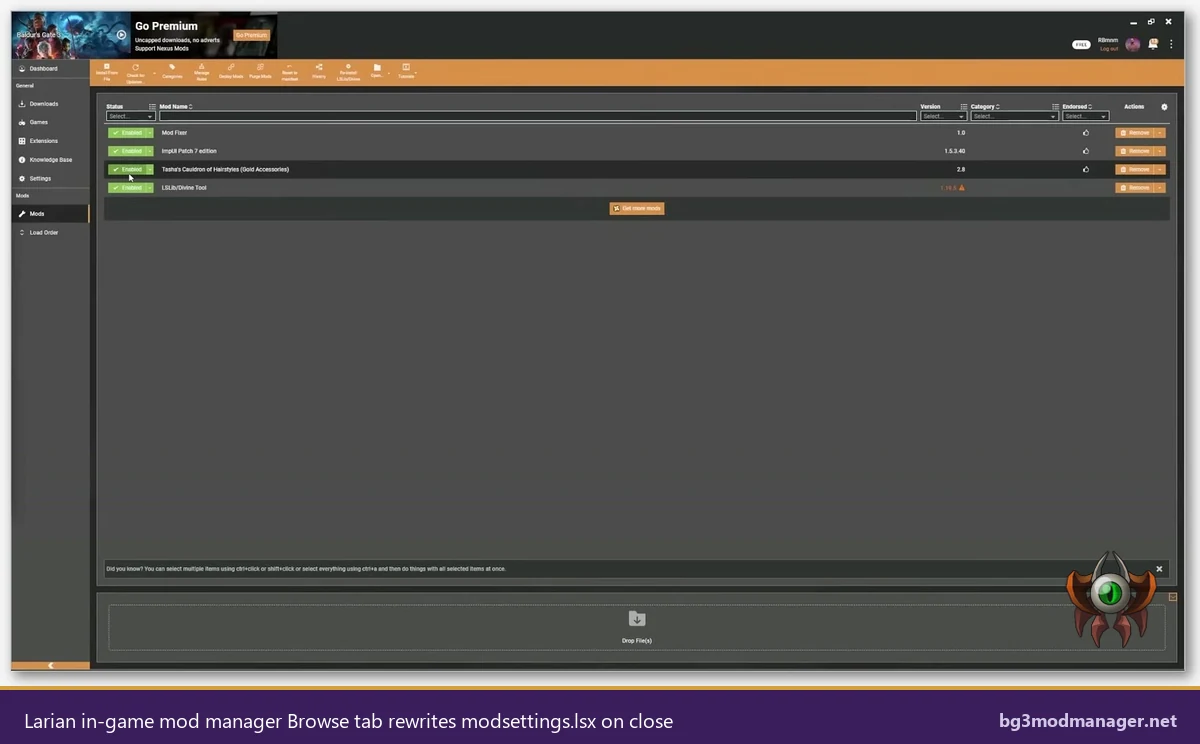
modsettings.lsx on game exit using only the mod.io-registered subset, which usually does not include Nexus-sourced .pak files added through BG3MM.The interaction is documented across multiple wiki.bg3.community Patch 7 troubleshooting threads and in the LaughingLeader issue #418 discussion. The diagnostic signature is reliable: the user reports the reset only happens on sessions where the in-game Mods menu was opened, never on sessions where the user went straight from the main menu to Continue. The fix is also reliable: avoid opening the in-game Mods menu when running a Nexus-sourced load order through BG3MM, and use BG3MM’s Export Order to Game as the sole writer to the file. If the in-game menu must be opened (for example, to disable a mod.io-registered mod), the operator should re-run Export Order to Game in BG3MM after the next BG3MM startup, before launching the game again.
Cause 2: Patch 7 Hotfix Profiles Wiping the File on Update
The Patch 7 modsettings reset wave that hit the issue tracker in late 2024 traced back to a profile-migration step that ran the first time Baldur’s Gate 3 booted after the Patch 7 hotfix landed. The migration added new fields to the Public profile (a flag for the in-game mod manager opt-in, a mod.io account binding placeholder, a default-region setting for the Browse tab) and rewrote modsettings.lsx as part of the same write pass. The rewrite did not preserve the existing ModOrder node. Users who launched Patch 7 with an active Nexus-sourced load order saw the entire active list disappear on the first post-patch boot.
The same migration class fires whenever a hotfix touches the Patch 7 profile schema. Patch 7 hotfix builds in October and November 2024 each rewrote modsettings.lsx at first launch. Patch 8 inherits the schema and reuses the migration code path. The diagnostic signature is a reset that occurs exactly once, on the first launch immediately after a Steam or GOG update completes, and never repeats until the next patch lands. Manual recovery requires re-importing the load order from a saved order.json backup (BG3MM’s File then Save Load Order to File feature) or, if no backup exists, from a save game’s embedded mod manifest using BG3MM’s Save → Import Order from Save action. Operators preparing for a known incoming patch should always run Save Load Order to File before installing the patch.
- Trigger: a Patch 7 or Patch 8 hotfix runs the first-boot profile migration after the Steam or GOG client downloads the update.
- Symptom:
modsettings.lsxresets to a near-empty default exactly once, on first post-patch launch. - Recovery: re-import from
order.jsonbackup or from a save file’s embedded manifest. - Prevention: run BG3MM’s Save Load Order to File before installing any pending Larian patch.
Cause 3: Subfolders Inside the BG3 Mods Directory Triggering Validation Failure
Baldur’s Gate 3 validates the contents of %LOCALAPPDATA%\Larian Studios\Baldur's Gate 3\Mods at game launch. The validation pass expects a flat directory of .pak files and treats anything else (loose folders, ZIP archives that were never extracted, README text files, screenshots) as a state error. When validation fails, the game silently rewrites modsettings.lsx back to a clean default profile so that the next boot does not crash on the same invalid state. The user sees a reset; the underlying cause is structural rather than file-level.
The most common path to a non-flat Mods directory is extracting a downloaded archive directly into Mods rather than copying only the inner .pak across. Some authors distribute as a ZIP that contains a folder named after the mod, with the .pak nested inside; extracting the archive whole leaves that folder in place and triggers the validation failure on the next launch. The fix is to inspect Mods, remove any non-.pak entries, and re-export the load order from BG3MM. The reset signature here is a recurring wipe that happens every single launch (not once after a patch and not only on sessions where the in-game manager was opened), because the structural error persists until the operator cleans the folder.
Cause 4: Cloud Sync Clients Rolling Back the File
Steam Cloud, OneDrive, and Dropbox each touch %LOCALAPPDATA% by default on a Windows install. Steam Cloud only syncs a fixed allowlist of save files, but Baldur’s Gate 3 includes modsettings.lsx in that allowlist for cross-machine save compatibility. The behaviour is benign on a single-PC setup, but it produces a visible reset in two scenarios: when the user runs a modded session on PC A, then opens Baldur’s Gate 3 on PC B (where the cloud-stored modsettings.lsx from PC B’s last session overwrites PC A’s exported load order on the next sync back), and when the Steam client times out a mid-game upload and rolls back to the previously synced version on the next launch.
OneDrive and Dropbox produce a different reset pattern. Both clients can be configured to sync %LOCALAPPDATA% in full, either through a manual junction setup or through the OneDrive Known Folder Move feature when AppData has been redirected. When a sync conflict surfaces, the cloud client renames the local file (often with a “-conflict” suffix) and pulls the cloud version back to the canonical name. BG3MM reads the canonical name on next launch and finds an old version. The diagnostic step is to inspect the Public folder for any file matching the pattern modsettings*.lsx; conflict-suffixed files are the smoking gun. Disabling sync on the BG3 profile folder (or excluding it via the cloud client’s selective-sync settings) eliminates this class of reset entirely.
- Steam Cloud: included in the BG3 sync allowlist. Disable per-game via the BG3 Steam library properties if multi-PC drift is causing resets.
- OneDrive: check whether AppData is included in Known Folder Move. Exclude the BG3 profile folder via OneDrive selective sync.
- Dropbox: same diagnostic pattern. Look for
modsettings (your-pc-name conflicted copy).lsxor similar conflict-suffixed files. - Verification: after disabling sync, run BG3MM Export Order to Game, close BG3MM, launch BG3, exit, and inspect the file’s modified timestamp. It should match the export time, not a sync-back timestamp.
Cause 5: Corrupted UUIDs or Missing Mod Entries Forcing a Safe-Mode Reset
Baldur’s Gate 3 cross-references every UUID listed in ModOrder against the .pak files actually present in the Mods folder before it builds the runtime mod state. If a UUID in the load order has no matching .pak on disk (because the user uninstalled the mod manually, because the file moved, or because the file’s UUID drifted between author releases), the game treats the load order as inconsistent and rewrites modsettings.lsx back to defaults rather than booting with a partial state. The same defensive rewrite fires when the file’s XML cannot be parsed because of a malformed entry left over from a manual edit.
The diagnostic step is to open the file in a plain-text editor (Notepad, VS Code, Notepad++) and scan for empty or malformed ModuleShortDesc nodes. A UUID field that reads as 00000000-0000-0000-0000-000000000000 or as the Larian default placeholder is a red flag; so is any node missing a closing tag. The cleanest recovery is to delete the broken entry, save, run BG3MM Export Order to Game to rewrite the file from BG3MM’s in-memory state (which is consistent because BG3MM validates UUIDs at refresh time), and launch BG3 once to confirm the rewrite holds. If the broken entry was BG3MM’s only record of an active mod that no longer has a backing .pak, the operator must either re-download the mod or remove it from BG3MM’s active list before exporting.
Step-by-Step Permanent Fix: Process of Elimination
The five causes above each have a distinct diagnostic signature. The fastest route to a permanent fix is to walk the eight-step elimination procedure below in order, stopping when the reset stops recurring. Operators who skip ahead and try to apply the cloud-sync fix when the actual cause is the in-game manager will not see results, because the rewrite source has not been disabled. The procedure assumes the operator has BG3MM v1.0.12.x or later installed and has at least one full active load order to work with.
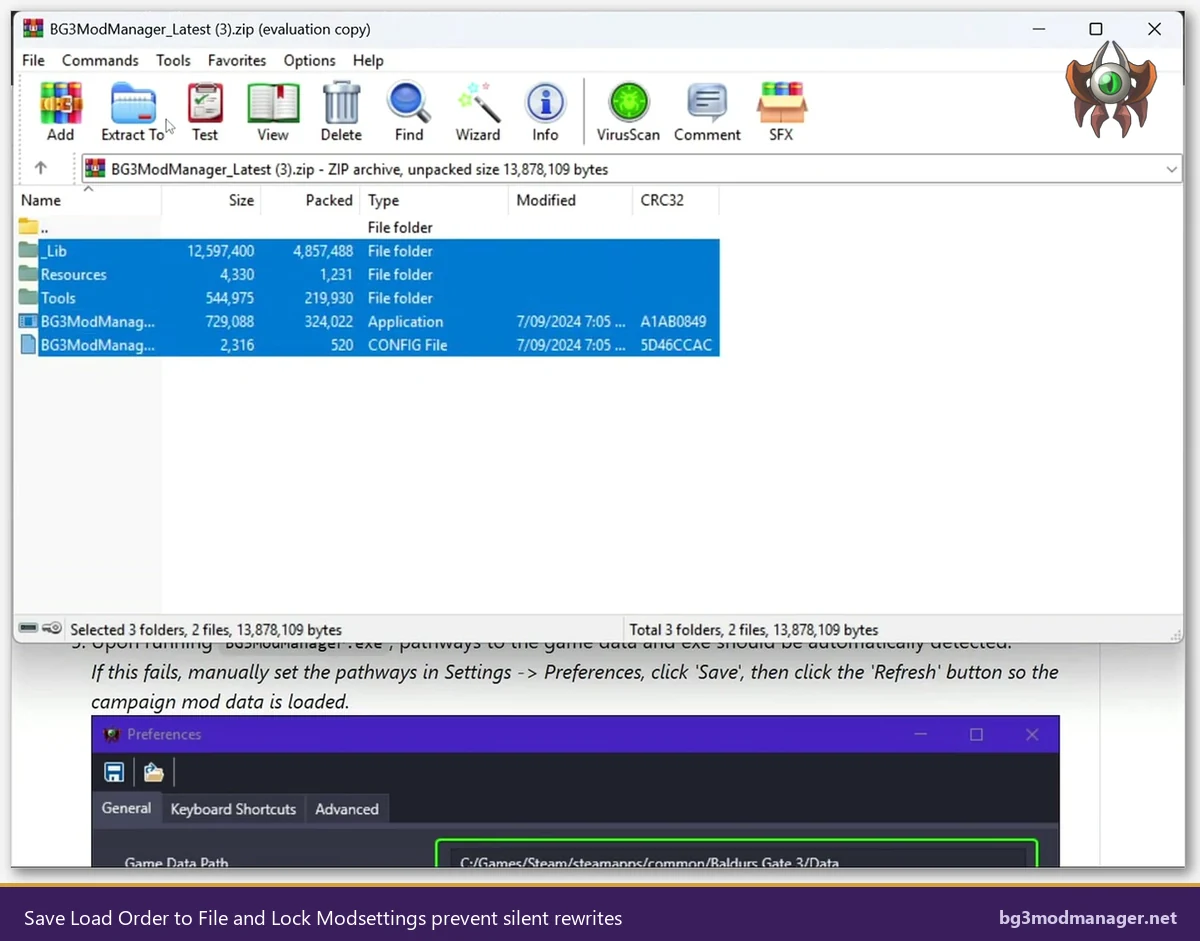
- Save the current load order to a backup file. File then Save Load Order to File creates an
order.jsonwith a timestamp. Keep it outside the BG3 profile folder so it survives any future reset. - Inspect the Mods folder for non-pak entries. Open
%LOCALAPPDATA%\Larian Studios\Baldur's Gate 3\Mods, sort by Type, and confirm only.pakfiles are present. Delete any folders, ZIPs, or text files. This eliminates Cause 3. - Disable Steam Cloud for Baldur’s Gate 3. In Steam, right-click BG3, Properties, General tab, uncheck Keep games saves in the Steam Cloud. This eliminates the multi-PC drift variant of Cause 4.
- Exclude the BG3 profile folder from OneDrive or Dropbox. Use the cloud client’s selective-sync UI to remove
%LOCALAPPDATA%\Larian Studiosfrom sync. Eliminates the conflict-rollback variant of Cause 4. - Avoid the in-game Mods menu. Launch from the desktop, click Continue or Load directly, do not click Mods. This eliminates Cause 1 for the duration of the test.
- Run BG3MM Export Order to Game. Confirm the file’s timestamp updates and the file size is in the 8-20 KB range, not 1.5 KB.
- Launch and exit Baldur’s Gate 3 once. Re-inspect
modsettings.lsximmediately after exit. If the timestamp and size match the export, the load order survived the round trip. - Re-open BG3MM. The Active pane should show the same load order as before the launch. No reset dialog should appear. If the reset still recurs, walk back through the previous steps and confirm none were skipped.
Prevention: Save Load Order to File and Disable Auto-Cloud-Sync
Even after eliminating the active rewrite source, a prudent setup keeps two safety nets in place. The first is the Save Load Order to File backup. BG3MM serialises the active order to a JSON file outside the BG3 profile folder (the operator picks the destination), and the file can be re-imported via Load Order from File on any future BG3MM session. Saved order files are small (a few kilobytes), version with the user’s other backups, and survive Larian patches, manager reinstalls, and full Windows reinstalls. The recommended cadence is one save per significant load-order edit and one save before every known incoming Larian patch.
The second is permanent exclusion of the BG3 profile folder from any cloud sync client. Steam Cloud’s BG3 inclusion is convenient for save-game portability but actively harmful for load-order stability when multiple machines are involved. OneDrive’s Known Folder Move feature can pull %LOCALAPPDATA% contents into sync without the operator realising. Auditing both is a one-time task that pays back across every future session. Combined with a regular Save Load Order to File cadence, the prevention setup makes the reset class effectively unreachable. The BG3 Mod Manager download page ships with the latest stable build that supports both features; older builds shipped Save Load Order without the rich Order import flow and therefore should be updated.
- Backup cadence: Save Load Order to File after every major edit and before every Larian patch.
- Cloud sync: exclude
%LOCALAPPDATA%\Larian Studiosfrom Steam Cloud, OneDrive, and Dropbox. - In-game Mods menu: avoid for any session that uses Nexus-sourced
.pakmods through BG3MM. If opened, re-export from BG3MM after the next startup. - Mods folder hygiene: keep flat,
.pakonly. Audit after every fresh download.