
BG3 load order setup is the procedure that arranges installed mods inside BG3 Mod Manager so the game reads each .pak file in the correct sequence on launch. Load order matters because Baldur’s Gate 3 walks the active mod list in modsettings.lsx from top to bottom, applying overrides as it goes: a mod placed lower in the list overwrites changes made by a mod placed higher when both touch the same asset. Getting this sequence right is what separates a stable modded campaign from one that crashes at character creation or silently drops half its content.
This walkthrough covers the underlying mechanic, the Active and Inactive panes that drive the workflow, drag-and-drop multi-select reordering, dependency-aware sorting, and the conventional patterns the BG3 modding community has converged on. The procedure is current for BG3 Mod Manager v1.0.12.9 and Baldur’s Gate 3 Patch 8. No external configuration is required: every step happens inside the running application or the local %APPDATA%\BG3ModManager folder.
Top to Bottom, Override Wins
Load order is read top-to-bottom, where lower entries override higher entries. Conventional practice puts overhauls and large frameworks at the top, then content packs in the middle, and cosmetic or UI tweaks at the bottom. The Refresh and Save Order buttons must both be clicked before launching the game, otherwise the saved arrangement is not exported to modsettings.lsx.
How BG3 Reads modsettings.lsx Top to Bottom
Baldur’s Gate 3 stores the active mod list per campaign profile in a small XML file named modsettings.lsx, located at %LOCALAPPDATA%\Larian Studios\Baldur's Gate 3\PlayerProfiles\Public\modsettings.lsx. The file contains two sibling nodes that matter for load order: Mods, a list of every .pak the engine should mount, and ModOrder, the explicit sequence in which those .pak files are loaded. Both nodes are written by BG3 Mod Manager when Save Order or Export Order is clicked, and both are read by the game executable on launch.
The engine processes ModOrder entries from first to last. Each entry maps to a mounted .pak archive whose meta.lsx declares which game files it overrides. When two mods declare overrides for the same file, the entry that appears later in ModOrder wins because its mount happens later and replaces the earlier mount in the resolved virtual file system. This is the single rule that drives every load-order recommendation in the community: lower in the list means higher priority.
Why Editing modsettings.lsx by Hand Is Discouraged
The XML schema accepts manual edits, and a determined user can reorder lines in any text editor. The reason this approach fails in practice: Baldur’s Gate 3 itself rewrites modsettings.lsx any time the game launches without the expected mods present, when the in-game manager subscribes to a new mod, or when a campaign profile is switched. Hand edits are erased on the next game launch unless the BG3 Mod Manager export pipeline is the authoritative writer. Issue #355 on the LaughingLeader tracker documents the reset behaviour and the recommended fix: always let BG3MM be the source of truth.
Active vs Inactive Panes in BG3 Mod Manager
BG3 Mod Manager presents the load order as two side-by-side lists. The left pane, labelled Active Mods, holds every mod that will be written into ModOrder on the next export. The right pane, labelled Inactive Mods, holds every detected .pak file that BG3MM has read from the Mods folder but is currently excluded from the load order. Mods move between panes by double-click, by the right-click context menu (Move to Active / Move to Inactive), or by drag-and-drop across the divider.
The order inside the Active pane is the load order. Reading from top to bottom, the first row is loaded first and the last row is loaded last. The Inactive pane has no internal order: its sort is alphabetical by default and is decoration only, because inactive mods are not written to modsettings.lsx at all. Users coming from Skyrim’s MO2 or Vortex sometimes expect a separate priority field; BG3MM has none. Position in the Active pane is the only signal that matters.
The Toolbar Buttons That Govern the Active Pane
- Refresh: re-enumerates the Mods folder and the bundled gameplay
.pakfiles. Run this any time a new mod is dropped into the Mods folder while BG3MM is open. - Save Order: writes the current Active pane sequence to a JSON file under
%APPDATA%\BG3ModManager. Persists across application restarts but does not touch the game. - Export Order to Game: serialises the saved order into
modsettings.lsxfor the active campaign profile. This is the click that actually changes what the game loads. - Sort by Dependencies: a context-menu helper that re-orders the Active pane so each mod appears below every mod it depends on. Documented in detail later in this guide.
The campaign dropdown above the Active pane selects which modsettings.lsx Export Order writes to. A fresh install with only one save shows a single entry; users juggling multiple campaigns (one Honour Mode run, one chaotic playtest profile) can keep distinct load orders per campaign and switch between them via this dropdown. Issue #213 on the GitHub tracker confirms that the campaign selection is read at export time and that switching campaigns rewrites the corresponding profile’s modsettings.lsx only.
Drag-and-Drop Multi-Select Reordering
The fastest way to arrange the Active pane is BG3MM drag and drop reorder, which supports both single-row and multi-row moves. A single click selects a row; left-click and hold then drags it to the desired position, with a horizontal insertion bar showing where the drop will land. Releasing the mouse commits the move, and the underlying JSON is updated in memory immediately. No save dialog, no confirmation: the arrangement is live until Save Order is clicked.
Multi-Select Patterns That Save Time on Large Lists
- Shift+Click selects a contiguous range. Click the first row of a block, hold Shift, click the last row, and the entire range highlights in one action. Useful for moving an entire cosmetic group to the bottom of the list.
- Ctrl+Click selects non-contiguous rows individually. Build a custom selection of unrelated mods, then drag the whole selection at once.
- Ctrl+A selects every row in the focused pane. Combined with the Move to Inactive context-menu entry, this is the cleanest way to reset and rebuild a load order from scratch.
- Arrow keys move the keyboard focus, and Ctrl+Up / Ctrl+Down nudge the selected rows up or down by one position. This is the precision tool: drag and drop is faster for large jumps, the Ctrl+arrow combo is faster for single-step adjustments.
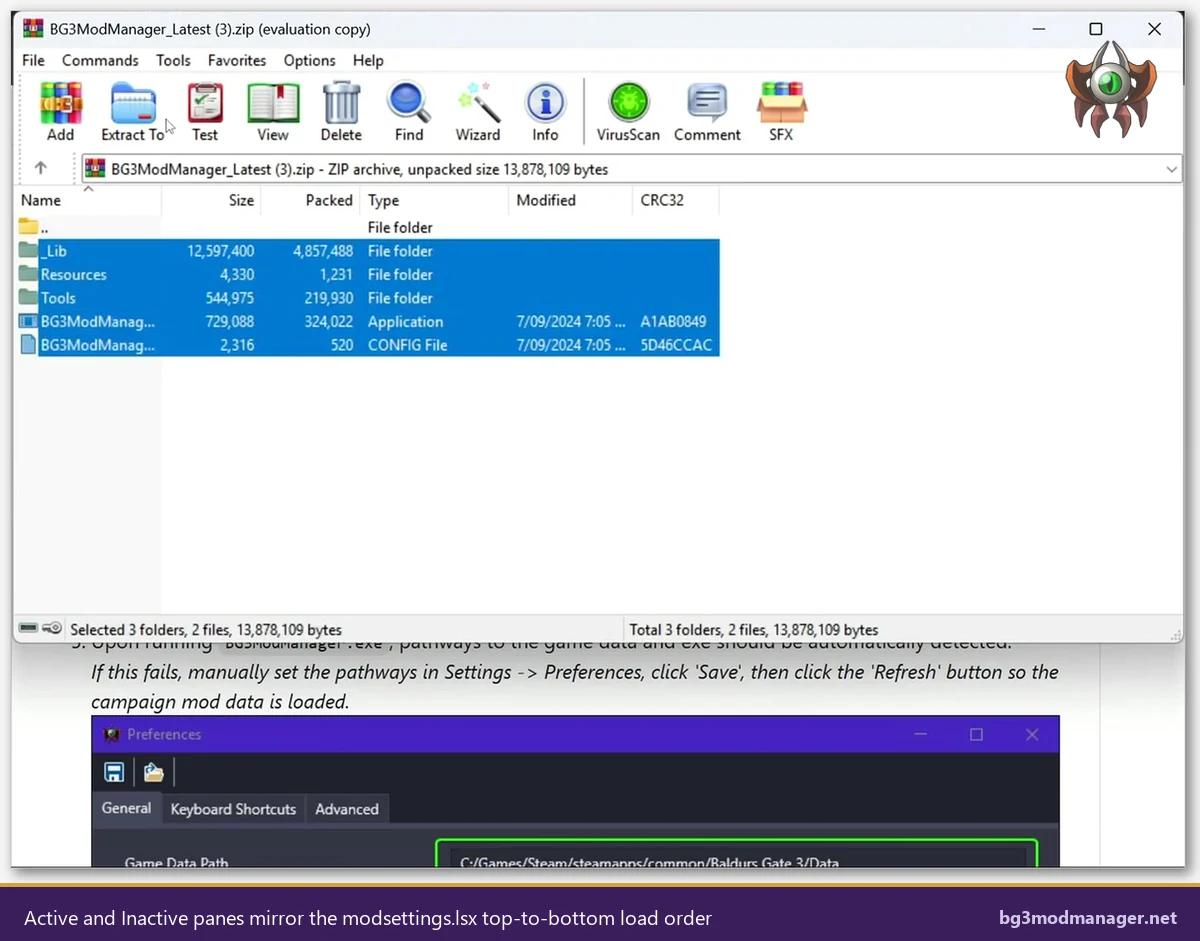
The drag-and-drop handler also accepts drops from outside BG3 Mod Manager. Dropping a .pak file directly from File Explorer onto the Active pane is the equivalent of using File > Import Mod: the archive is copied into the Mods folder, the manager re-reads it, and the new entry appears in the Active pane at the position where it was dropped. Dragging a .zip archive triggers extraction and import in a single action, which is the recommended workflow for installing fresh mod releases. Issue #234 tracks dependency enforcement during this drop-import path: when the dropped archive declares dependencies, BG3MM warns about missing prerequisites before the new entry is placed.
Dependency-Aware Sorting and meta.lsx Declarations
BG3 mod load order priority is not arbitrary: many mods declare hard dependencies on other mods, and those dependencies must be loaded earlier in the list. Each .pak archive contains a meta.lsx file at its root with a Dependencies node listing the UUIDs of mods that must be present and loaded before this one. BG3 Mod Manager reads every meta.lsx on Refresh and exposes the dependency graph in two places: the per-mod tooltip on hover, and the Sort by Dependencies entry on the right-click context menu.
Sort by Dependencies performs a topological sort of the Active pane: each mod is repositioned so it appears below every mod it depends on. The algorithm is stable, so mods with no dependency relationship retain their relative order. This produces a load order that is guaranteed to satisfy declared prerequisites without requiring the user to research individual mod requirements. The sort runs in milliseconds even on lists of a hundred mods.
What Happens When a Dependency Is Missing
If a mod declares a dependency on a UUID that is not present in the Active pane (because the prerequisite .pak was never imported), BG3MM marks the dependent row with a yellow warning icon and logs the missing UUID in the status bar. The export still runs, but Baldur’s Gate 3 either silently skips the dependent mod on launch or crashes during world loading, depending on what the dependency provides. Issue #404 contains a long thread of missing-dependency reports and the standard diagnostic flow: hover the warning icon to read the missing UUID, search the mod’s Nexus or mod.io page for the prerequisite name, install it, and Refresh.
Soft Conflicts the Sort Cannot Detect
Topological sort solves declared dependencies. It does not solve undeclared conflicts: two mods that both modify the same character class table without declaring each other as dependencies will load in whatever order the user chose, and the lower entry will silently win. The community wiki at wiki.bg3.community maintains a list of mods known to soft-conflict and the recommended ordering when they appear together. Manual placement based on those notes is still required after running Sort by Dependencies.
Conventional Load Order Patterns
The BG3 modding community has converged on a five-bucket pattern that produces a stable load order for the majority of common mod combinations. The pattern is heuristic, not enforced, but following it reduces the number of conflict-induced bugs reported on the LaughingLeader tracker. Each bucket is a contiguous block in the Active pane; the buckets appear from top to bottom in this order:
- Frameworks and core libraries. Compatibility frameworks, shared resource packs, and any mod whose
meta.lsxis declared as a dependency by other mods. Examples: ImpUI base, Mod Configuration Menu, Compatibility Framework. These belong at the very top because everything else builds on them. - Overhauls and total-conversion content. Large mods that rewrite stat tables, encounter logic, or progression curves. Examples: 5e Spells, Tactician Plus, Combat Extender. Placing these high in the list lets later mods adjust the new baseline.
- Classes, subclasses, races, and feats. Content packs that add or modify playable options. These reference framework UUIDs (so they sit below the frameworks) but provide systems that cosmetic and patch mods often layer on top of.
- Spells, items, equipment, and bug-fix patches. Smaller content additions and targeted bug fixes. The QoL belt of the load order. Most of these declare no dependencies and are safe to place anywhere in this band.
- Cosmetics, hairstyles, body presets, UI tweaks. Pure visual changes and UI overrides. Cosmetics go at the bottom because they should win on visual conflicts: a hair mod and a class mod that both touch the same character preset should resolve in favour of the hair mod.
Within each bucket, Sort by Dependencies is sufficient. Across buckets, manual drag-and-drop is required to enforce the bucket order, because the topological sort only respects declared dependencies. A common workflow is to first run Sort by Dependencies on the entire list, then drag whole buckets up or down to match the convention. Multi-select with Shift+Click on the first and last row of a bucket makes this a one-drag operation per bucket.
Saving the Order, Exporting to Game, Restarting Baldur’s Gate 3
Once the Active pane reflects the desired sequence, three buttons commit the work. Save Order writes the JSON file under %APPDATA%\BG3ModManager, persisting the arrangement across application restarts. Export Order to Game serialises the same JSON into modsettings.lsx at the active campaign’s profile folder. Launch Game on the toolbar (or any normal Steam, GOG, or Game Pass shortcut) starts Baldur’s Gate 3, which reads the freshly written modsettings.lsx on startup.
Why Restarting BG3 Is Required After Every Order Change
Baldur’s Gate 3 reads modsettings.lsx exactly once per process: at the launcher hand-off, before the main menu loads. Changes exported while the game is running do not take effect until the executable exits and is launched again. The cleanest sequence is therefore: close BG3 fully, click Save Order in BG3MM, click Export Order to Game, confirm the status-bar message reads “Export successful”, then launch BG3. Skipping the close-then-launch step is the most common reason a load-order change appears not to apply.
The “Export Successful” Confirmation
Successful export produces a status-bar line of the form Exported N mods to modsettings.lsx. If the count is zero, the campaign dropdown is set to <None> and the export silently no-ops. If the count is lower than expected, one or more Active pane entries are missing dependencies and were skipped: the warnings appear next to the row icons. Reopening Settings > Preferences and re-confirming the Game Data Path resolves the most common causes of an unexpectedly low export count.
Common Load Order Mistakes
Five failure patterns account for nearly every “load order is broken” thread on the GitHub tracker and the Larian official forums. Each maps to a specific button click, file location, or import gesture.
- Subfolder trap on .pak placement. The Mods folder BG3MM scans is flat: every
.pakmust sit directly under%LOCALAPPDATA%\Larian Studios\Baldur's Gate 3\Mods. Files placed inside a subdirectory (a common mistake when extracting a zip that contains a folder wrapper) are silently ignored and never appear in the Inactive pane. The fix is to flatten the extraction: open the zip, drag the.pakdirectly to the Mods folder, do not drop the folder wrapper. - Missing dependencies after a mod update. A mod that previously had no requirements may declare new dependencies in a later version, and the Refresh produces a yellow warning icon. The mod still appears in the Active pane but is incomplete. Hovering the icon reveals the missing UUID; the prerequisite must be installed and Refresh re-run before Export Order. Issue #404 covers the diagnostic flow.
- Version conflicts between two mods touching the same file. Two cosmetic mods that both replace the same hair mesh produce a silent override, with the lower entry winning. The fix is awareness: use the per-mod tooltip to read which files each archive overrides, and rearrange so the preferred mod sits lower. Sort by Dependencies does not help here because no dependency is declared.
- Forgetting to click Export Order. Save Order persists the arrangement inside BG3MM but does not write to
modsettings.lsx. The game still reads whatever order was exported last. The fix is muscle memory: every time Save Order is clicked, Export Order is the next click before launching the game. - Trusting external “load order optimisers”. Tools that promise to auto-sort BG3 mods outside BG3MM rewrite
modsettings.lsxdirectly, bypass the JSON cache, and conflict with the BG3MM export pipeline. The result is the “load order has been reset externally” warning on the next BG3MM launch. Issue #355 contains the maintainer’s recommendation to keep BG3MM as the only writer.
Once these five patterns are avoided, load order becomes a quiet background concern rather than a recurring source of crashes. Most users converge on a stable arrangement within the first hour and only revisit it when adding or removing a mod from the Active pane.
Load Order Walkthrough Video
The video below demonstrates the same load-order procedure in roughly six minutes: launching BG3 Mod Manager, moving newly imported mods into the Active pane, running Sort by Dependencies, applying the five-bucket convention with Shift+Click multi-select, and exporting to modsettings.lsx before launching Baldur’s Gate 3.
Frequently Asked Questions
The full source for BG3 Mod Manager is on the official LaughingLeader/BG3ModManager repository, and the latest signed release is always linked from the download page. A general overview of the tool sits on the main BG3 Mod Manager guide. The community-maintained ordering reference at wiki.bg3.community documents specific mod-by-mod placement notes that complement the heuristic buckets covered here.