
BG3 Mod Manager not detecting mods is the single most reported issue on the LaughingLeader/BG3ModManager tracker, and almost every case resolves to one of five concrete causes: an unset or stale Game Data Path, subfolders inside the Mods directory, a missing Refresh after a path change, no active campaign selected in the dropdown, or a Windows permission edge case (OneDrive sync, GamePass install, WindowsApps lockdown). This guide walks through each cause in the order it should be checked, then provides an eight-step diagnostic checklist that resolves the remaining edge cases. The procedure is current for BG3 Mod Manager v1.0.12.9 and Baldur’s Gate 3 Patch 8.
The symptoms covered include: BG3MM mods missing from the right pane after a fresh install, the BG3 mod manager refresh empty result that returns zero entries even with .pak files in place, BG3 .pak not showing in either the Active or Inactive lists, and a previously working install that suddenly stops detecting newly imported mods. Each scenario is matched to a verifiable check, not a generic “reinstall everything” suggestion.
Reinstalling Will Not Fix Detection Issues
Most cases of BG3 Mod Manager not detecting mods are path or permission issues, not a corrupt installation. Reinstalling the manager will not fix a mis-configured Game Data Path or a Mods folder that contains subfolders. Run the diagnostic checklist in section seven before considering a reinstall.
Most Common Cause: Game Data Path Not Set Correctly
The Game Data Path is BG3 Mod Manager’s pointer to the installed copy of Baldur’s Gate 3, and an unset or wrong value is responsible for roughly half of all “not detecting mods” reports on the project tracker. The path must point to the Data subdirectory inside the game install, not to the install root and not to the Mods folder. For a typical Steam install the correct value is C:\Program Files (x86)\Steam\steamapps\common\Baldurs Gate 3\Data, and for GOG it is C:\GOG Games\Baldurs Gate 3\Data.
To verify the path, open BG3 Mod Manager and select File > Preferences (or press the gear icon). The General tab shows two fields: Game Data Path and Game Executable Path. If the Game Data Path field is blank, ends with \Baldurs Gate 3 instead of \Baldurs Gate 3\Data, or points at a stale location from a previous install, the manager will silently load zero mods regardless of how many .pak files are in the Mods directory. After correcting the path, click Save at the bottom of the Preferences window and then click the Refresh button on the main toolbar. A path change without a Refresh leaves the manager showing the previous (empty) state.
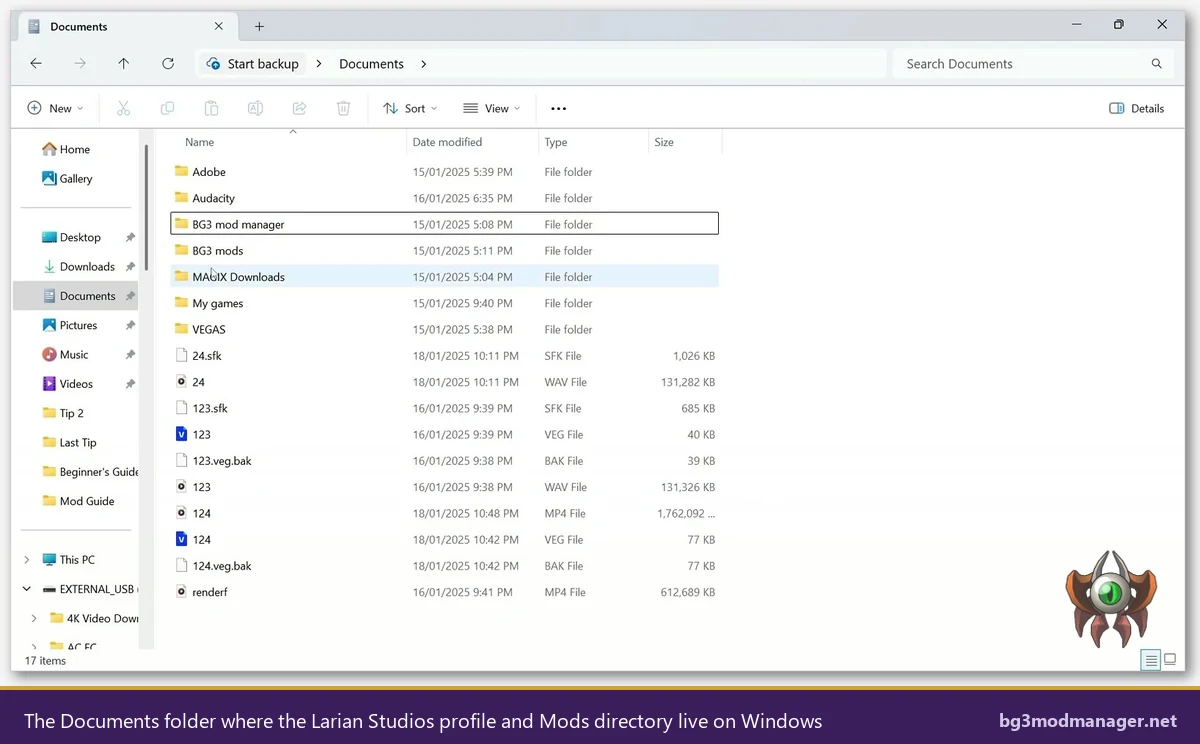
The Steam version may sit on a secondary drive if the user moved the library through Steam’s storage manager. Right-clicking the game in the Steam library and selecting Properties > Installed Files > Browse opens the actual install location, which can then be appended with \Data for the BG3MM field.
What “Game Data Path Not Set” Looks Like in BG3MM
- The Inactive Mods pane on the right is empty, and so is the Active Mods pane on the left.
- The status bar at the bottom of the window shows
0 mods loadedor no count at all. - The File > Reload menu option does nothing visible.
- The Tools menu item Open Mods Folder opens an empty File Explorer window or prompts a “path does not exist” dialog.
Second Most Common: Subfolders Inside the Mods Folder Trigger Reset
The Mods folder that BG3 Mod Manager scans is %LOCALAPPDATA%\Larian Studios\Baldur's Gate 3\Mods. The expanded path on most Windows installs is C:\Users\<username>\AppData\Local\Larian Studios\Baldur's Gate 3\Mods. The folder is created automatically the first time Baldur’s Gate 3 is launched. BG3 Mod Manager expects the contents of this folder to be a flat list of .pak files only: no subfolders, no readme.txt files, no .zip archives, no .json or .lsx files at the top level.
This constraint is documented across multiple GitHub issues on the project tracker. Issue #355 describes the load-order reset that fires when an unrecognised subfolder appears, and issue #313 covers the same behaviour after a Patch 7 game update where extracted mod archives placed their contents directly into the Mods folder. When the manager scans the directory and finds anything other than a .pak file or the recognised modsettings.lsx.bak backup, it can either skip the listing entirely or reset the load order to a default state on the next launch.
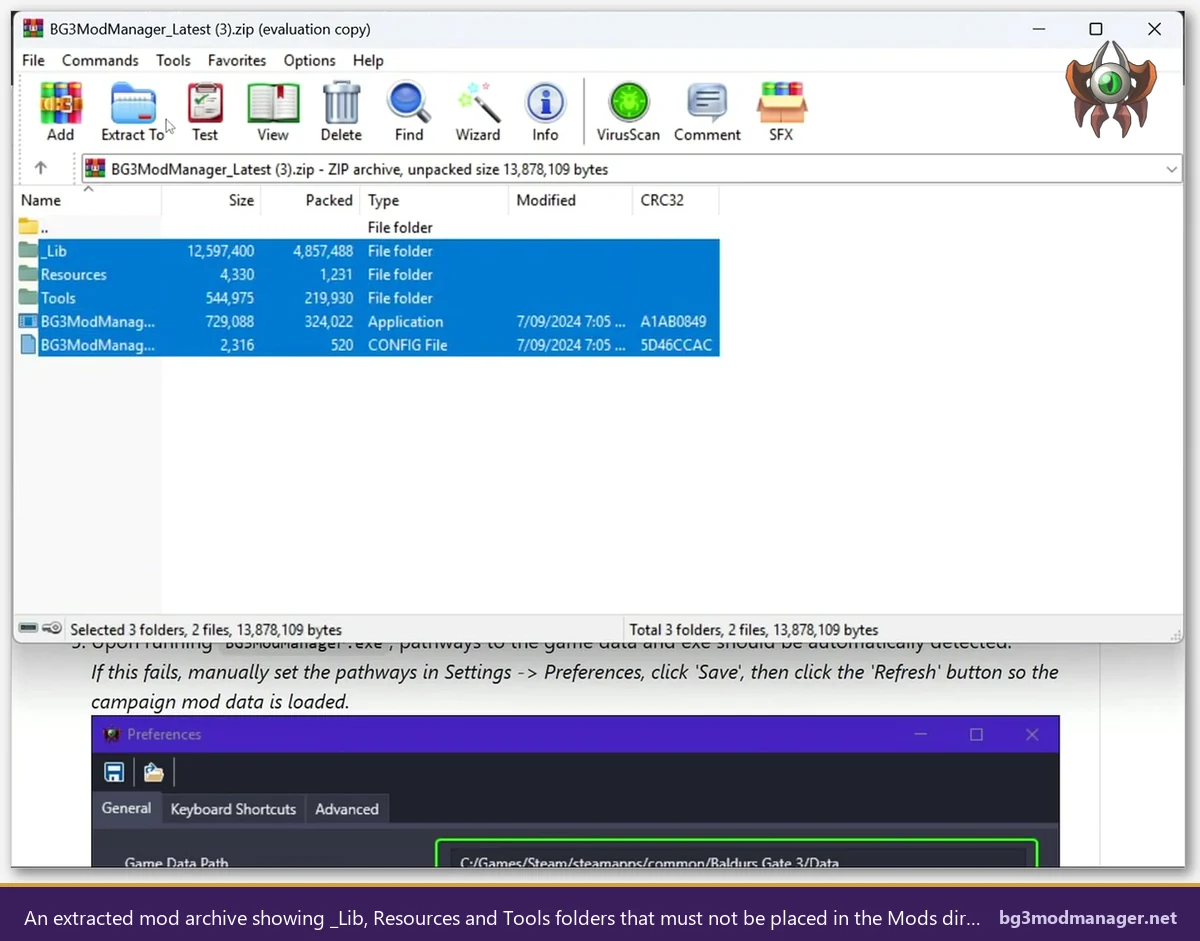
What to Remove From the Mods Folder
- Any subfolder named after a mod (for example
UnlockLevelCurveor5e Spells). Move the .pak file out of the subfolder, place it directly inMods\, and delete the now-empty subfolder. - Any .zip, .rar, or .7z archive sitting next to the .pak files. Archives must be extracted; the resulting .pak file is what BG3MM scans.
- Any readme.txt, install.txt, or stray .json file. These trigger the same reset behaviour as full subfolders.
- Files extracted from script-extender mods that include a
PublicorModssubdirectory. Those are intended for the BG3 install‘s Data folder, not the user-profile Mods folder.
After cleaning the folder, return to BG3 Mod Manager and click Refresh. The newly recognised mods appear in the Inactive Mods pane on the right. They are not active until they are dragged to the Active list and the load order is exported with File > Save Load Order to File followed by File > Export Order to Game.
The Refresh Button Trap: Path Saved but Refresh Not Clicked
BG3 Mod Manager loads the mod list once on application startup, and again only when the user explicitly clicks Refresh on the toolbar or selects File > Reload from the menu. Saving a corrected Game Data Path in Preferences does not trigger an automatic rescan: the dialog closes, the path is persisted, but the right pane still shows whatever it showed before the dialog was opened. This is the most common follow-up failure after a user has correctly identified and fixed a path issue. The path is right, the .pak files are right, and the Inactive list is still empty because no scan was requested.
The Refresh button sits on the main toolbar near the top of the window, usually as a circular-arrow icon. Hovering produces a “Refresh mods” tooltip. After clicking Refresh, the status bar at the bottom briefly shows a “Loading mods…” or “Scanning…” message, followed by a count of detected entries. A click that produces no tooltip change and no status-bar update generally means the Game Data Path or the Mods folder path is still unset; in that case return to Preferences and confirm both values are populated.
When Refresh Returns Zero Mods Despite Files Being Present
If Refresh runs to completion but the Inactive pane stays empty, the Mods folder path saved in Preferences likely points to the wrong location. The default value is auto-detected from the Larian profile, but a user who has set up multiple Windows accounts or migrated from an older install can end up with a path that resolves to a non-existent or empty directory. Open File > Preferences again, select the Folders or Paths tab depending on the BG3MM version, and confirm the Mods folder path matches the directory that File Explorer opens when typing %LOCALAPPDATA%\Larian Studios\Baldur's Gate 3\Mods in the address bar.
Active Campaign Not Selected in Dropdown (modsettings.lsx Export Blocked)
BG3 Mod Manager writes its load order to a file named modsettings.lsx located inside the active campaign’s profile directory under %LOCALAPPDATA%\Larian Studios\Baldur's Gate 3\PlayerProfiles\<Profile>\. The campaign that receives this file is selected in the dropdown at the top of the BG3MM window. If the dropdown shows no campaign, shows “<None>”, or shows a profile that no longer exists, the Export to Game step silently fails and the in-game mod list remains whatever it was before. Users frequently misread this as a “mods not detected” issue when the manager has actually detected the mods correctly but cannot push them to a campaign.
The fix is to launch Baldur’s Gate 3 once, create or load a save in the desired character profile, and then return to BG3 Mod Manager. The dropdown refreshes on the next Refresh click and lists the available campaigns. Selecting the active campaign before clicking Export to Game is required for the load order to take effect. This behaviour is referenced in issues #238 and #330, both of which describe scenarios where mods appear listed in BG3MM but never load in-game.
Permission, OneDrive, and WindowsApps Edge Cases
A small but persistent share of detection failures originate from Windows-side environment quirks rather than BG3MM itself. Three scenarios account for nearly all of them: GamePass installs that store the game under WindowsApps, OneDrive sync of the user’s Documents or AppData folder, and antivirus quarantine of .pak files. Each requires a slightly different fix.
GamePass / Microsoft Store Installs
Microsoft Store and GamePass copies of Baldur’s Gate 3 install under C:\Program Files\WindowsApps\Larian.BaldursGate3_*. The WindowsApps folder is locked down by Windows: standard users (and even most administrator accounts without explicit elevation) cannot read its contents, which means BG3 Mod Manager cannot resolve the Game Data Path even when the path is correct. The community workaround documented in issue #398 is to take ownership of the Larian.BaldursGate3 folder via File Explorer’s Security tab, grant read access to the current user, and then point BG3MM at the Data subdirectory. Some operators prefer to reinstall via Steam or GOG instead, since GamePass updates can periodically reset the permissions and reintroduce the detection failure.
OneDrive Syncing AppData or Documents
If the user’s Documents folder is redirected to OneDrive (the default on many Windows 11 installs with a Microsoft account), the Larian Studios profile may be stored under C:\Users\<username>\OneDrive\Documents\Larian Studios\ instead of C:\Users\<username>\Documents\Larian Studios\. BG3 Mod Manager auto-detects the non-OneDrive path by default and reports an empty Mods folder when the actual profile is one directory level off. The fix is either to disable OneDrive folder backup for Documents (Settings > Account > OneDrive backup) or to manually set the BG3MM Mods folder path to the OneDrive-redirected location. The %LOCALAPPDATA% Mods folder is not affected by OneDrive redirection because OneDrive does not sync the AppData hierarchy.
Antivirus Quarantine of .pak Files
Windows Defender and several third-party antivirus products occasionally flag newly downloaded .pak files as suspicious due to compressed binary content. The .pak file is silently moved to quarantine, leaving an empty Mods folder despite the user having “downloaded” the mod. Open Windows Security > Virus & threat protection > Protection history to confirm whether any .pak file has been quarantined in the last 24 hours, and restore it from there. Adding the Mods folder to the antivirus exclusion list prevents recurrence.
Diagnostic Procedure: Eight-Step Checklist
Operators who are still seeing an empty Inactive list after the section-by-section fixes above should run the following checklist top-to-bottom. Each step takes under a minute and isolates one specific cause. Stopping at the first step that flips the result from “0 mods detected” to a populated list is the expected outcome.
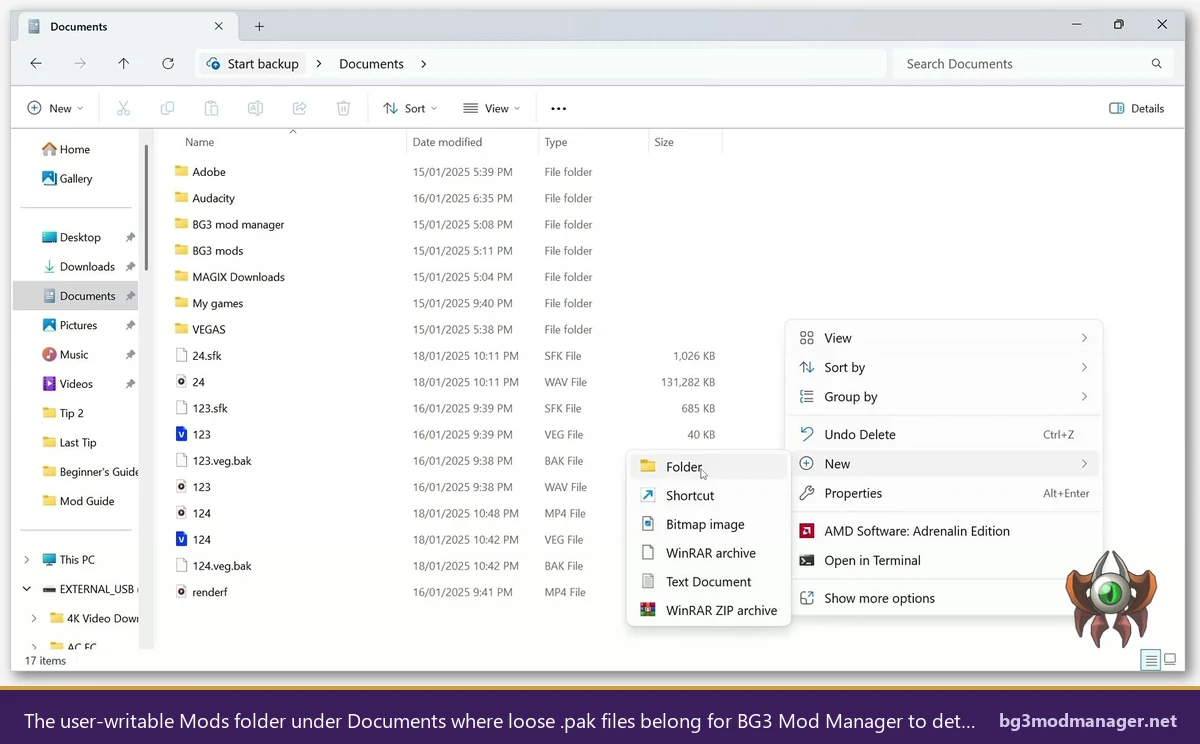
- Confirm the Mods folder path resolves. Open File Explorer, paste
%LOCALAPPDATA%\Larian Studios\Baldur's Gate 3\Modsinto the address bar, and press Enter. If the folder does not exist, launch Baldur’s Gate 3 once to a save screen, then quit and check again. The folder is created on first launch only. - Verify .pak files are present and loose. The folder should contain only files ending in
.pak. Anything else (subfolders, archives, readmes) needs to be removed before the next step. - Open BG3 Mod Manager Preferences. File > Preferences > General. Confirm the Game Data Path field ends in
\Dataand that the Game Executable Path ends in\bg3.exeor\bg3_dx11.exe. - Save preferences and click Refresh. Save closes the dialog; Refresh on the toolbar triggers the actual rescan. Watch the status bar at the bottom for a count.
- Check the active campaign dropdown. The selector at the top of the window must show a real campaign name, not “<None>” or a blank entry. If empty, launch the game, load a save, exit, and Refresh again.
- Inspect Windows Defender protection history. Windows Security > Virus & threat protection > Protection history. Restore any quarantined .pak files from the last 24 hours.
- Test with a known-good mod. Download a small, well-tested mod (for example, an Achievements Enabler) directly from its source page. If this mod is detected and the original mod is not, the original .pak is corrupted or invalid. Issue #404 covers a class of malformed .pak archives that BG3MM silently skips.
- Run BG3MM as Administrator (last resort). Right-click
BG3ModManager.exeand choose Run as administrator. This is only required for GamePass installs or unusual permission states; for Steam and GOG installs it should not be necessary.
When to Reinstall vs When to Reset the Profile
If all eight checklist steps pass and BG3 Mod Manager still detects zero mods, the next escalation is a profile reset, not a manager reinstall. The BG3MM application binary is portable and rarely the source of detection failures: the actual state lives in %APPDATA%\BG3ModManager, where saved load orders, cached mod fingerprints, and the Preferences XML are stored. Renaming this folder to BG3ModManager.bak and relaunching the application creates a fresh profile, after which the Game Data Path and Mods folder must be re-entered. This resolves the rare case where a corrupted preferences file holds an unreachable path that the UI continues to display as valid.
A full reinstall (deleting the application folder and re-extracting BG3ModManager_Latest.zip from the official download page) is only justified after a profile reset has been attempted and failed. The community-recommended order of escalation is: refresh, fix paths, clean the Mods folder, reset the profile, then reinstall. Skipping straight to reinstall wastes time because the new install reads the same broken preferences from %APPDATA% on first launch.
Walkthrough Video
Frequently Asked Questions
Further reading and the full source for BG3 Mod Manager are available on the official LaughingLeader/BG3ModManager GitHub repository. The latest signed release is also linked from the download page, and a general overview of the tool is on the main BG3 Mod Manager guide.