
Baldur’s Gate 3 Patch 7 introduced an official, in-client way to browse and install mods without leaving the game: Larian’s in-game Mod Manager. The feature, accessible from the title screen, pulls listings from mod.io’s Baldur’s Gate 3 hub and writes subscribed mods directly into the user’s profile so they load on the next save. This guide walks operators through every step of the official BG3 mod browser flow, explains how it interacts with third-party tools such as the BG3 Mod Manager from LaughingLeader, and clarifies which workflow each player should pick. Examples and limitations referenced here are drawn from Larian’s official mod support FAQ (article 113) and verified against the live Patch 7 client.
Patch 7 Required for the Larian In-Game Mod Manager
This guide focuses on the Larian in-game mod manager that ships with Patch 7 and later. Operators on console (PS5, Xbox Series X/S) follow the same flow once the per-platform certification rollout completes. PC users on Steam and GOG can use the manager today.
What Patch 7 Added: The Official In-Game Mod Manager
Before Patch 7, every supported BG3 mod workflow involved third-party software. Players downloaded .pak files from Nexus Mods, dropped them into %LOCALAPPDATA%\Larian Studios\Baldur's Gate 3\Mods, and used a tool such as the BG3 Mod Manager (LaughingLeader) to assemble and export modsettings.lsx. Patch 7 changed this baseline by shipping an official BG3 mod browser inside the game client itself.
The Patch 7 in-game manager runs against mod.io’s BG3 catalog, which Larian curates jointly with the mod.io platform team. Mods that pass Larian’s review process appear in the in-client browser and synchronize across devices on a single Larian account. The feature is the official path mentioned in Larian’s mod support FAQ and replaces the previous “drop the .pak in the Mods folder” approach for users who want a no-configuration experience.
The list of changes Patch 7 introduced for modding goes beyond the in-client browser. Larian shipped an official authoring toolkit (the BG3 Toolkit) on Steam, deprecated raw “Override” mods that overwrote pak files outside modsettings.lsx, and rewrote how the engine resolves the modsettings file at boot. Several upstream tracking issues, including BG3 Mod Manager issue #353 on Patch 7’s modsettings.lsx changes and issue #418 on Override mod deprecation, document how downstream tools adapted.
How to Open Larian’s In-Game Mod Manager from the Main Menu
The Larian in-game mod manager is reachable only from the title screen. Players cannot open it during an active save: the engine loads the mod set at game launch and re-applies it at every save load. The two tabs that matter are Browse and Installed.
- Launch Baldur’s Gate 3 through Steam, GOG Galaxy, or the platform’s native launcher. Confirm the build version on the title screen is 4.1.1.x or newer (Patch 7 baseline).
- Click “Mods” on the main menu. The button sits next to Load, New Game, and Multiplayer.
- Accept the mod disclaimer the first time the manager opens. Larian’s prompt explains that mods can affect achievements and save-game compatibility. The disclaimer appears once per profile.
- Switch between Browse and Installed. Browse lists mod.io’s curated BG3 catalog. Installed shows what the current Larian profile has subscribed to, including mods that need updates.
Browse vs Installed: What Each Tab Does
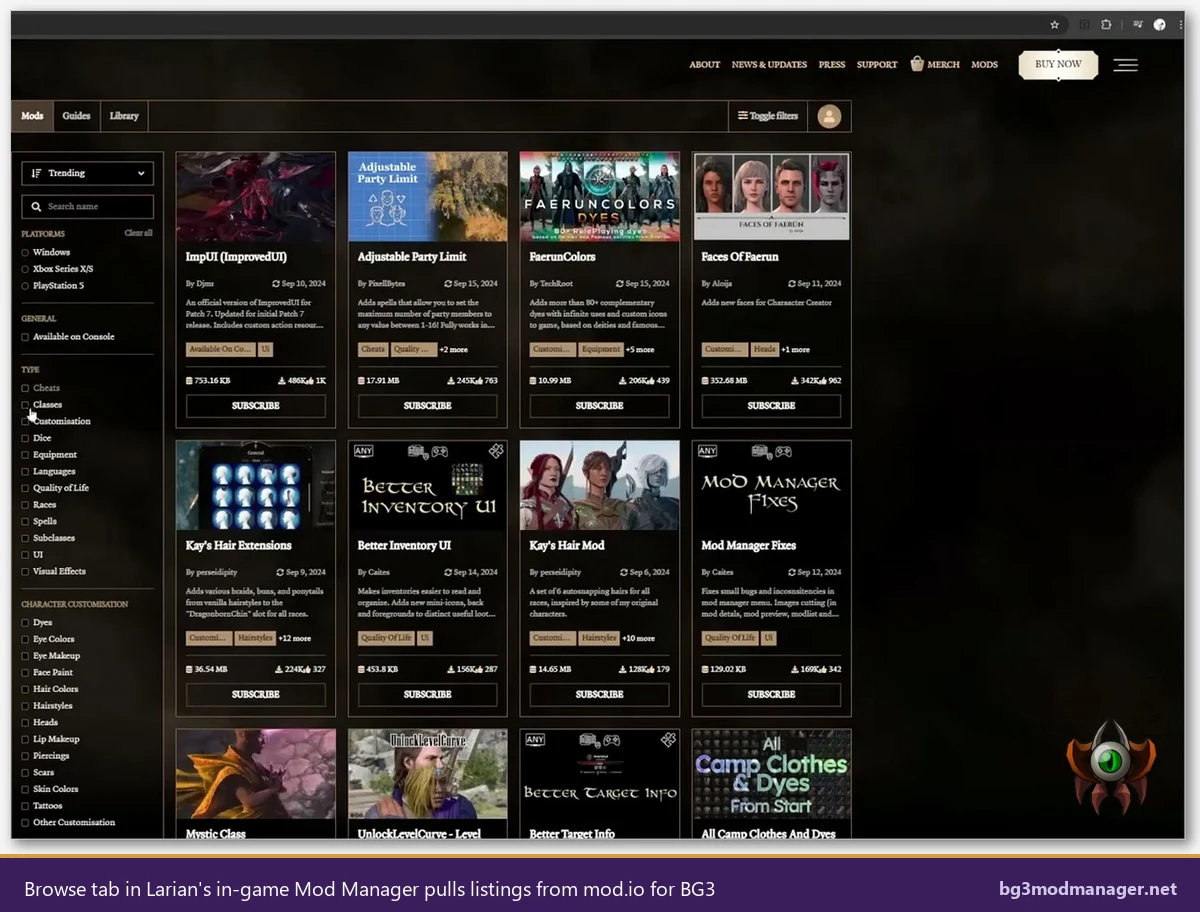
The Browse tab is read-only catalog navigation. Filters across platform (Windows, PlayStation 5, Xbox Series X/S) and category (Classes, Customisation, Equipment, Quality of Life, Visual Effects, and several others) narrow the grid. Each card shows the mod author, last-updated date, file size, subscriber count, and platform tags.
The Installed tab is the active set. Items here are downloaded into the profile’s mod cache and slotted into modsettings.lsx on the next launch. The Installed tab also shows update badges when mod.io serves a newer version, and an “Update All” action applies them in one pass.
Linking a Larian Account and a mod.io Account
Subscribing to mods in the in-game manager requires two linked accounts: a Larian account (used for cross-platform progression) and a mod.io account (the catalog backend). The first time a player clicks Subscribe on a mod card, the client opens a sign-in flow that walks through both.
- Sign in to Larian. The prompt accepts an existing Larian account or creates a fresh one tied to the storefront identity. Steam users can authenticate through Steam; console users authenticate through PSN or Xbox Live.
- Authorize mod.io. The client launches a one-time mod.io OAuth handshake. The mod.io account stores the subscription list, and the BG3 client treats it as the source of truth.
- Confirm linkage in Settings. The Mods screen shows both account avatars in the top-right once linkage is complete. Subsequent launches skip the sign-in flow until the auth token expires.
Console Crossover and Cross-Platform Saves
A subscription made on PC follows the Larian account to console once Patch 7 has rolled out on that platform. Save files moved between platforms must use the same mod set, otherwise the engine loads the save in vanilla mode. Larian’s FAQ recommends keeping a screenshot or note of the active mod list before transferring a save across devices.
Browsing, Installing, and Updating Mods Through the In-Game Manager
With both accounts linked, every mod operation collapses into a single click. The flow below covers the standard install, update, and unsubscribe paths.
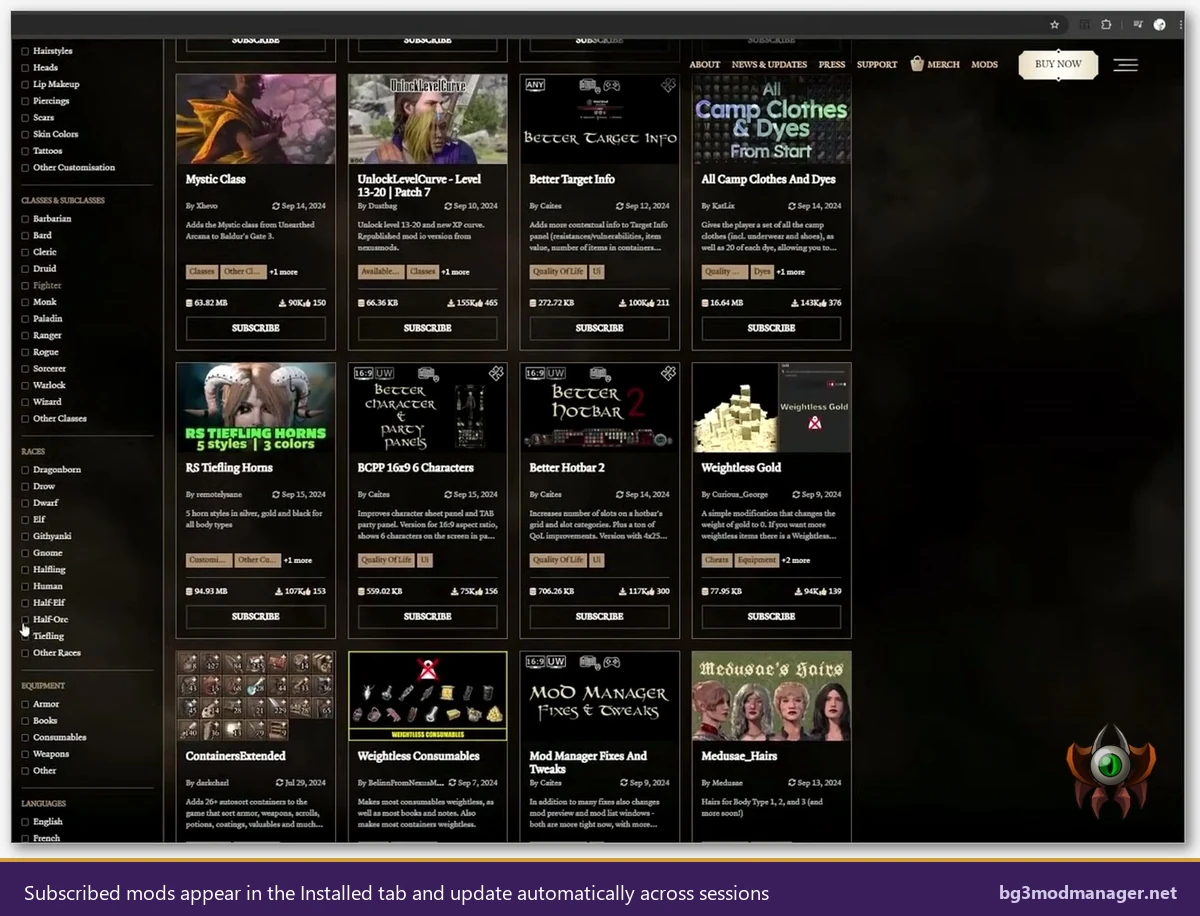
- Filter the Browse grid. Use the left-rail filters (Platform, Category, Tags) to narrow the catalog. The “Trending” sort surfaces mods with recent subscription growth, and “Most Subscribed” surfaces long-running staples.
- Open a mod’s detail card. Each card lists the changelog, dependency declarations, file size, last-updated timestamp, author handle, and a screenshot reel.
- Click Subscribe. The client downloads the .pak file directly into the BG3 mod cache and writes the corresponding entry into
modsettings.lsxat the next launch. No manual file movement is required. - Update mods from the Installed tab. Outdated subscriptions show a yellow “Update” badge. Update All triggers a batch fetch.
- Unsubscribe to remove a mod cleanly. Unsubscribe deletes the .pak from the cache and rewrites
modsettings.lsx. This is the only safe way to remove an in-game-manager mod, since manually deleting the file leaves a stale modsettings entry.
Manager-Installed Mods Live in a Separate Cache
Mods installed via the Larian in-game manager live in a managed cache, not the user-writable Mods folder under %LOCALAPPDATA%. Operators who try to mix manual .pak drops with manager-installed mods often see the manager rewrite modsettings.lsx and remove their manual entries.
Coexistence with BG3 Mod Manager: The Hybrid Workflow
Larian’s in-game manager and LaughingLeader’s BG3 Mod Manager are not mutually exclusive. Many established modders run both: the in-game manager for mod.io-curated content, and the BG3 Mod Manager for everything else (Nexus-only mods, Script Extender setups, manual load order arrangement, JSON export). The BG3 Mod Manager download page documents the standalone tool’s prerequisites and runtime requirements.
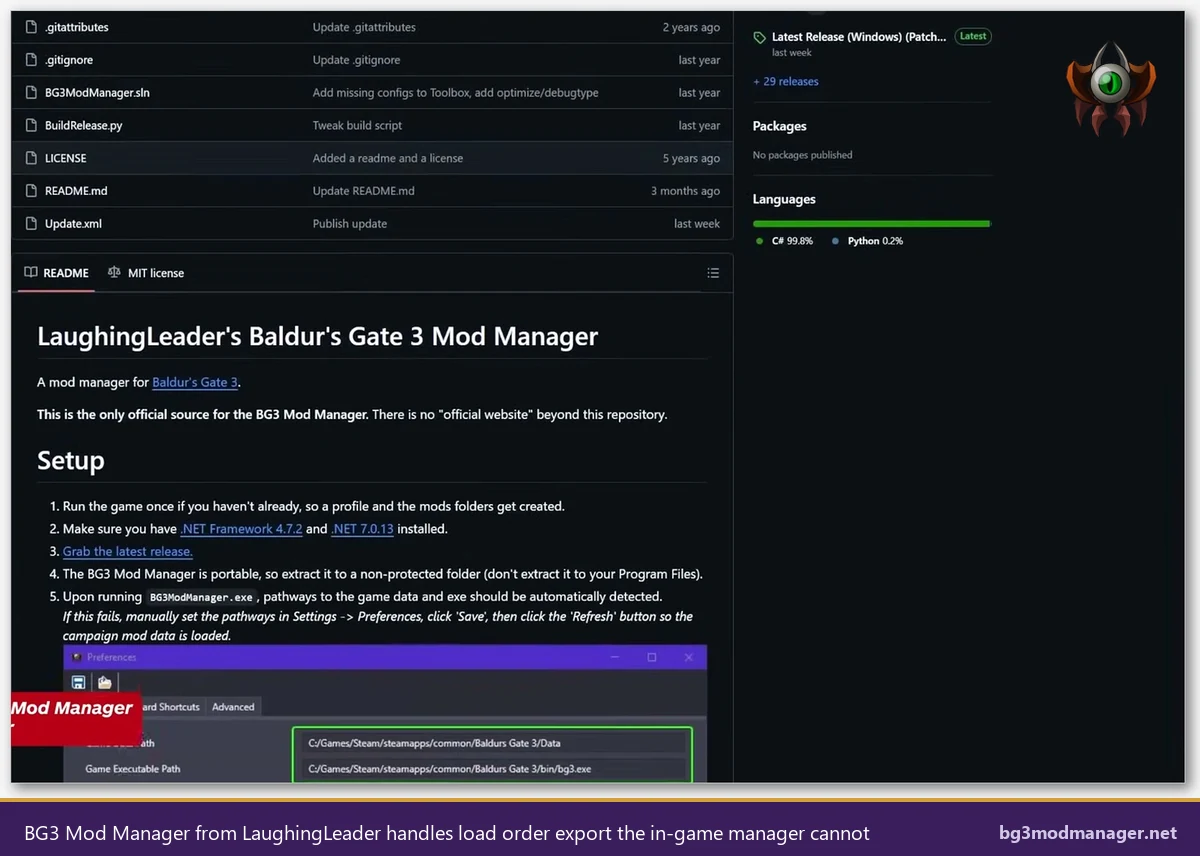
The hybrid workflow looks like this. The in-game manager subscribes to mod.io content. The BG3 Mod Manager points at the same %LOCALAPPDATA%\Larian Studios\Baldur's Gate 3 tree, reads the modsettings.lsx that the in-game manager writes, and adds Nexus-only .pak files to the same load order. After Refresh, both sources appear in the BG3 Mod Manager interface and can be reordered. Export Order to Game writes the merged list back to modsettings.lsx.
- Subscribe to mod.io mods through the in-game manager. Treat this as the install path for anything mod.io carries.
- Drop Nexus-only .pak files into the user mod folder. The path is
%LOCALAPPDATA%\Larian Studios\Baldur's Gate 3\Mods. - Open BG3 Mod Manager and click Refresh. Both sources appear in the active list.
- Order the merged list, then Export Order to Game. The exported modsettings.lsx becomes the authoritative load order.
The order of operations matters: closing BG3 Mod Manager first, then re-opening the in-game manager, may cause the in-game manager to rewrite modsettings.lsx and revert the manual ordering. Operators who use both tools learn to make BG3 Mod Manager the last writer before launching the game.
What the In-Game Manager Cannot Do
The Patch 7 in-game manager is a curated catalog browser. By design it leaves several power-user features outside its scope, and players who hit those limits are the ones who keep BG3 Mod Manager alongside it.
- No Script Extender integration. Norbyte’s Script Extender (BG3SE) extends the engine with Lua scripting and is required for many high-impact community mods. The in-game manager does not install or surface BG3SE. Players need a separate workflow such as BG3 Mod Manager’s Tools > Download & Extract Script Extender menu item.
- No Nexus Mods integration. Mods exclusive to Nexus Mods never appear in the catalog because Larian’s curation pipeline runs against mod.io. Manual download is the only path.
- No JSON load order export. The in-game manager does not export load orders to portable JSON files. Sharing a load order with a co-op partner or backing it up requires BG3 Mod Manager’s File > Export Order to JSON option.
- No fine-grained reordering. Reordering inside the in-game manager is limited; manual drag-and-drop placement at the row level is a BG3 Mod Manager feature, not an in-game-manager feature.
- No support for legacy “Override” mods. Per issue #418, override-style mods that overwrote stock pak files are deprecated post-Patch 7 and do not appear in either the in-game catalog or BG3 Mod Manager’s load order.
When to Pick BG3 Mod Manager Over the In-Game One
The decision is rarely all-or-nothing. The deciding factors are the mod sources and the workflow needs.
Pick the Larian In-Game Mod Manager When
- The desired mods are all on mod.io and the player wants zero-touch installation.
- Cross-platform progression matters (PC plus PS5 plus Xbox).
- Auto-updates are a hard requirement and the player does not want to track release notifications manually.
Pick BG3 Mod Manager When
- The mod list includes Nexus-only releases or beta builds outside mod.io’s curation.
- Script Extender is required by any mod in the load order.
- Load orders need to be exported as JSON, archived, or shared with another player.
- Manual reordering of dozens of mods is part of the workflow.
The recommended default for most modders in 2026 is the hybrid workflow: subscribe through the Larian in-game manager wherever possible, fall back to BG3 Mod Manager for everything else, and let BG3 Mod Manager be the last tool to write modsettings.lsx before launch. The full primer on the standalone tool, including .NET 8 prerequisites and first-time setup, lives on the BG3 Mod Manager homepage.
Video Walkthrough
The video below covers the same Patch 7 in-game manager flow described above, including the mod.io account link step and the Browse-vs-Installed tab switch.